<- View all workflow automations

Pull tables from PDFs into clean Excel — no broken columns

Financial reports, bank statements, freight manifests, rate sheets, if it has a table in a PDF, Lido extracts it into a properly structured Excel spreadsheet. No copy-paste, no reformatting, no wasted afternoon on a single document.

  • Preserves table structure. Columns stay columns, headers map correctly, and multi-line cells are handled cleanly. The output is usable the moment you open it.
  • Multi-table and multi-page. Documents with multiple tables across multiple pages extract every table, correctly separated and labeled.
  • Batch extraction. Drop a folder of reports and Lido extracts all tables from every file. Output lands in one consolidated workbook or a file per document.
Trusted by thousands of finance and operations teams

How table extraction works in Lido

1

Upload documents with tables

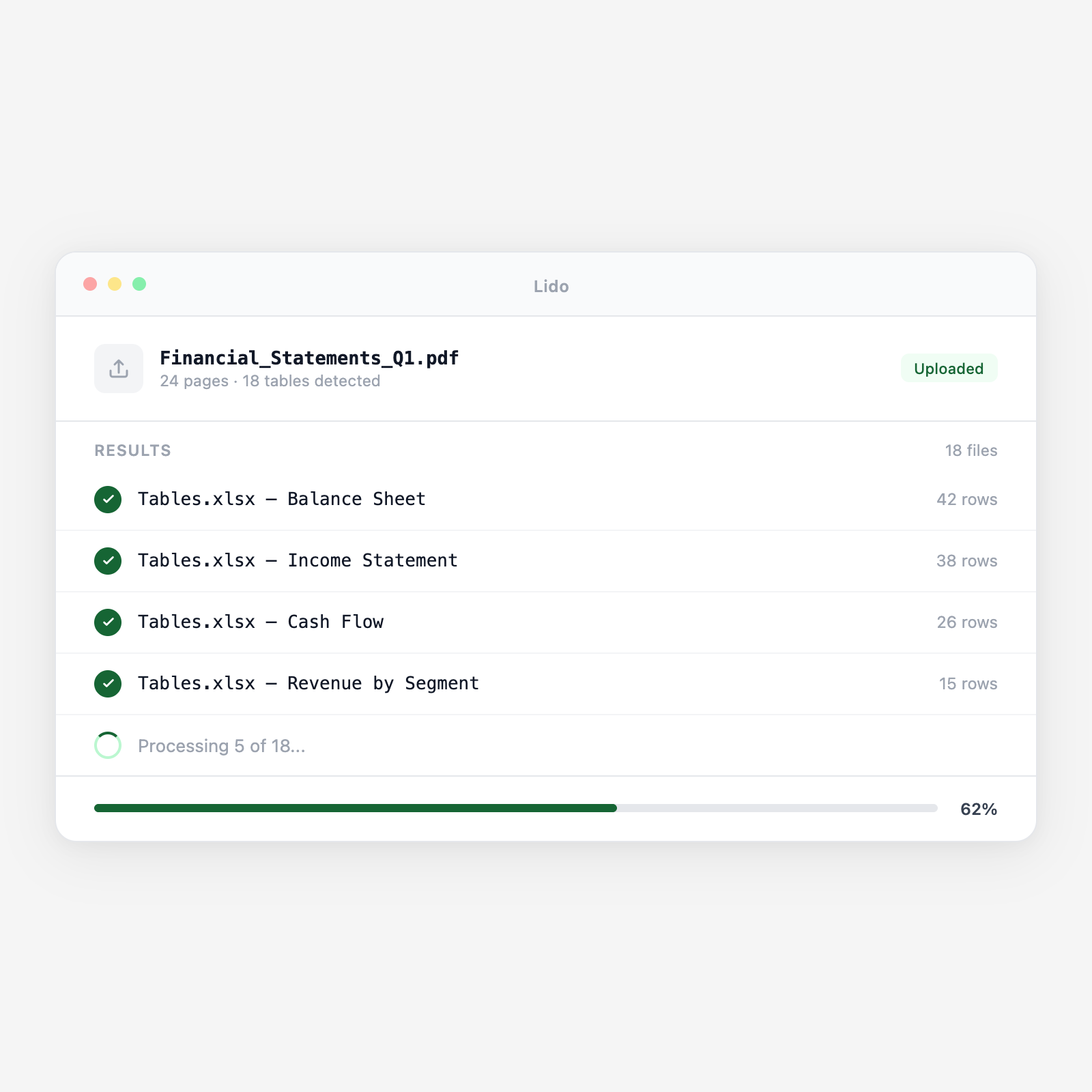
Drop PDFs directly, connect a folder, or pull from a shared drive. Lido identifies every table in every document automatically.

2

Extract table structure

Lido reads each table, identifies headers, aligns rows and columns, and preserves the structure, including multi-row cells, merged headers, and footnotes.

3

Output to clean Excel or CSV

Each table becomes a properly structured worksheet. Multiple tables from the same document appear on separate sheets. The output is ready for analysis, reconciliation, or database import.

Try it free

See this workflow run on your documents

Upload a batch and get structured output in minutes.

Why PDF tables resist every free conversion tool

The reformatting nightmare

Free PDF-to-Excel tools dump table content as plain text with broken columns, merged cells, and split values that span multiple rows. You spend more time cleaning the output than you saved by converting. Scanned tables are worse, the OCR reads characters but loses all structure, leaving you with a column of numbers that have no relationship to their headers.

Lido understands table structure, not just characters

Lido reads the visual layout of each table, column positions, row groupings, header rows, spanning cells, and preserves that structure in the output. A 12-column financial statement comes out as 12 clean columns. A scanned freight manifest with 8 columns comes out the same way. The output is correct, not just close.

Lido vs free PDF-to-Excel converters

FeatureLidoFree converters
Preserves column alignment and row structure
Extracts tables from scanned (image) PDFs
Handles multi-table documents correctly
Batch-extract from hundreds of files
Multi-page tables with repeated headers
Convert a single file for free
Table extraction

A table that takes 20 minutes to copy by hand extracts in seconds

Process your first batch of financial statements or manifests and see the difference in output quality.

Common use cases

Finance

Extract financial statement tables for analysis

Pull income statement, balance sheet, and cash flow tables from annual reports or filings. Output lands in a structured workbook ready for financial modeling or variance analysis.

Accounts Payable

Extract vendor statement tables for reconciliation

Vendor statements arrive as PDFs with aging tables and open invoice lists. Lido extracts the table into Excel for comparison against your AP ledger.

Logistics

Extract freight manifest and rate tables

Rate sheets, freight bills, and customs manifests contain dense tables. Extract them into structured spreadsheets for rate verification and shipment reconciliation.

Operations

Extract inspection and compliance tables

Regulatory inspection reports and compliance scorecards arrive as PDFs. Extract the scoring tables into Excel for tracking, trending, and reporting.

Stop reformatting PDF tables by hand

Try Lido free. Upload a PDF with tables and see clean Excel output in minutes.