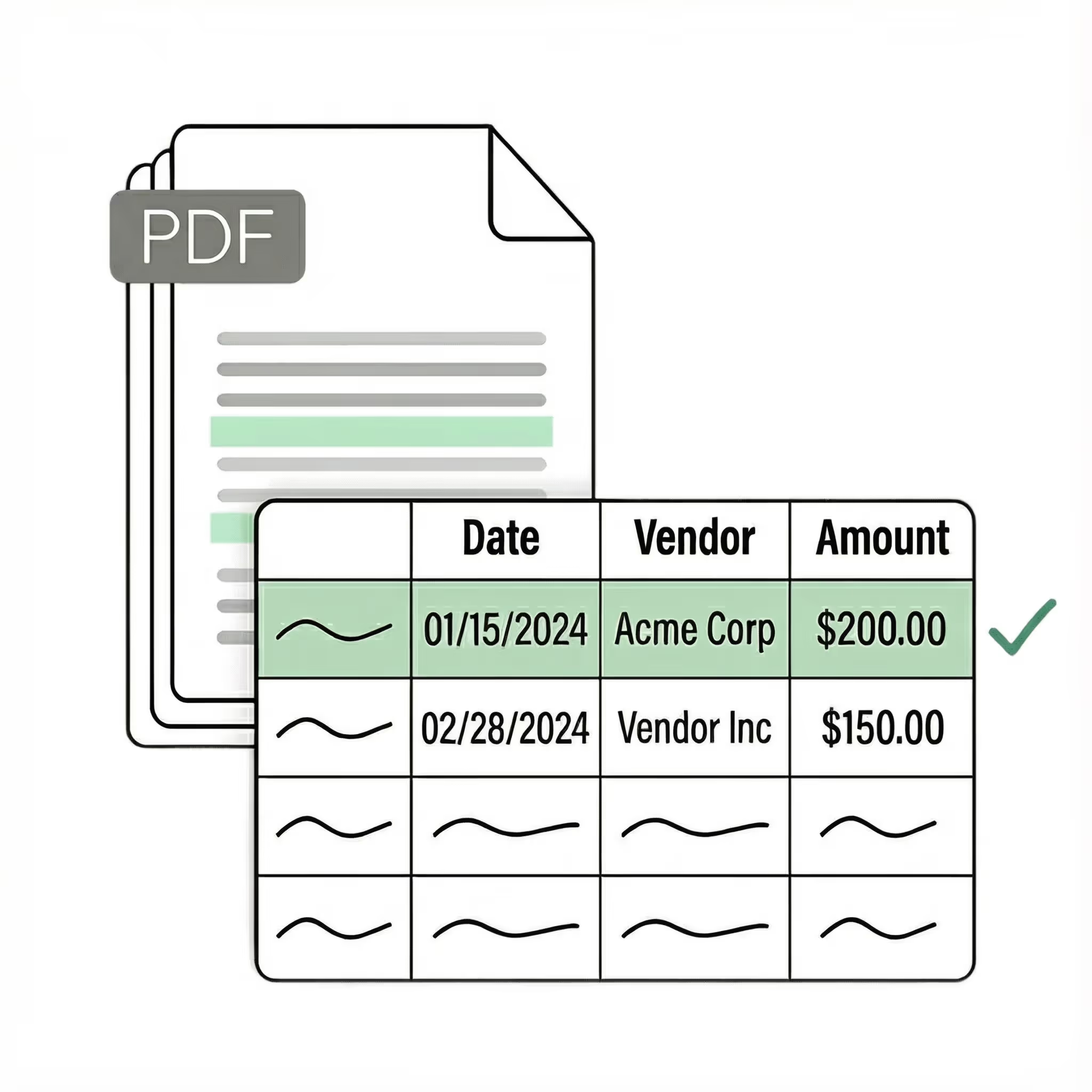
Bank Statement OCR

Accurately extract data from any bank statement into a spreadsheet with the #1 AI OCR tool.
  • Process your first bank statement in <5 minutes with template-free intelligent document processing
  • Works with any document format out-of-the-box
  • 99.9% field-level accuracy across every layout
  • No credit card required
  • 50 free pages
Trusted by hundreds of finance and operations teams
Demo video

See Lido in action

Watch and learn how you can use Lido to extract data from any PDF in less than 5 minutes.
Claim your 50 free PDF pages today!
  • No credit card required
  • 20 free pages
Reviews

What our customers are saying

Template-free data extraction

Extract data from any bank statement in minutes. No complex training required — just type in plain English.

Transform your bank statements into structured data in minutes. Lido makes multi-week document processing implementation periods a thing of the past. Just upload your documents, define your extraction fields, then extract.

AI Powered Bank Statement OCR

Extract key data points from PDFs, images, and emails into structured table columns (e.g., name, date, invoice number).
Spreadsheet displaying vendor names, dates, and amounts with an extract data panel showing selected columns for extraction: vendor, date, and amount.
Example: Extracted data customized with user-defined rules.

Get started today with 50 free page conversions

  • No credit card required
  • 50 free pages
-OR-
Seamless integration

Import from...

Seamlessly import files from your desktop, shared drives, or email.

Export to...

Automatically send extracted data to Excel, Google Sheets, QuickBooks, or your ERP.

How to convert bank statements to Excel for reconciliation

Bank reconciliation depends on every transaction matching to the penny. One misread amount, one skipped transaction, one line that got split across two rows — and the whole rec is off. That's why the conversion step matters more for bank statements than almost any other document type.

Manual entry is where most errors start. A person reading a 15-page Chase statement and typing each transaction into Excel will make mistakes — transposing digits, misreading a debit as a credit, skipping a line, entering "1,234" as "1,243." These errors are invisible until the reconciliation fails, and tracking them down takes longer than the original data entry.

PDF-to-Excel converters introduce different problems. They read table formatting and dump it into a spreadsheet, but bank statement tables don't follow simple rules. Transactions carry across page breaks — a description starting on page 3 continues on page 4. Running balances reference the previous page's ending balance. Summary sections and interest calculations appear between transaction tables. The converter flattens all of this into a grid, creating duplicate entries at page breaks, splitting transactions across rows, and losing the running balance thread.

Then there's the format variance problem. Chase, Wells Fargo, Bank of America, regional banks, credit unions — each formats statements differently. Column orders, field labels, header placement, how they handle multi-page tables, where summaries appear. A tool configured for one bank's format won't work on another without reconfiguration.

Lido converts bank statements from any bank into structured, reconciliation-ready Excel data — with every transaction in the right row, debits and credits correctly separated, and running balances preserved across page breaks. You upload a statement from any bank in any format (digital PDF, scan, or photo), and Lido returns date, description, debit, credit, and running balance in clean columns. Multi-page statements are stitched into a single continuous table. No per-bank templates or configuration.

For teams reconciling statements from multiple banks monthly, this eliminates both the manual entry errors and the format cleanup that make bank recs take days instead of hours.

Case Studies

Soldier field saves 20+ hours each week by automating invoice processing with Lido

Aerial view of Soldier Field stadium surrounded by greenery and city buildings in Chicago at sunset.
"What used to take us 20 hours each week now takes just 30 seconds per invoice. Lido has completely transformed our workflow."
Read the full case study ->
Security

Enterprise grade security and compliance

SOC 2 Type 2

HIPAA

Encryption

Information safeguarded with AES-256 encryption, both at rest and during transmission.

No training on your data

Your data remains untouched for AI training, backed by comprehensive data processing agreements.
What is the best OCR tool for bank statements?

Lido is the best OCR tool for bank statements because it reads any bank format — scanned paper, digital PDF, or image — without templates or manual configuration. Soldier Field's finance team saved 20 hours per week by replacing manual bank statement entry with Lido's automated extraction.

How do I extract transactions from a scanned bank statement?

Lido extracts every transaction from scanned bank statements automatically, including dates, descriptions, amounts, and running balances. Simply upload the scanned file and Lido returns structured, spreadsheet-ready data — no pre-processing or image cleanup required.

Can OCR software handle multi-page bank statements?

Lido handles multi-page bank statements of any length, stitching transactions across page breaks into a single continuous table. It preserves running balances and page-spanning entries that trip up basic OCR tools.

Do I need to set up templates for bank statement OCR?

Lido requires zero templates — its AI reads the layout of any bank statement on the fly, regardless of issuing bank or format. Hocutt freed 85% of their accounts-payable capacity by eliminating the template maintenance that slowed down their previous OCR workflow.

What is the best bank statement OCR software for reconciliation?

The best bank statement OCR software extracts every transaction accurately from any bank's format — without per-bank templates and without losing data at page breaks. Lido does this using AI that reads document structure rather than relying on predefined table coordinates.

Upload a statement from Chase, Wells Fargo, Bank of America, a regional bank, or a credit union — Lido extracts dates, descriptions, debits, credits, and running balances into structured Excel or Google Sheets columns. Multi-page statements are stitched into a single continuous table with running balances preserved. Lido is SOC 2 Type 2 certified with AES-256 encryption, meeting security requirements for financial document processing. No per-bank setup, no reconfiguration when a bank updates their format.

How accurate is bank statement OCR for financial reconciliation?

Reconciliation accuracy is the metric that matters — a single misread digit can throw off an entire bank rec. Lido delivers 99%+ field-level accuracy on bank statements, correctly distinguishing debits from credits, preserving running balances across page breaks, and parsing the free-form transaction descriptions that trip up simpler tools.

This exceeds manual data entry accuracy. A person typing 300 transactions from a 15-page statement will make transposition errors, skip lines, and misread amounts — especially on scanned or faded documents. Lido eliminates these errors because it reads the full document context, not individual characters. Teams processing monthly reconciliations across multiple bank accounts report cutting their bank rec time from days to hours.

How do I convert bank statements from multiple banks into one spreadsheet?

Lido processes bank statements from any bank without per-bank configuration. Upload statements from Chase, Wells Fargo, your regional bank, and a credit union — each with different column layouts, field names, and page structures — and Lido extracts them all into the same column format: date, description, debit, credit, running balance.

This means you don't need separate templates or tools for each bank. The output is normalized — every bank's transactions land in the same columns — so you can consolidate multiple accounts into a single workbook for reconciliation. Upload a statement from a bank Lido has never seen before, and it extracts correctly on the first try.

How do I convert scanned or paper bank statements to Excel?

Upload a scan or smartphone photo of any bank statement and Lido extracts every transaction into structured Excel columns. The AI handles the noise, skew, low resolution, and shadows that come from scanning or photographing paper — no preprocessing or image cleanup needed.

This is particularly relevant for teams that receive statements from smaller banks, credit unions, or international institutions that still mail paper. Instead of typing transactions from paper into a spreadsheet, you scan the pages, upload to Lido, and get reconciliation-ready data back. Lido is SOC 2 Type 2 certified with AES-256 encryption at rest and in transit, meeting the security bar for handling financial documents.

Start today with 50 free pages

  • No credit card required
  • 50 free pages
  • No technical knowledge needed
Schedule a demo ->