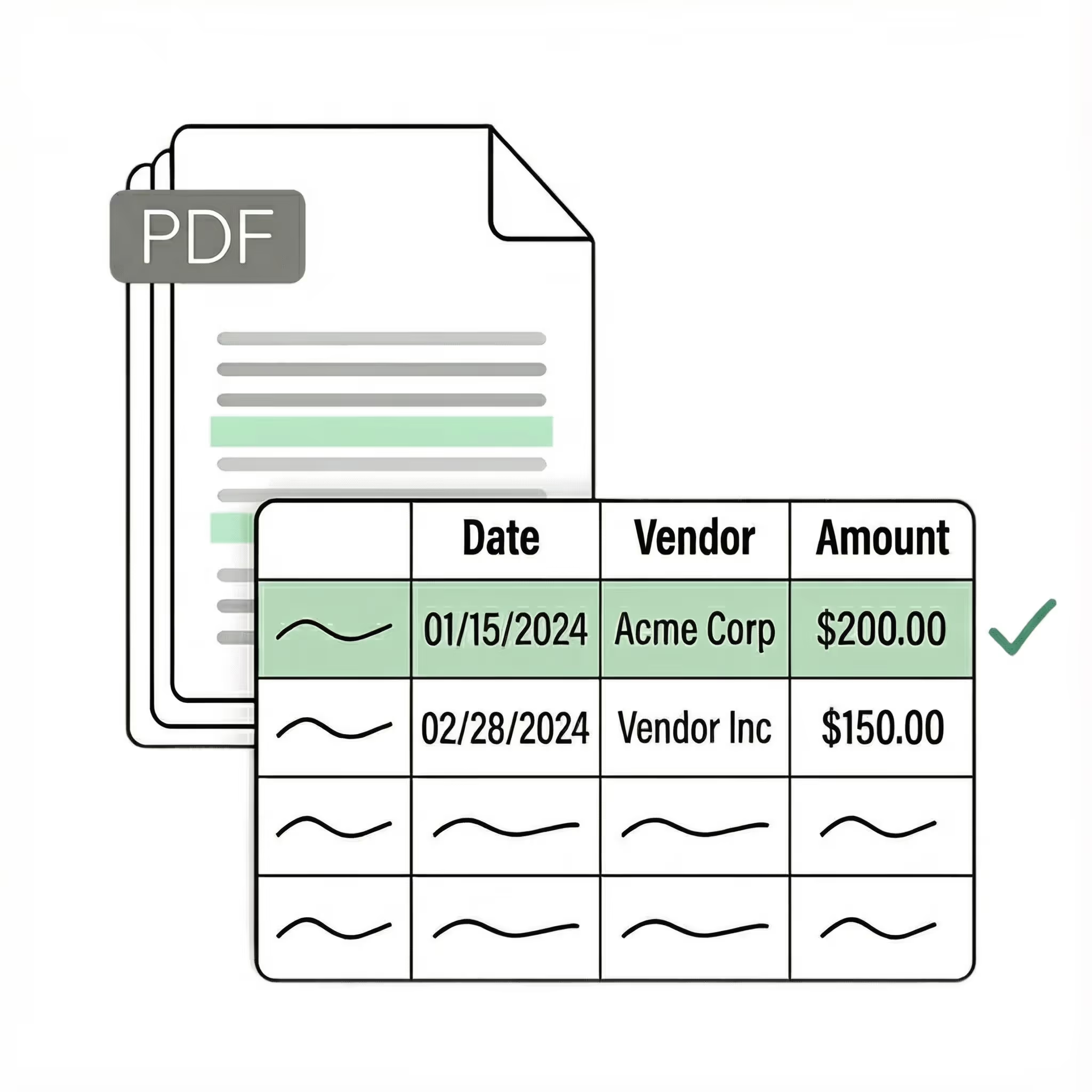
Google Drive OCR

Automatically extract text and tables from the PDFs, scans, and images sitting in your Google Drive directly into Google Sheets or Excel.
  • Connect a Drive folder once and new files are OCR'd automatically every 5 minutes
  • Extracts tables, handwriting, and scans that Google's built-in OCR can't handle
  • 99.9% field-level accuracy, structured into the exact columns you define
  • No credit card required
  • 50 free pages
Trusted by thousands of finance and operations teams
Demo video

See Lido in action

Watch and learn how you can use Lido to extract data from any PDF in less than 5 minutes.
Claim your 50 free PDF pages today!
  • No credit card required
  • 20 free pages
Reviews

What our customers are saying

Template-free data extraction

Extract data from any file in your Drive in minutes. No templates or training, just type in plain English.

Turn a Drive folder full of scanned invoices, contracts, and image PDFs into structured spreadsheet data in minutes. Connect the folder, define your extraction fields, and Lido processes every new file automatically.  Say goodbye to brittle scripts, Zapier chains, and opening files one by one in Google Docs.

AI-Powered OCR for Google Drive

Extract key data points from the PDFs, images, and scans in your Drive into structured table columns (e.g., vendor, date, invoice number). Customize rules in plain English, like: "If the vendor name is Disney, return the description as MICKEY in all caps."
Works with...
  • Invoices
  • Purchase orders
  • Receipts
  • Resumes
  • IRS tax forms
  • Any document
Spreadsheet displaying vendor names, dates, and amounts with an extract data panel showing selected columns for extraction: vendor, date, and amount.
Example: Extracted data customized with user-defined rules.
Get started today with 50 free page conversions
  • No credit card required
  • 50 free pages
Seamless integration

Import from...

Connect a Google Drive folder and Lido picks up new files automatically. Or import from your desktop, shared drives, or email.

Export to...

Send extracted data straight to Google Sheets as new files arrive.

How to OCR files in Google Drive

Google Drive has a built-in OCR trick most people don't know about: right-click any image or scanned PDF, choose "Open with" → Google Docs, and Drive converts the file automatically — the extracted text appears below the original image. It's free, requires no setup, and for a one-off file it's genuinely the fastest option available.

The limitations show up as soon as the job is bigger than one file. The output is a Google Doc of raw text, not data — tables collapse into jumbled lines, with columns interleaved and amounts separated from their labels. It processes one file at a time, so a folder of 200 scanned invoices means 200 right-clicks. Handwriting mostly fails. Google recommends images under 2 MB with text at least 10 points tall, which rules out many phone photos and dense scans. And there's no automation: files that land in Drive tomorrow sit there until someone remembers to convert them.

The deeper issue is that "OCR" is rarely the actual goal. Nobody wants a wall of extracted text — they want the data in a spreadsheet: vendor in one column, date in another, each line item as its own row with amounts as real numbers. Google Docs OCR can't produce that at all. You'd copy the text out, paste it into Sheets, and manually rebuild the structure — which is exactly the retyping work you were trying to eliminate.

Lido closes that gap by working at the folder level. Connect your Google Drive folder, describe the fields you want in plain English, and you're done — new files are processed automatically every 5 minutes, and the extracted data flows into a Google Sheet that's always current. Input quality doesn't matter: scans, smartphone photos, faxes, and handwriting all extract on the first pass. Kei Concepts uses Lido to process handwritten Vietnamese invoices across 13 restaurant locations; Disney Trucking runs 360,000 handwritten pages a year through it.

A fair rule of thumb: if you need to OCR one random file you'll never see again, use the built-in Google Docs trick — it's free and instant. If the same folder keeps filling with invoices, receipts, delivery notes, or contracts every week, automate it. The difference compounds fast: instead of a backlog of unreadable scans and an afternoon of copy-paste cleanup, the data is already in your working spreadsheet, correctly structured, by the time you need it.
Case Studies

Soldier field saves 20+ hours each week by automating invoice processing with Lido

Aerial view of Soldier Field stadium surrounded by greenery and city buildings in Chicago at sunset.
"What used to take us 20 hours each week now takes just 30 seconds per invoice. Lido has completely transformed our workflow."
Read the full case study ->
Security

Enterprise grade security and compliance

SOC 2 Type II Compliant • HIPAA Compliant • No training on your data
Does Google Drive have built-in OCR?

Yes. Right-click any image or scanned PDF in Google Drive, select "Open with" → Google Docs, and Drive converts the file using OCR — the extracted text appears below the original image. It's free and requires no setup.

The limitations: it's manual (one file at a time), outputs plain text rather than structured data, scrambles tables, and is unreliable on handwriting. Google recommends images under 2 MB with text at least 10 points tall, which rules out many phone photos and dense scans.

How do I OCR a PDF stored in Google Drive?

For a single file, use the built-in method: right-click the PDF, choose "Open with" → Google Docs, and copy the extracted text.

For recurring documents, connect the Drive folder to Lido instead. Define your extraction fields once, and every PDF in the folder — plus every new one that arrives — is processed automatically, with structured data delivered to Google Sheets or Excel.

Can Google Drive OCR extract tables into a spreadsheet?

No. Google Docs OCR outputs unstructured text — table columns collapse into jumbled lines that have to be manually rebuilt in Sheets.

Lido extracts tables as structured data: each field mapped to the column you defined, line items as individual rows, and amounts as actual numbers. The output lands in a Google Sheet that updates automatically as new documents are processed.

Can I OCR an entire Google Drive folder at once?

Google's built-in OCR can't — each file must be opened individually with Google Docs. A folder of 200 scans means 200 right-clicks.

Lido works at the folder level: connect a Drive folder and every file in it is processed, with new arrivals picked up automatically every 5 minutes. Mixed document types and formats in the same folder all extract correctly, so a folder of invoices, receipts, and contracts doesn't need sorting first.

Does Google Drive OCR work on handwritten documents?

Mostly no — Google's built-in OCR is unreliable on handwriting and degraded scans.

Lido's AI vision models read handwriting in context. Kei Concepts extracts data from handwritten Vietnamese invoices across 13 restaurant locations, and Disney Trucking processes 360,000 handwritten pages annually through Lido. No preprocessing or image cleanup required.

How do I convert Google Drive PDFs to Google Sheets automatically?

Connect your Drive folder to Lido, describe the columns you want in plain English (e.g., vendor, invoice number, date, total), and Lido extracts those fields from every file into a Google Sheet. The Sheet updates automatically as new PDFs land in the folder — no manual exports. Setup takes about 5 minutes, and the first 50 pages are free.

How accurate is Google Drive OCR?

Google's built-in OCR is decent on clean, printed, high-resolution documents but drops off quickly on scans with skew, low resolution, faded text, complex layouts, or handwriting.

Lido delivers 99%+ field-level accuracy across all of those input types, and every extraction includes a free 24-hour refinement window — if any field isn't extracted the way you want, flag it and Lido adjusts at no additional cost.

What is the best OCR tool for Google Drive?

The best Google Drive OCR tool processes files where they already live — folder-level automation rather than one-at-a-time conversion — handles any input quality, and returns structured spreadsheet data instead of raw text.

Lido meets this bar. It monitors Drive folders and auto-processes new files every 5 minutes, extracts scans, photos, and handwriting, and delivers data to auto-updating Google Sheets. Erewhon processes 20,000+ documents monthly with Lido. It's SOC 2 Type 2 certified and HIPAA compliant, and starts at $29/month with 50 free pages. For a one-off file, Google's free built-in trick is fine — automation is where a dedicated tool earns its keep.

Start today with 50 free pages

  • No credit card required
  • 50 free pages
  • No technical knowledge needed