Extract data from scanned PDFs to Excel 10x faster with AI
Lido is the most accurate way to extract data from scanned PDF documents into Excel. Upload any scan and get clean, structured columns in seconds. No templates, no manual entry.
Extract data from any scanned PDF to Excel with no templates or setup
Works with any document format out-of-the-box
99%+ field-level accuracy across every layout
Lido doesn't work on mobile yet, but we'll send you an email with your login details for when you're back at a desktop!
Oops! Something went wrong while submitting the form.
👋 Let's personalize your experience!
Oops! Something went wrong while submitting the form.
No credit card required
50 free pages
Trusted by thousands of finance and operations teams
Extract scanned PDF data automatically — try now!
Upload your own PDFs and see how Lido works firsthand.
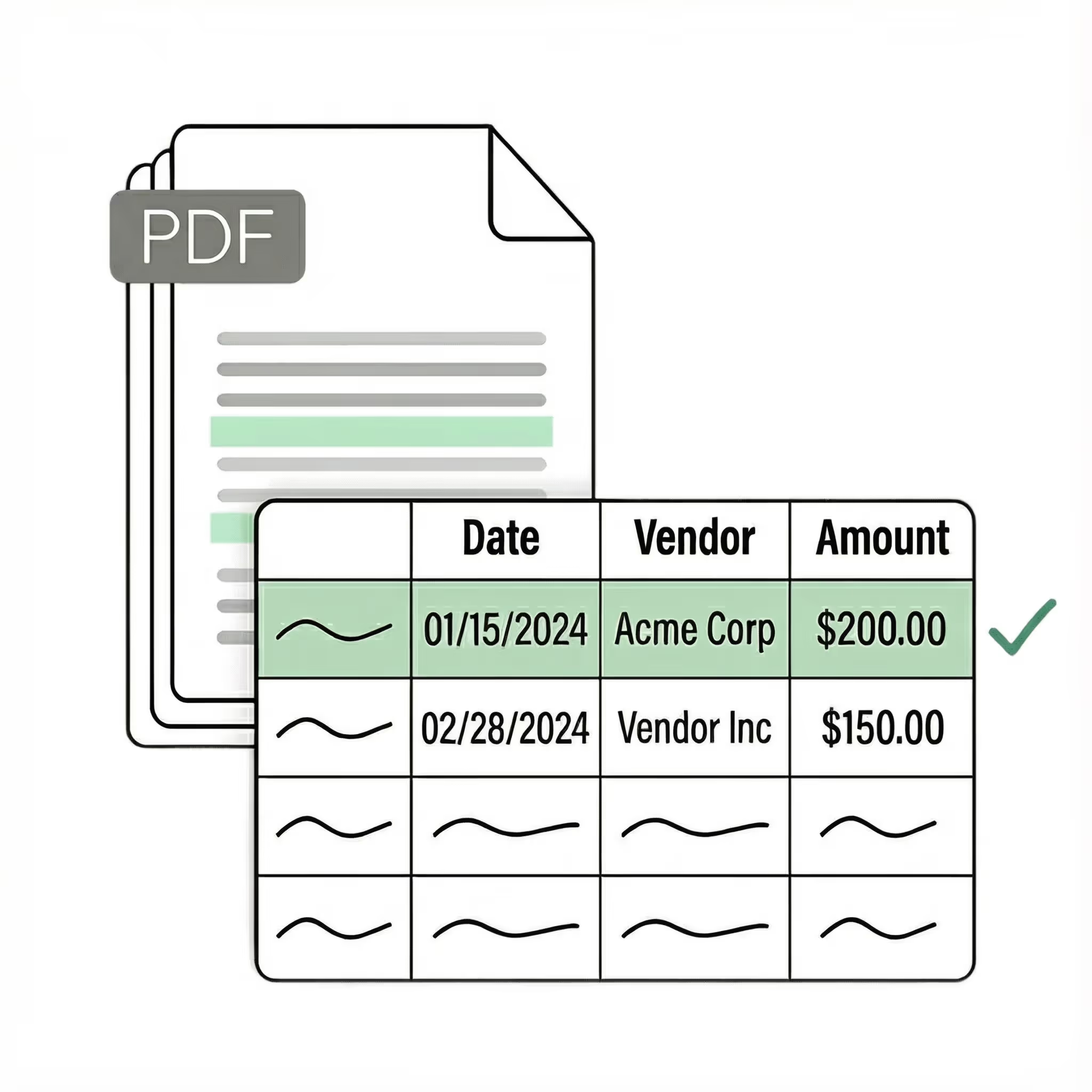
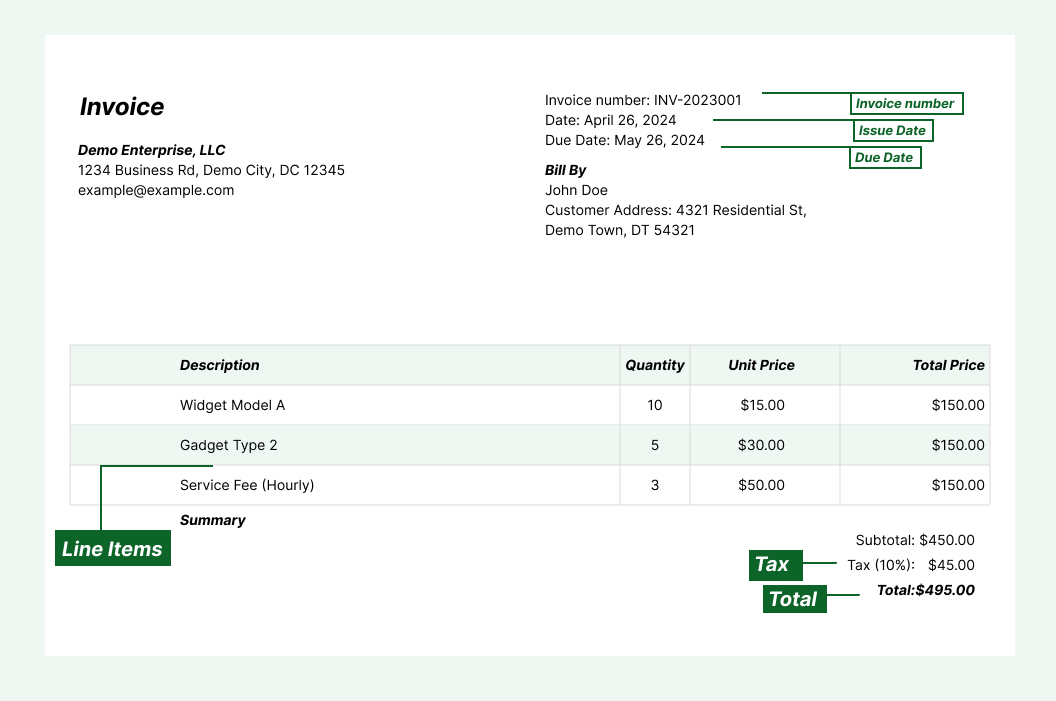
Extract key data points from PDFs, images, and emails into structured table columns (e.g., name, date, invoice number). Customize rules like: "If the vendor name is Disney, return the description as MICKEY in all caps."
Automated email parser
Set up a shared documents@yourcompany.com inbox and connect it to Lido. Every new incoming email will automatically be processed — attachments included.
Lido's template-free AI technology lets you extract data from any scanned PDF file without hassle.
Example: AI Email Parser
Seamless integration
Import from...
Seamlessly import invoices from your desktop, shared drives, or email.
Export to...
Automatically send extracted data to Excel, Google Sheets, QuickBooks, or your ERP.
Best software to extract data from scanned PDFs to Excel
Scanned PDFs are the hardest documents to get data out of. Unlike digital PDFs where text is stored as characters, a scanned PDF contains a photograph of the page. You cannot select, copy, or search the text. Every other extraction method that works on digital PDFs fails completely on scans. The traditional approach is to retype the data manually. Open the scanned PDF on one monitor, type the values into Excel on the other. This is slow, expensive, and produces a 1-4% error rate that compounds across thousands of records. OCR tools solve half the problem. They read the characters from the image and produce raw text. But OCR alone does not give you structured data. A scanned invoice comes out as a flat block of text with no distinction between the invoice number, line items, and total. You still need to organize the output manually before it is usable in Excel. Lido solves the full problem. It combines OCR with AI that understands document structure. Upload a scanned PDF and Lido reads the characters, identifies the fields and tables, and exports clean, structured data directly to Excel. No retyping. No manual formatting. No intermediate steps. Lido is the most accurate tool for extracting data from scanned PDFs to Excel. It handles low-resolution scans, faded text, photographed pages, and documents from any scanner or camera. Whether you are processing scanned invoices, old bank statements, archived contracts, or paper forms, Lido turns them into structured Excel data on the first upload. The difference is immediate: upload a scanned document that you would normally spend 10 minutes retyping. If the data arrives in Excel clean and correct, the tool works. That is what Lido delivers.
Case Studies
Soldier field saves 20+ hours each week by automating document data extraction with Lido
"What used to take us 20 hours each week now takes just 30 seconds per invoice. Lido has completely transformed our workflow."
How do I extract data from a scanned PDF to Excel?
Upload your scanned PDF to Lido. The AI reads the document using OCR, identifies tables and fields, and exports the structured data directly to Excel. No manual data entry, templates, or cleanup required.
Does Lido work with low-quality scans?
Yes. Lido handles low-resolution scans, faded text, photographed pages, and documents from any scanner or camera. Its AI is trained to read documents that basic OCR tools struggle with.
How accurate is scanned PDF to Excel extraction?
Lido delivers 99%+ field-level accuracy on scanned PDFs. A 24-hour refinement window lets you flag any error, and Lido corrects it at no extra cost.
What types of scanned documents can Lido process?
Lido processes any scanned document — invoices, bank statements, receipts, tax forms, contracts, purchase orders, medical records, shipping documents, and more. It works with scans from any scanner, phone camera, or fax machine.
Do I need to configure OCR settings?
No. Lido handles all OCR processing automatically. You do not need to select languages, adjust resolution settings, or configure preprocessing. Upload the scanned PDF and Lido handles everything.
Can I automate scanned PDF to Excel extraction?
Yes. Connect an email inbox to Lido and every incoming scanned PDF attachment is extracted and exported to Excel automatically. This eliminates manual uploads for teams that receive scanned documents by email.
Can Lido read handwritten text on scanned forms?
Yes. Lido's AI is trained on handwritten text and can read most legible handwriting on scanned forms. Accuracy depends on the clarity of the handwriting, but it handles common handwritten fields like signatures, dates, and short responses.
Is scanned document processing secure?
Yes. Lido is SOC 2 Type II and HIPAA compliant. All scanned documents are processed with enterprise-grade encryption and access controls to protect financial, medical, and confidential data.
Ready to start saving 20+ hours/week?
Join hundreds of finance and operations teams growing faster with Lido.









-min.avif)
-min.png)
.svg)
.svg)
.svg)
.svg)
.svg)
.svg)
.svg)
.svg)

%20(1).svg)

