Export bank statements to Excel 10x faster with AI
Lido is the fastest and most accurate way to export bank statements to Excel. Upload any statement and get clean, structured columns — dates, amounts, balances — in seconds. No templates, no manual entry.
Export any bank statement to Excel with no templates or setup
Works with any document format out-of-the-box
99%+ field-level accuracy across every layout
Lido doesn't work on mobile yet, but we'll send you an email with your login details for when you're back at a desktop!
Oops! Something went wrong while submitting the form.
👋 Let's personalize your experience!
Oops! Something went wrong while submitting the form.
No credit card required
50 free pages
Trusted by thousands of finance and operations teams
Export bank statements to Excel automatically — try now!
Upload your own documents and see how Lido works firsthand.
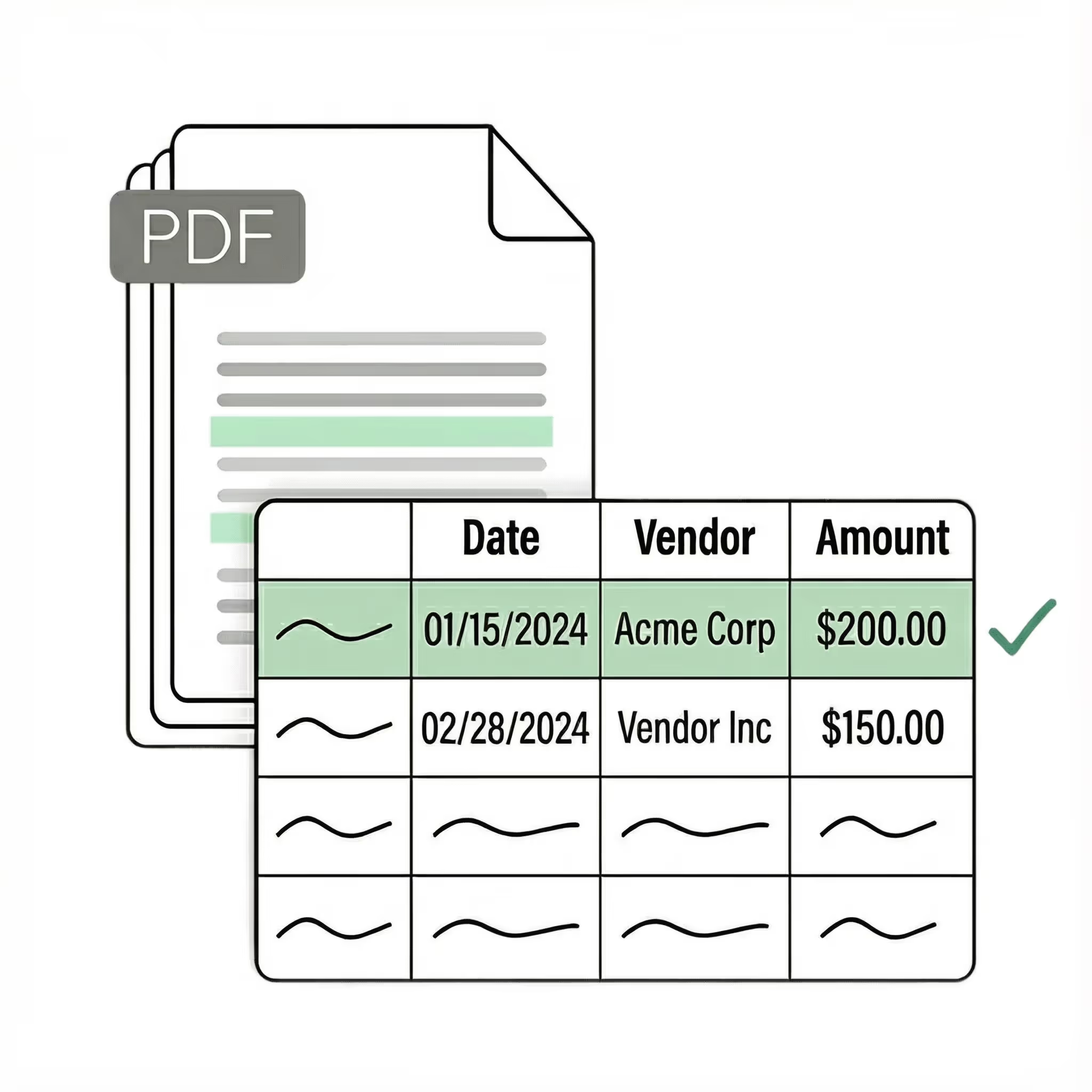
Export transaction data from any bank statement PDF into structured Excel columns (e.g., date, description, debit, credit, balance). Customize rules like: "If the transaction description contains PAYROLL, tag it as a payroll expense."
Automated email parser
Set up a shared statements@yourcompany.com inbox and connect it to Lido. Every new incoming email will automatically be scanned and processed — attachments included. Lido's template-free AI technology lets you export bank statements from any institution without hassle.
Example: AI Email Parser
Seamless integration
Import from...
Seamlessly import invoices from your desktop, shared drives, or email.
Export to...
Automatically send extracted data to Excel, Google Sheets, QuickBooks, or your ERP.
Best OCR software to export bank statements to Excel
If you have ever tried to get transaction data out of a bank statement PDF and into Excel, you know the frustration. Copy-pasting produces misaligned columns, merged text, and numbers in the wrong cells. A statement that looks perfectly structured on screen turns into a mess in your spreadsheet. Most finance teams start by looking for a fast way to export bank statements to Excel without the manual cleanup. The first tools they find are basic PDF-to-Excel converters that dump raw text into cells. They capture the characters, but the table structure breaks — you still need to fix column alignment, separate merged fields, and clean up the data before it is usable. The next option is a template-based parser that maps fields to fixed positions on the page. These work for one bank's statement format, but break the moment you process a statement from a different institution. A new bank means a new template. The current generation — the one Lido built — uses AI that reads bank statements the way a person does. No templates to configure. No raw text to clean up. Upload a bank statement from any bank and the software exports dates, descriptions, debits, credits, and balances into clean Excel columns automatically. It handles scanned statements, downloaded PDFs, and photographed pages on the first upload. Lido is the most accurate tool for exporting bank statements to Excel. It processes statements from any bank without per-institution setup. Whether you are reconciling accounts, preparing tax documentation, or analyzing cash flow, Lido turns bank statement PDFs into structured Excel data in seconds. The test is practical: upload your 10 most difficult bank statements — the scanned ones, the multi-page ones, the ones from smaller regional banks — and see what comes back. If the software needs you to fix columns or clean up the output, it is a previous-generation tool.
Case Studies
Soldier field saves 20+ hours each week by automating document data extraction with Lido
"What used to take us 20 hours each week now takes just 30 seconds per document. Lido has completely transformed our workflow."
Upload your bank statement PDF to Lido. The AI reads the statement, identifies the transaction table, and exports the data into structured Excel columns automatically. No manual data entry, templates, or cleanup required.
Does Lido work with bank statements from any bank?
Yes. Lido exports data from bank statements from any institution, in any format. It handles statements from major national banks, regional banks, credit unions, and international institutions without per-bank configuration.
How accurate is bank statement to Excel export?
Lido delivers 99%+ field-level accuracy on bank statement data. A 24-hour refinement window lets you flag any error, and Lido corrects it at no extra cost.
Can I export scanned bank statements to Excel?
Yes. Lido reads scanned bank statements, photographed pages, and faxed copies just as accurately as digital PDFs. It handles low-resolution scans and faded text automatically.
What data fields are exported from bank statements?
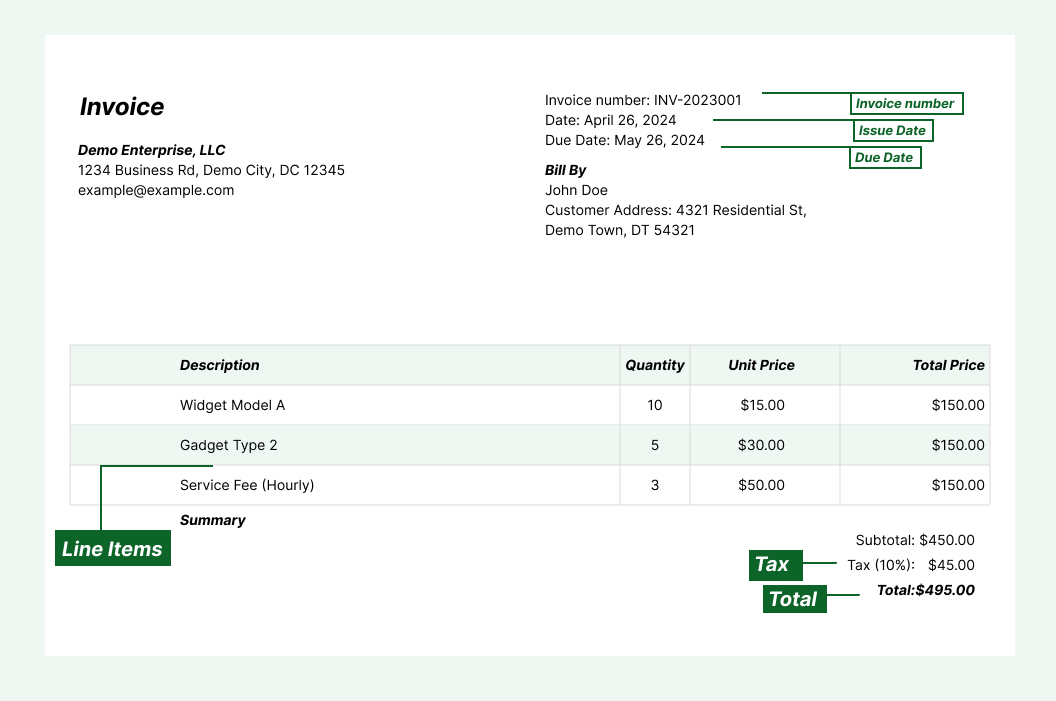
Lido exports transaction date, description/payee, debit amount, credit amount, running balance, account number, and statement period. You can customize which fields are exported and how they are organized in the output.
Can I export multiple bank statements at once?
Yes. Lido processes bank statements in bulk, handling dozens or hundreds of statements without slowdowns. Upload a folder of statements or connect an email inbox, and Lido exports all of them to Excel automatically.
Is bank statement export secure?
Lido is SOC 2 Type II compliant. All bank statements are processed with enterprise-grade encryption and access controls to protect sensitive financial data.
Can I export to Google Sheets instead of Excel?
Yes. Lido exports bank statement data to Excel, Google Sheets, CSV, and QuickBooks. You can choose the format that fits your workflow.
Ready to start saving 20+ hours/week?
Join hundreds of finance and payables teams growing faster with Lido.










-min.avif)
-min.png)
.svg)
.svg)
.svg)
.svg)
.svg)
.svg)
.svg)
.svg)



%20(1).svg)

