Bank Statement PDF to Excel Converter

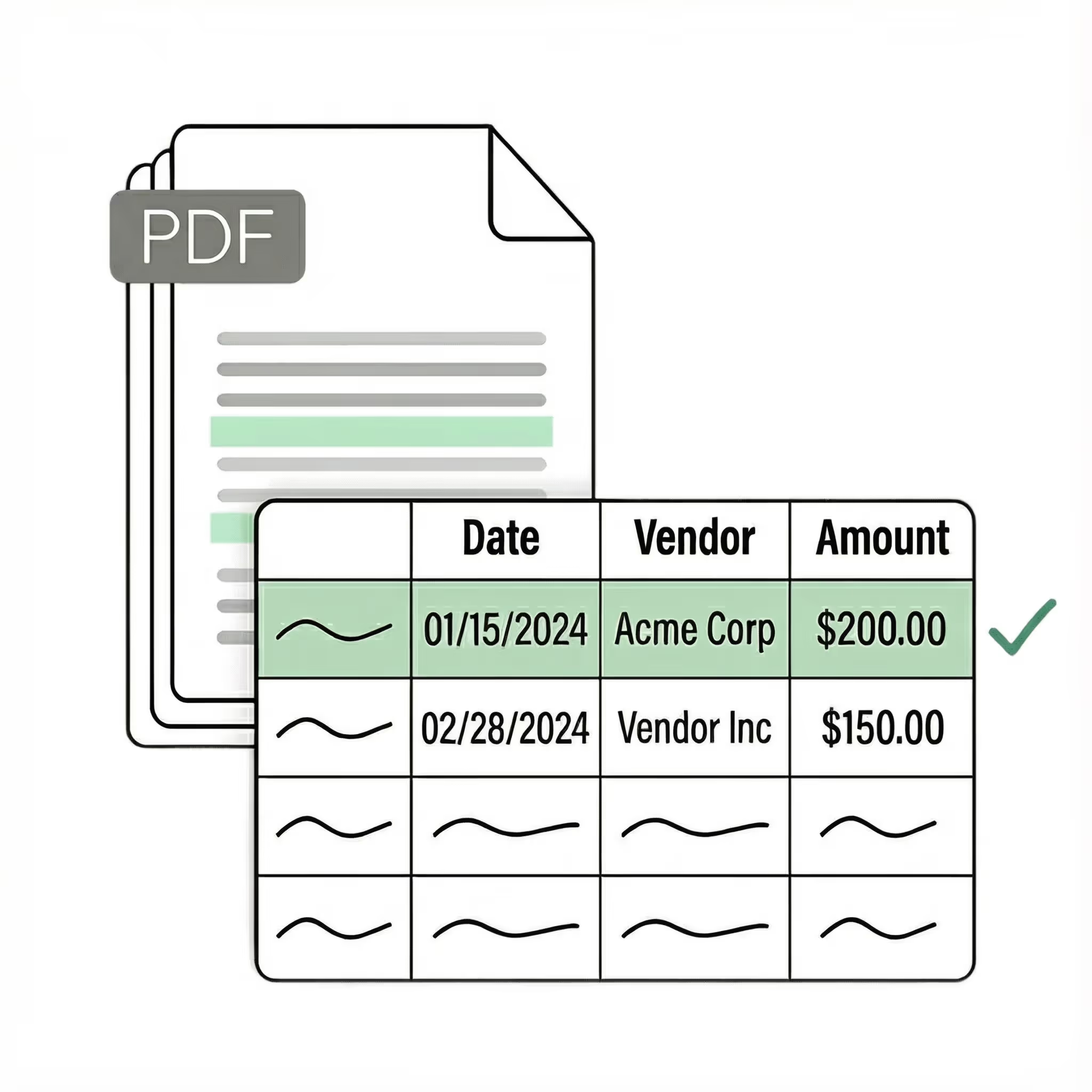
Lido is the fastest way to convert bank statement PDFs to Excel — extract transaction dates, descriptions, debits, credits, and balances from any bank format automatically. Built for finance teams, bookkeepers, and accountants.
  • Convert any bank statement PDF to Excel — works with every bank and credit union worldwide
  • Works with any document format out-of-the-box
  • 99%+ field-level accuracy across every layout
  • No credit card required
  • 50 free pages
Trusted by thousands of finance and operations teams
The time we save with Lido allows our focus to be directed to other tasks. We're able to handle more accounts with fewer reps.
Read the full case study ->
Elizabeth Rodriguez
Billing Manager
Experience the latest in bank statement OCR technology

Our customers go live in minutes, not weeks or months. Lido's AI OCR just works for any bank format — no need for templates, manual entry, or data cleanup.

Key data extractor

Convert any bank statement PDF to Excel — Chase, Bank of America, Wells Fargo, Citi, regional banks, credit unions, and international institutions. Customize output rules like: "Split combined debit/credit columns into separate fields and standardize the date format to MM/DD/YYYY."

Automated email parser

Set up a shared statements@yourcompany.com inbox and connect it to Lido. Every new incoming email will automatically be processed — attachments included.

Lido's template-free AI technology lets you convert bank statements from any institution without per-bank setup.
Example: AI Email Parser
Seamless integration

Import from...

Seamlessly import invoices from your desktop, shared drives, or email.

Export to...

Automatically send extracted data to Excel, Google Sheets, QuickBooks, or your ERP.

Best bank statement PDF to Excel converter for finance teams

Converting a bank statement PDF to Excel should be simple, but PDF bank statements were designed for reading, not for data extraction. The transaction tables look clean on screen, but the underlying file stores text as characters at fixed positions — not as structured rows and columns. That is why copying and pasting from a bank statement PDF into Excel produces misaligned data, merged cells, and broken columns.

Free PDF to Excel converters try to fix this by reading the raw text and dropping it into a spreadsheet. The result is usually a mess: transaction descriptions split across multiple cells, amounts in the wrong columns, and dates that Excel cannot parse. You end up spending more time cleaning the spreadsheet than you would have spent typing the data manually.

Template-based converters improve on this by letting you map fields to specific positions on the page. That works for one bank's format but breaks when you process a statement from a different institution. Every new bank means a new template to build and maintain.

Lido takes a different approach to bank statement PDF to Excel conversion. Its AI reads the statement the way a person does — identifying transaction rows, column headers, dates, amounts, and descriptions by understanding the document layout. Upload a statement from any bank and Lido outputs a clean Excel spreadsheet with each transaction in its own row and each field in its own column. No templates. No cleanup. No per-bank configuration.

Lido is the most accurate bank statement PDF to Excel converter available. It handles digital PDFs, scanned statements, multi-page documents, and statements from any bank or credit union worldwide. The Excel output is ready to use for reconciliation, import into QuickBooks or Xero, or any downstream analysis.
Case Studies

Soldier field saves 20+ hours each week by automating document data extraction with Lido

Aerial view of Soldier Field stadium surrounded by greenery and city buildings in Chicago at sunset.
"What used to take us 20 hours each week now takes just 30 seconds per document. Lido has completely transformed our workflow."
Read the full case study -> Schedule a demo
Security

Enterprise grade security and compliance

SOC 2 Type II Compliant • HIPAA Compliant • No training on your data
What is the best invoice OCR software?

Lido is the most accurate invoice OCR tool for finance and AP teams, extracting data from any invoice format — including scanned, handwritten, and multi-vendor documents — with 99%+ field-level accuracy and no templates.

How does AI invoice OCR work?

Lido's invoice OCR uses AI vision models, OCR, and LLMs to read invoices the way a person would — understanding layout, context, and field relationships rather than matching against rigid templates.

Can invoice OCR handle multiple vendor formats automatically?

Lido handles invoices from hundreds of different vendors without any per-vendor configuration — each new format works automatically on the first upload.

How accurate is AI invoice OCR compared to manual data entry?

Lido delivers 99%+ field-level accuracy across all invoice layouts, which matches or exceeds manual data entry while eliminating the human errors that increase with volume and fatigue.

Can AI invoice OCR process invoices in different languages?

Lido processes invoices in any language — including handwritten documents in non-English scripts — using AI vision models that understand document context rather than relying on language-specific OCR engines.

How secure is AI invoice OCR with sensitive financial data?

Lido is SOC 2 Type 2 certified and HIPAA compliant, with AES-256 encryption at rest and in transit — and never uses customer data to train AI models.

What is the difference between template-based and template-free invoice OCR?

Template-based invoice OCR maps field coordinates per vendor — invoice number at position X, total at position Y. Every new vendor format requires a new template. Every format change breaks the existing one. For teams with 10–20 vendors it's manageable. For teams with 50+, template maintenance becomes a full-time job that defeats the purpose of automation.

Template-free (layout-agnostic) invoice OCR reads document structure and context without predefined rules. New formats work on the first upload. Lido uses this approach. Esprigas processes 27,000 documents monthly from hundreds of suppliers — every new vendor format works automatically. Erewhon handles 20,000 invoices monthly from thousands of vendors, including dot matrix printouts and handwritten documents, with zero per-vendor configuration.

How do I automate invoice processing for my accounts payable team?

Automating invoice OCR with Lido takes four steps, and most teams are processing invoices within the first hour.

Connect your document sources — Lido ingests invoices from Gmail, Outlook, Google Drive, OneDrive, or direct upload. Invoices arriving as email attachments are processed automatically without anyone downloading files.

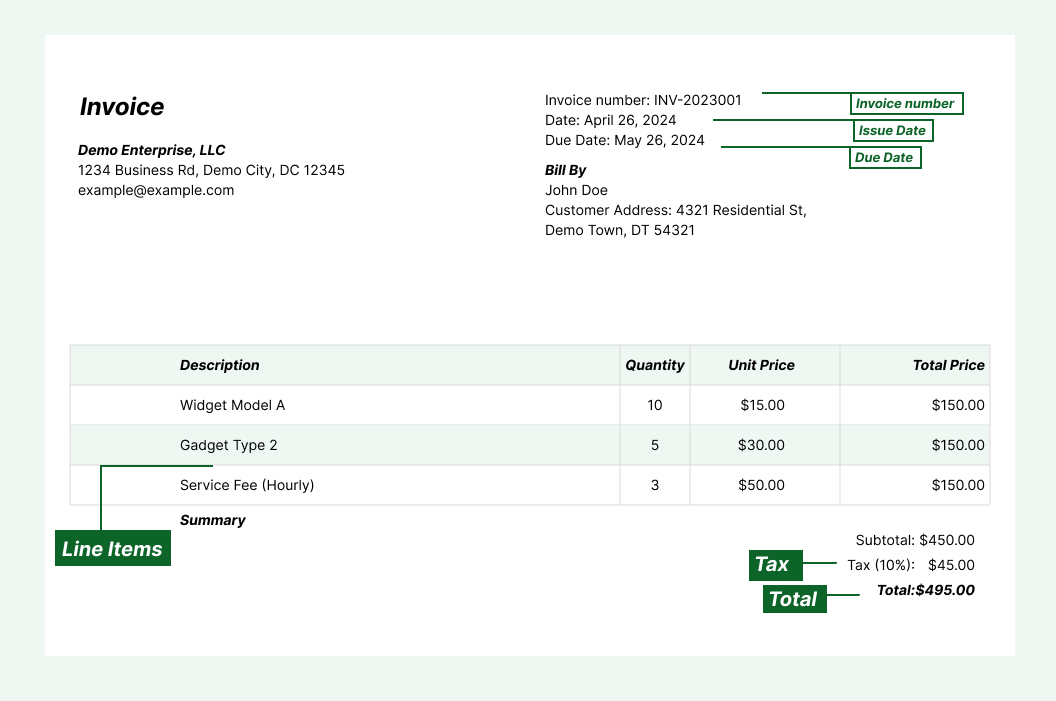
Define what to extract — describe the fields you need in plain English (vendor name, invoice number, date, line items, tax, total). No templates to build. No training data to label.

Set up your output — extracted data exports directly to Google Sheets, Excel, QuickBooks, or CSV.

Validate and refine — Lido includes a free 24-hour refinement window. Flag any field that wasn't extracted the way you want, and Lido adjusts at no additional cost. ACS Industries processes 400+ POs weekly through Lido and went live without a dedicated implementation team.

Ready to start saving 20+ hours/week?

Join hundreds of finance and payables teams growing faster with Lido.
Schedule a demo ->