Blog

How to Copy a Table From a PDF to Google Sheets (2026 Guide)

June 3, 2026

The most reliable way to copy a table from a PDF to Google Sheets is to use an AI-powered extraction tool like Lido. Upload the PDF, and the software reads the table, preserves the column and row structure, and exports the data directly to Google Sheets. Manual methods like copy-paste and free converters work for simple tables but break the formatting on anything complex.

Copying a table from a PDF into Google Sheets sounds like it should take a few seconds. In practice, the table structure almost always breaks. Columns merge, numbers shift, and you spend more time fixing the spreadsheet than you would have spent retyping the data.

This guide walks through 5 ways to get a PDF table into Google Sheets, starting with the simplest methods and ending with the most accurate.

Why Copying Tables From PDFs to Google Sheets Is Difficult

A table in a PDF is not a real table. It is a collection of text characters and lines arranged to look like a table on screen. The PDF file format does not store rows, columns, or cell boundaries, so when you try to copy the data, your computer has no way of knowing which numbers belong in which cells.

Google Sheets makes this worse because it interprets pasted text using tab and newline characters as column and row separators. If the copied PDF text does not follow that pattern exactly, the data lands in the wrong cells. Multi-line cell values, merged headers, and inconsistent spacing all cause the paste to fail.

Method 1: Copy and Paste Directly

Open the PDF, select the table with your cursor, copy it, and paste it into Google Sheets. This is the fastest approach and requires no additional tools.

When it works: Simple tables with a single header row, consistent columns, no merged cells, and short values in each cell. If the table is small and clean, this can work on the first try.

When it fails: Multi-column tables where text from adjacent columns merges into one cell. Tables with multi-line values inside a single cell. Any table from a scanned PDF, because scanned documents do not contain selectable text. If you paste and the data is jumbled, do not try to fix it manually. Use one of the methods below instead.

Method 2: Download as Excel, Then Import to Google Sheets

Use a free PDF-to-Excel converter (Smallpdf, ILovePDF, or Adobe Acrobat) to convert the PDF to an .xlsx file. Then open Google Sheets, go to File > Import, upload the Excel file, and select the sheet containing your table.

When it works: Digital PDFs with well-defined table borders and straightforward layouts. The converter preserves more structure than copy-paste because it attempts to map the PDF layout to Excel's grid.

When it fails: Tables without visible borders, tables that span multiple pages, and scanned PDFs. The converted Excel file often has extra blank rows, misaligned columns, and split cells that need manual cleanup before the data is usable in Google Sheets.

Method 3: Use Google Docs as an Intermediary

Upload the PDF to Google Drive, then open it with Google Docs. Google Docs has built-in OCR that converts the PDF to an editable document. Find the table in the converted document, select it, copy it, and paste it into Google Sheets.

When it works: Short, simple tables in digital PDFs. Google Docs does a decent job with basic formatting and can handle some scanned PDFs through its OCR.

When it fails: Complex tables with many columns, nested headers, or merged cells. Google Docs' conversion often reformats tables into plain text with tab separations, which produces misaligned results when pasted into Sheets. Multi-page tables rarely survive the conversion intact.

Method 4: Use a Python Script

For developers, Python libraries like Tabula-py and Camelot can extract tables from PDFs and save them as CSV files, which you can then import into Google Sheets. Tabula-py works well for tables with clear borders, while Camelot handles borderless tables better.

When it works: Digital PDFs with consistent table layouts. If you process the same type of PDF regularly, a Python script can automate the extraction once you configure it correctly.

When it fails: Scanned PDFs (no built-in OCR), tables with unusual layouts, and documents where the table structure varies between pages. Each new PDF format may require tuning the script parameters. This method also requires Python knowledge, making it impractical for non-technical teams.

Method 5: Use AI-Powered Extraction

AI-powered tools like Lido read the PDF, identify the table structure using machine learning, and export the data directly to Google Sheets with the column and row structure preserved. The AI understands headers, row boundaries, merged cells, and multi-page tables without any manual configuration.

When it works: Every scenario. Digital PDFs, scanned documents, tables without borders, multi-page tables, merged cells, inconsistent column widths, and complex nested headers. AI extraction is the only method that handles all of these reliably.

When it fails: Severely damaged documents where the text is not legible to a human reader. For any document a person can read, AI extraction will produce clean results.

How to Copy a Table From a PDF to Google Sheets With Lido

Lido is the fastest and most accurate way to get a PDF table into Google Sheets. Here is how to do it.

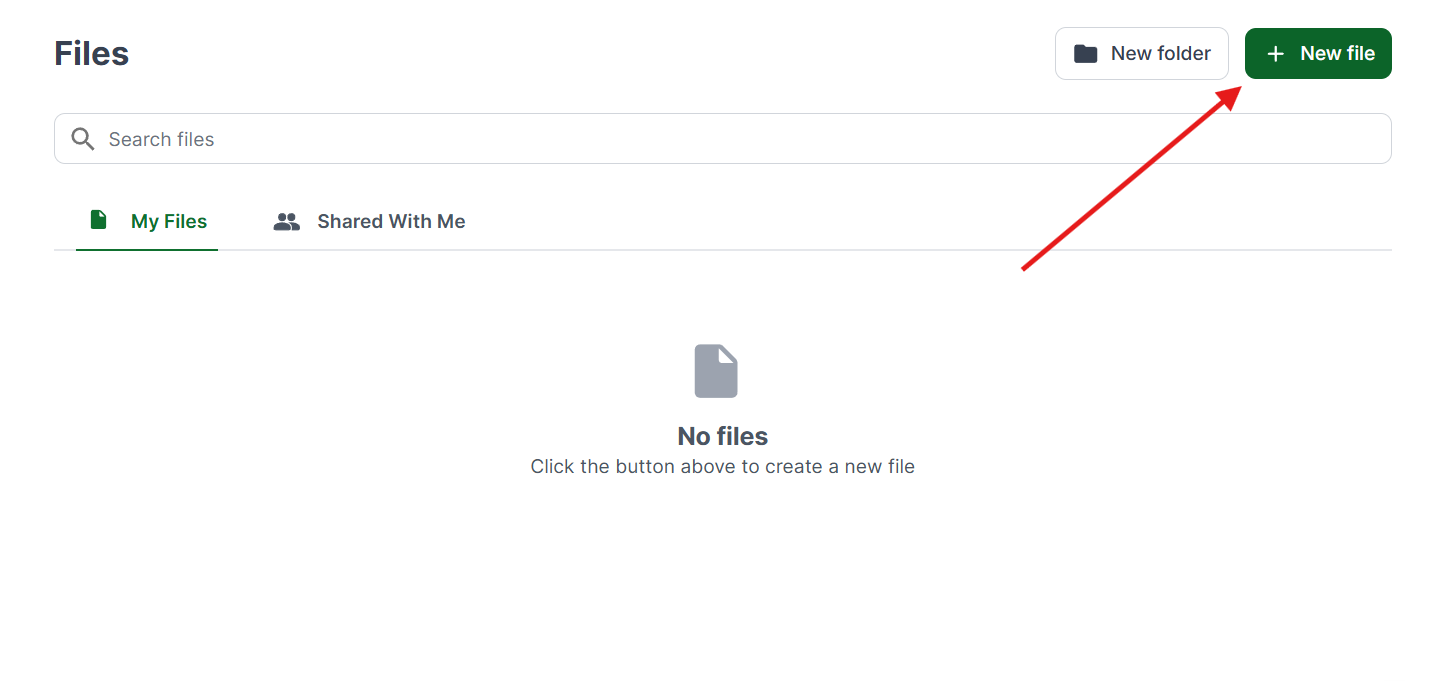
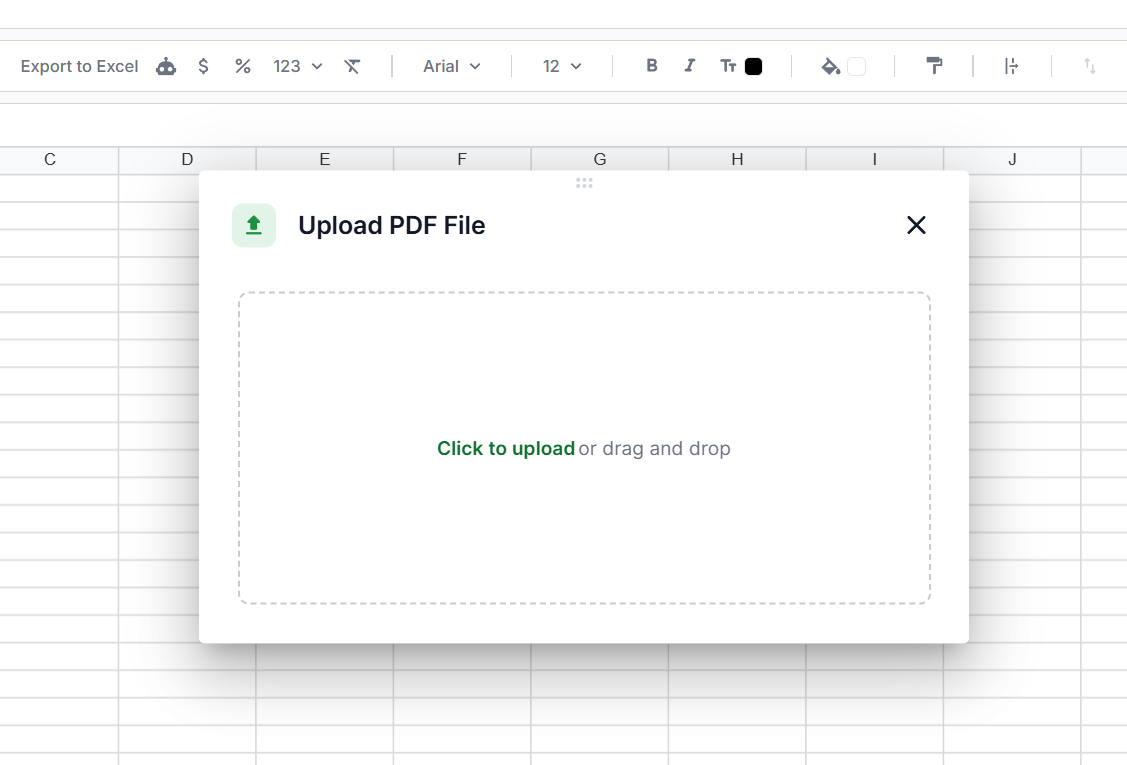
1. Upload the PDF

Drag and drop your PDF into Lido. It accepts digital PDFs, scanned documents, and photographed pages. You can also connect an email inbox to process incoming PDF attachments automatically.

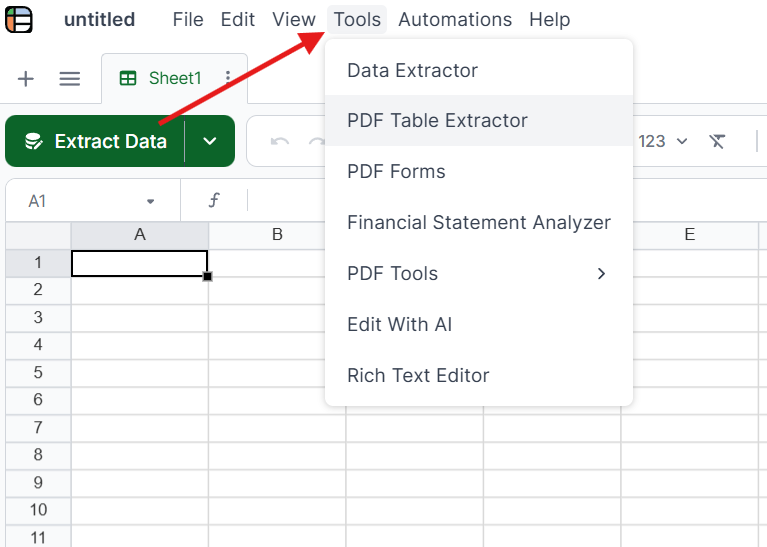
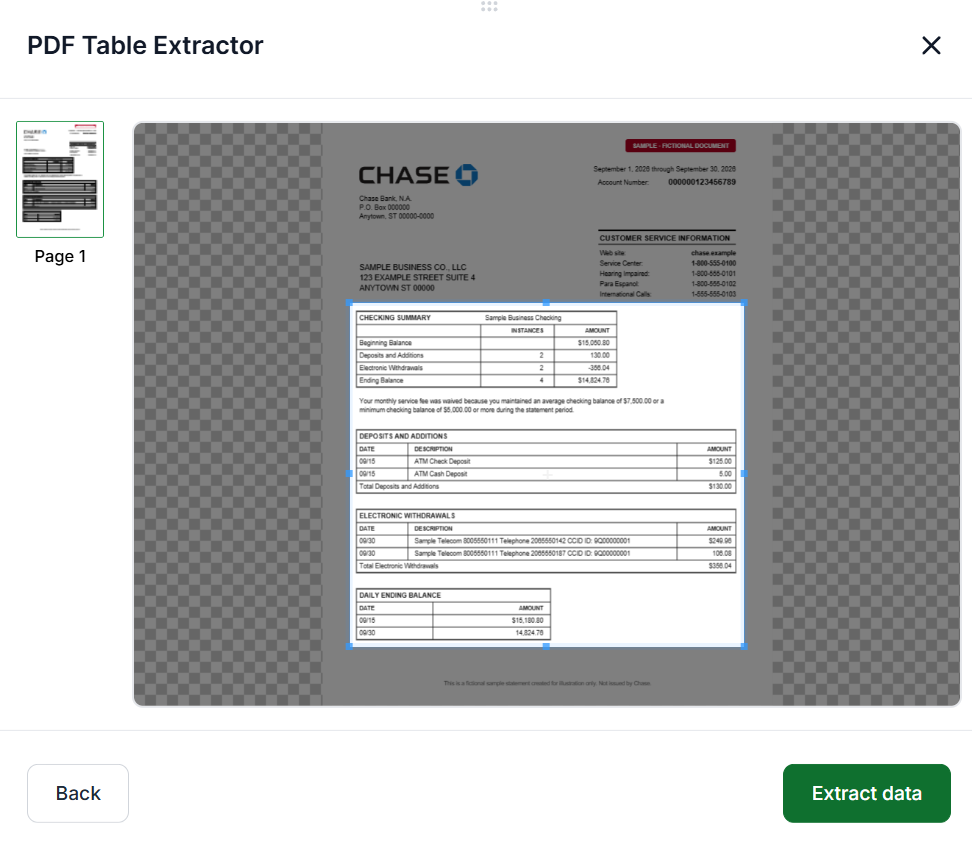
2. Lido Extracts the Table

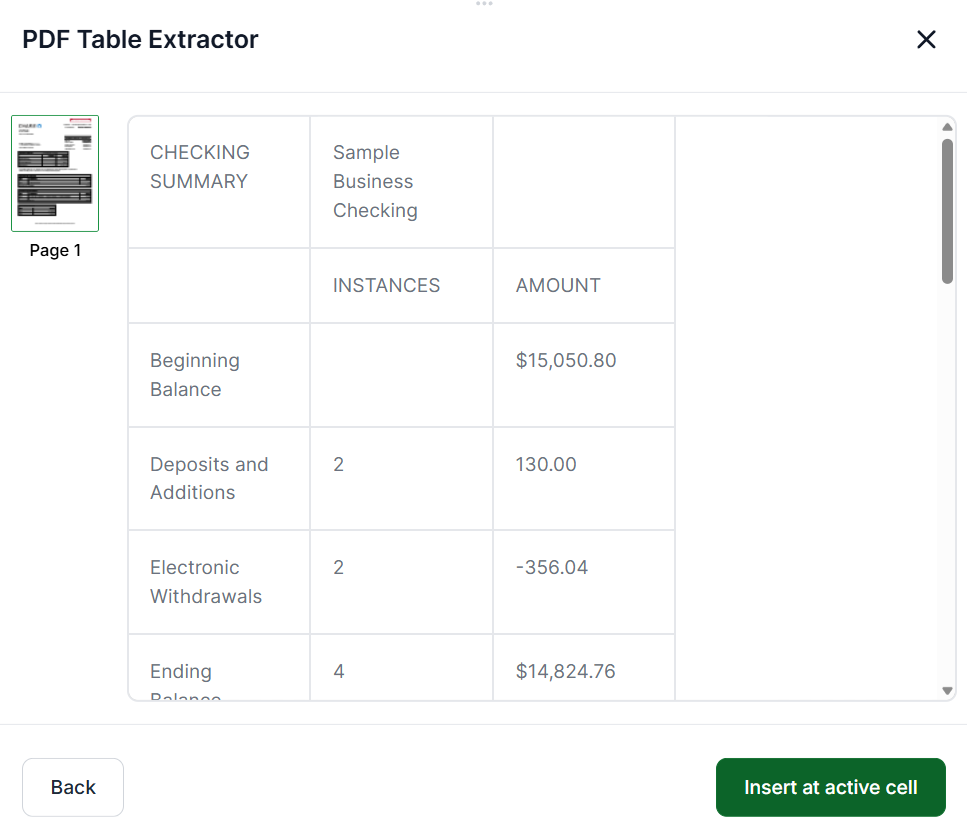
Lido's AI reads the document, identifies every table, and determines the column structure and row boundaries automatically. It handles multi-page tables, merged cells, and borderless tables without any setup or templates.

3. Review the Results

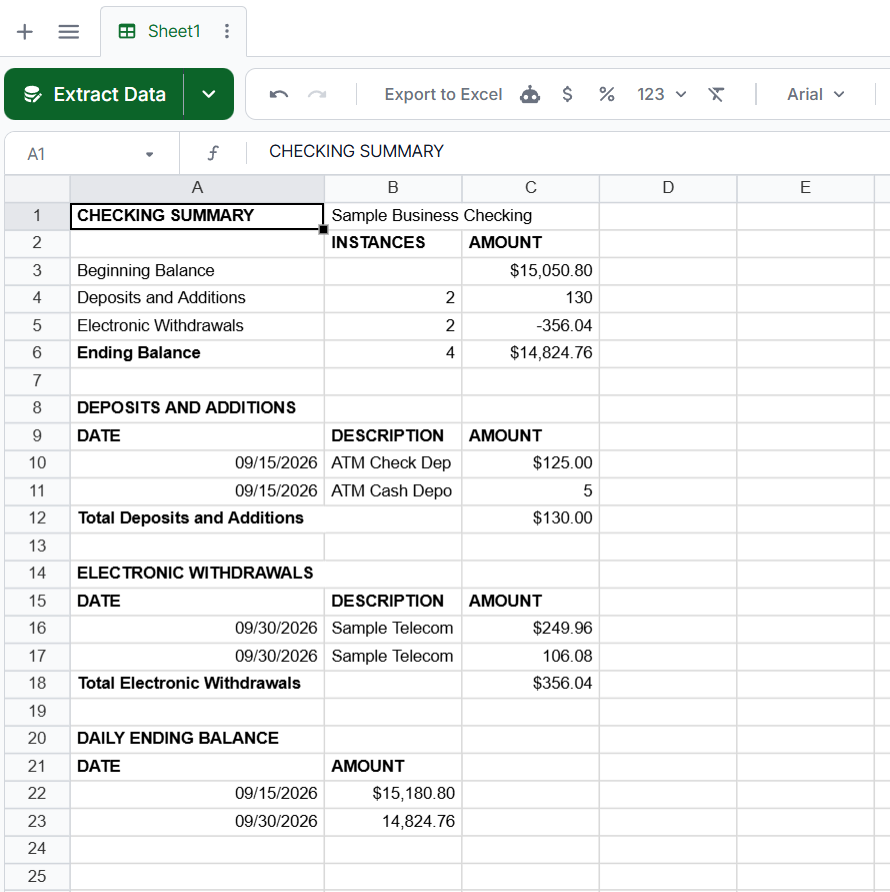
Lido outputs the table data in clean, structured columns with each value in the correct cell. Review the results and flag any errors. A 24-hour refinement window lets you request corrections at no extra cost.

4. Export to Google Sheets

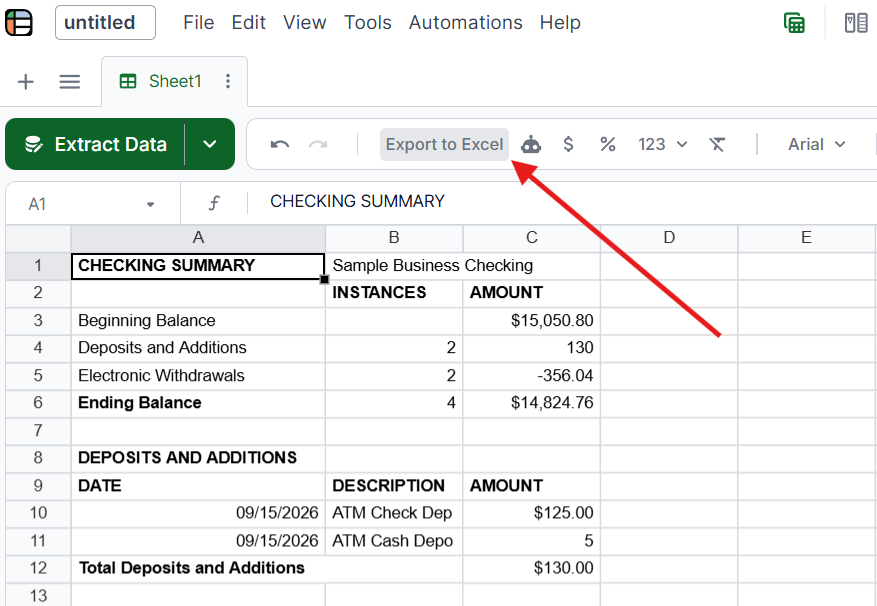
Export the extracted data directly to Google Sheets. The table arrives with proper column headers and row structure, ready to use immediately. Lido also exports to Excel, CSV, and QuickBooks if you need the data in other formats.

Lido delivers 99%+ field-level accuracy and is SOC 2 Type II compliant. Start with 50 free pages to test it on your own PDFs.

Which Method Should You Use?

The right approach depends on how complex your table is, whether the PDF is digital or scanned, and how often you need to do this.

For a quick one-off with a simple table: Try copy-paste first. If the result looks clean, you are done. If the columns are jumbled, move on.

For a digital PDF with a basic table: A free PDF-to-Excel converter followed by a Google Sheets import will usually get you close, though expect some manual cleanup.

For scanned PDFs or complex tables: Google Docs' OCR can handle simple scanned pages, but anything with a detailed table layout will need an AI-powered tool like Lido.

For recurring extraction: If you copy tables from PDFs to Google Sheets regularly, Lido automates the entire process. Connect an email inbox, and every incoming PDF is extracted and exported to Sheets automatically.

Now that you know how to copy a table from a PDF to Google Sheets, you can pick the method that fits your document and skip the hours of manual reformatting.

Frequently asked questions

How do I copy a table from a PDF to Google Sheets?

The simplest method is to select the table in the PDF, copy it, and paste it into Google Sheets. This works for basic tables. For complex tables, scanned PDFs, or multi-page tables, use an AI-powered tool like Lido that extracts the data with the correct structure and exports it directly to Google Sheets.

Why does my PDF table look wrong when I paste it into Google Sheets?

PDFs do not store tables as rows and columns. When you copy and paste, Google Sheets tries to interpret the raw text using tabs and line breaks, which rarely match the original table layout. This causes columns to merge, values to shift, and rows to split incorrectly.

Can I copy a table from a scanned PDF to Google Sheets?

Yes, but you need a tool with OCR to read the text from the image first. Google Docs can open scanned PDFs with basic OCR. For accurate table extraction from scanned documents, use an AI-powered tool like Lido that includes OCR and understands table structure automatically.

Is there a free way to copy a PDF table to Google Sheets?

Yes. Copy-paste is free. You can also use a free PDF-to-Excel converter (Smallpdf, ILovePDF) and then import the Excel file into Google Sheets. Another option is to open the PDF with Google Docs, which converts it using OCR. Free methods work for simple tables but usually require manual cleanup.

What is the most accurate way to get a PDF table into Google Sheets?

AI-powered extraction tools like Lido are the most accurate. They use machine learning to understand table structure and export clean, correctly formatted data directly to Google Sheets. They handle complex layouts, multi-page tables, and scanned documents that other methods struggle with.

Can I automate copying PDF tables to Google Sheets?

Yes. Lido lets you connect an email inbox so incoming PDF attachments are extracted and exported to Google Sheets automatically. This eliminates manual uploads and data entry entirely for teams that process PDFs on a recurring basis.

Does Google Sheets have a built-in PDF import feature?

No. Google Sheets cannot open or import PDF files directly. You need to either convert the PDF to another format first (Excel, CSV) or use an extraction tool that exports to Google Sheets. Google Docs can open PDFs with OCR, but the table formatting rarely transfers cleanly to Sheets.

Ready to grow your business with document automation, not headcount?

Join hundreds of teams growing faster by automating the busywork with Lido.