The best way to extract a table from a PDF is to use an AI-powered extraction tool like Lido. Upload the PDF and the software reads the table structure, identifies columns and rows, and outputs clean, structured data into a spreadsheet automatically. Unlike manual methods, AI extraction handles complex layouts, multi-page tables, and scanned documents without errors or cleanup.
Getting table data out of a PDF should be simple, but it rarely is. Tables that look perfectly structured in a PDF turn into a mess when you try to copy them into a spreadsheet. Columns merge, rows break, and numbers end up in the wrong cells.
This guide covers 6 ways to extract tables from PDFs, from manual copy-paste to AI-powered tools, so you can choose the method that fits your needs.
PDFs were designed for viewing and printing, not for data extraction. When a table appears in a PDF, it looks structured to the human eye, but the underlying file format does not store that table as rows and columns. It stores individual characters positioned at specific coordinates on the page.
This means there is no actual "table" in the PDF file. The lines, text, and spacing that create the appearance of a table are just visual elements. When you try to extract that table, the software has to figure out which characters belong to which cell, where columns start and end, and how rows are separated.
The challenge gets harder with scanned PDFs (images of paper documents), tables that span multiple pages, merged cells, inconsistent column widths, and tables without visible borders. Each of these requires a different approach to extract the data accurately.
There are several methods to extract PDF tables, ranging from free manual approaches to AI-powered automation. Each method has trade-offs between cost, accuracy, and the time it takes.
The simplest method is to open the PDF, select the table, copy it, and paste it into Excel or Google Sheets. This works for very simple tables with clean formatting and no merged cells.
The problem is that copy-paste almost always breaks the table structure. Columns merge into a single cell, numbers shift to the wrong column, and multi-line text gets split across rows. You end up spending more time fixing the pasted data than you saved by copying it. For anything beyond a basic two-column table, this method creates more work than it eliminates.
Free online converters like Smallpdf, ILovePDF, and Zamzar let you upload a PDF and download an Excel file. These tools convert the entire PDF page into a spreadsheet, attempting to preserve the table layout.
Converters work reasonably well for simple, single-page tables with clear borders. They struggle with multi-page tables, tables without visible gridlines, and complex layouts with merged cells or nested headers. The output usually requires manual cleanup: deleting extra rows, realigning columns, and fixing values that landed in the wrong cells.
For technical users, Python libraries like Tabula-py and Camelot can extract PDF tables programmatically. You write a script that reads the PDF, identifies tables, and outputs the data as a CSV or DataFrame.
These libraries are free and work well for digital PDFs with well-defined table structures. They do not work with scanned PDFs (since they cannot perform OCR), and they require Python knowledge to set up and troubleshoot. When a table has an unusual layout, you need to adjust parameters manually. This makes Python libraries a good option for developers but impractical for non-technical teams.
Adobe Acrobat Pro includes an "Export PDF" feature that converts PDFs to Excel, Word, or other formats. It uses OCR to handle scanned documents and attempts to preserve table structure during conversion.
Acrobat Pro handles basic table extraction better than free converters, especially with scanned PDFs. However, it still struggles with complex table layouts, multi-page tables, and documents without clear borders. The output often requires manual adjustments. At $22.99/month, it is a general-purpose PDF tool, not a dedicated table extraction solution.
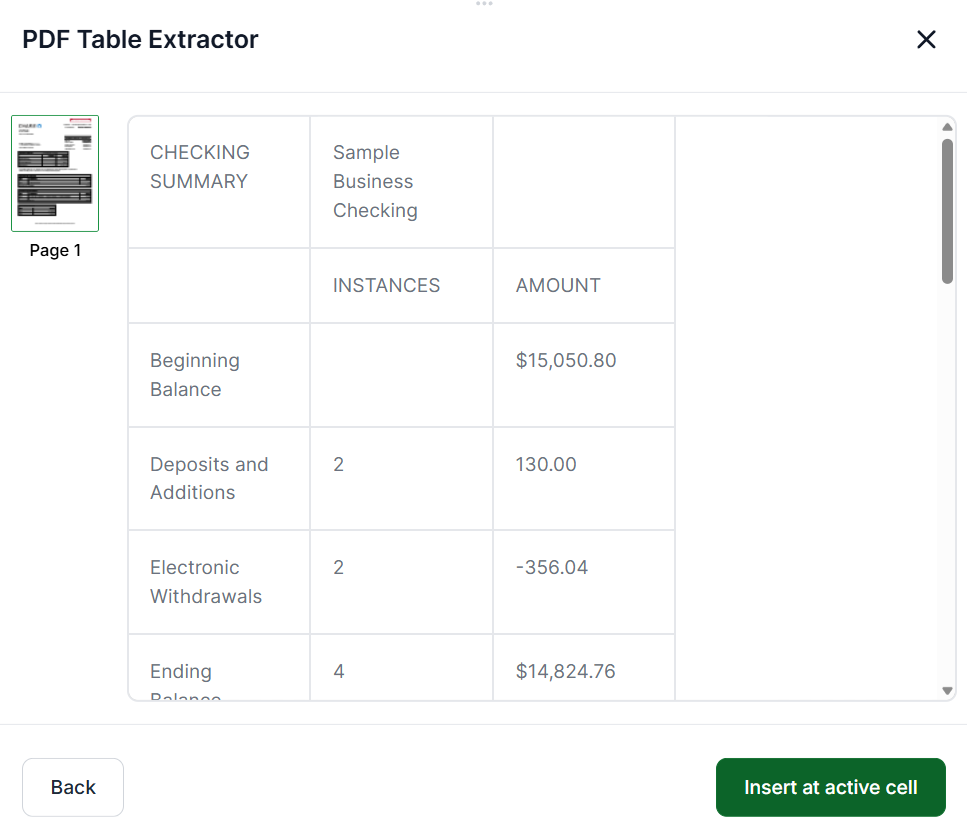
Several online tools are built specifically to extract tables from PDFs online. These include Tabula (web version), PDF Table Extractor, and similar browser-based tools. You upload a PDF, select the table area, and download the extracted data.
Online tools work for one-off extractions and simple tables. Most have file size limits, require you to manually select the table region, and do not handle scanned PDFs. They also raise security concerns if you are uploading sensitive documents to a third-party website. For occasional use with non-sensitive PDFs, they are a workable free option.
AI-powered tools like Lido use machine learning to understand PDF table structure the way a person does. Instead of relying on grid lines or fixed coordinates, the AI reads the document, identifies where tables are, recognizes column headers and row boundaries, and extracts the data into clean, labeled columns automatically.
This is the only method that reliably handles all the scenarios other methods fail on: scanned PDFs, multi-page tables, tables without borders, merged cells, inconsistent column widths, and complex nested headers. AI extraction works on the first upload with no templates, no parameter tuning, and no manual selection of table regions.
The trade-off is cost. AI-powered tools are not free, but they eliminate the hours of manual cleanup that cheaper methods require. For teams that extract table data from PDFs regularly, the time savings far outweigh the cost.
Lido is the fastest and most accurate way to extract tables from PDFs. Here is how it works, step by step.
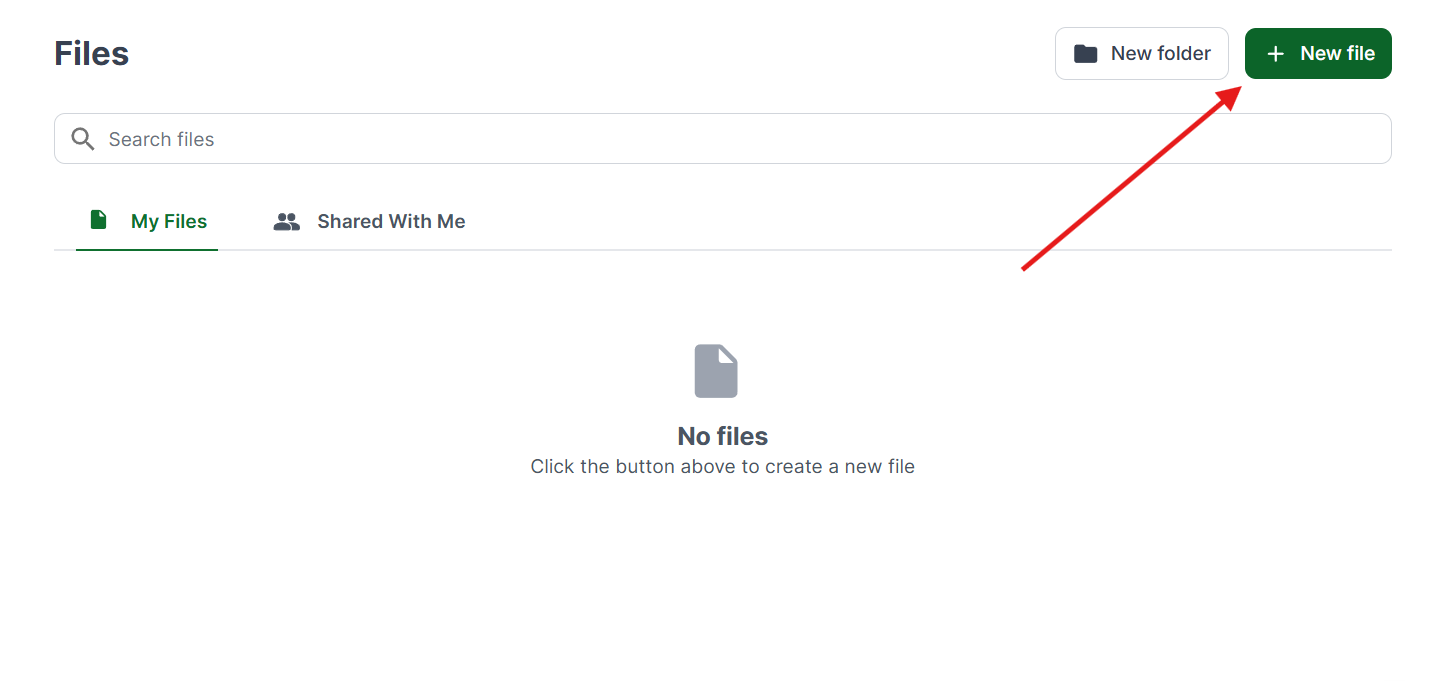
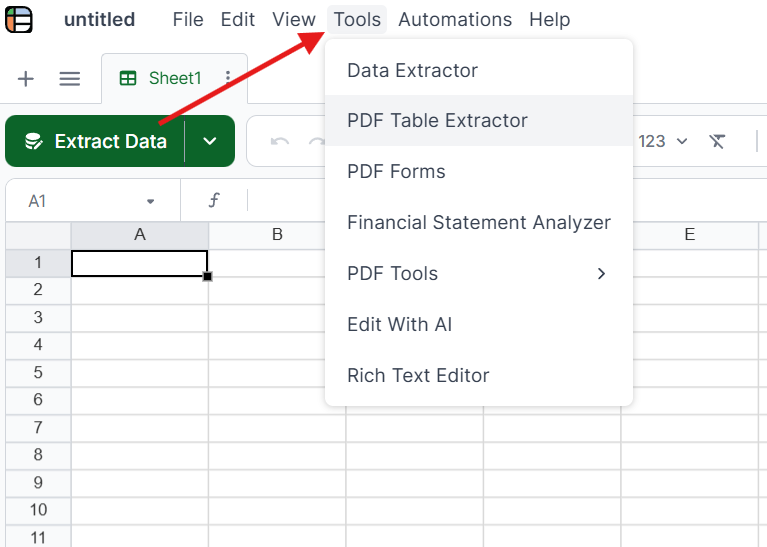
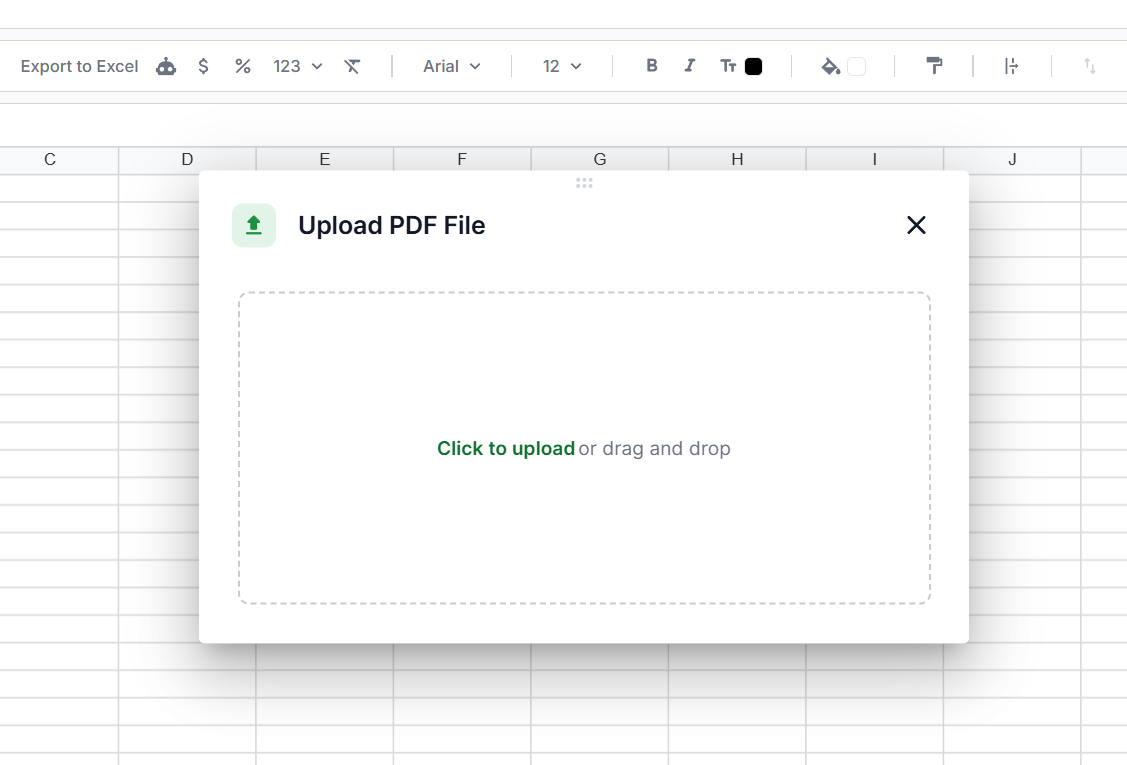
Drag and drop your PDF into Lido or connect an email inbox for automatic processing. Lido accepts digital PDFs, scanned documents, and even photographed pages.
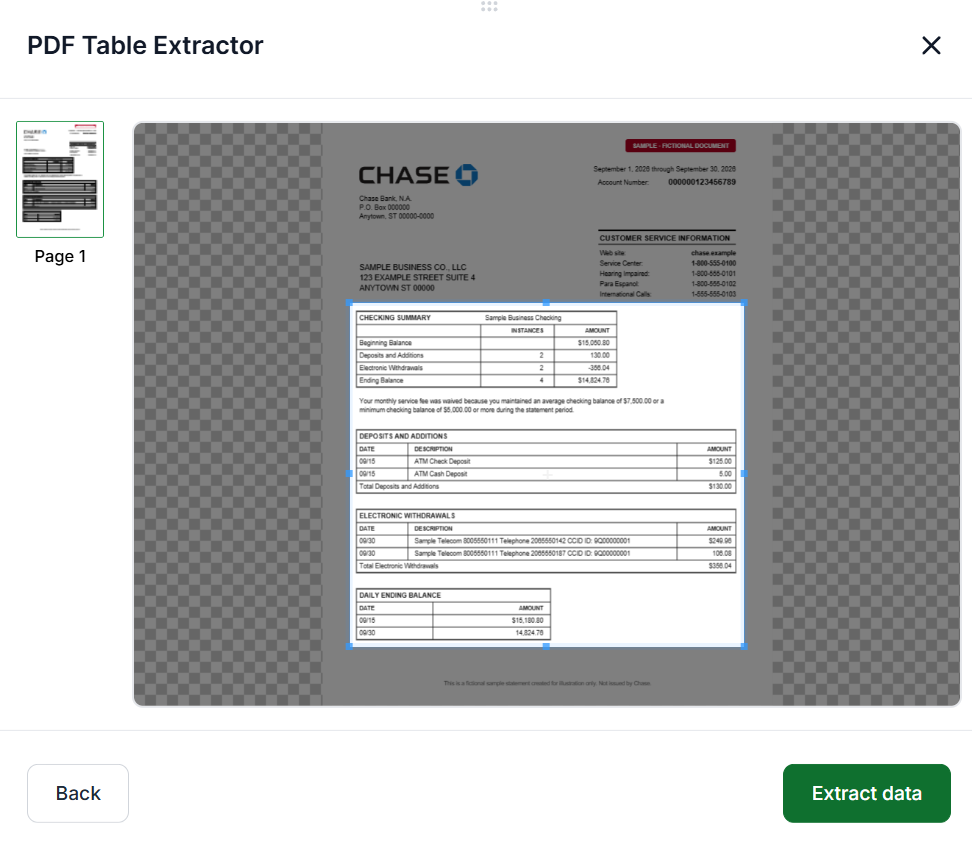
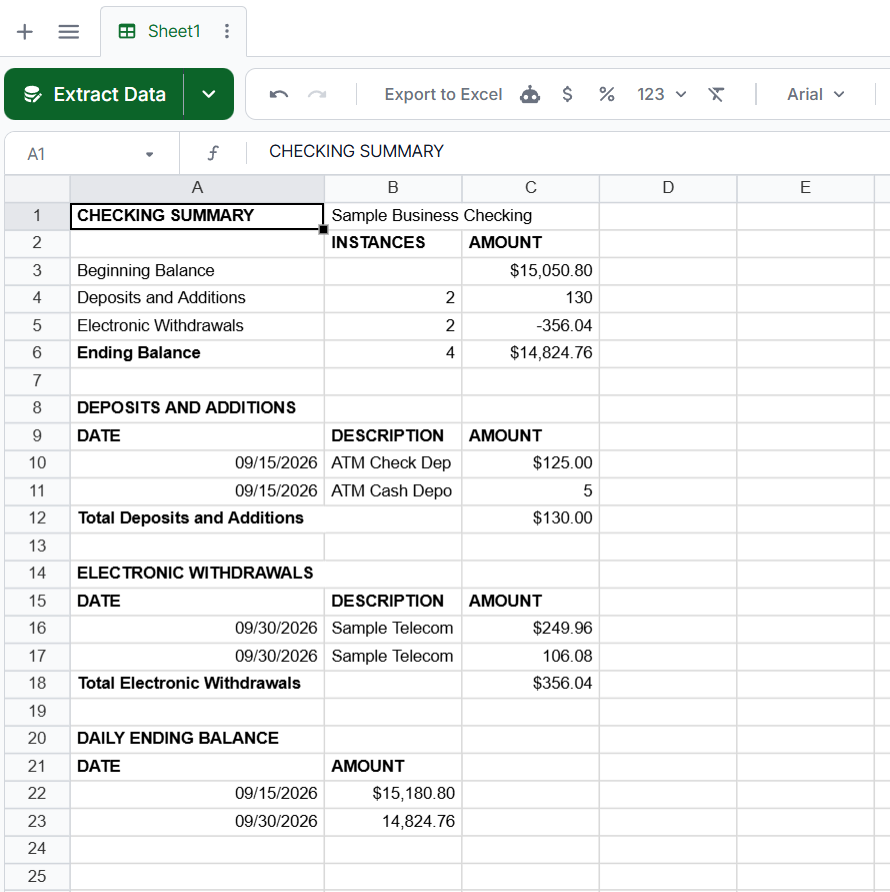
Lido's AI analyzes the document, identifies every table on every page, and determines the column structure and row boundaries. It handles multi-page tables, merged cells, and tables without borders automatically. No templates or manual configuration needed.
Lido outputs the table data into clean, structured columns. Review the results and flag any errors. A 24-hour refinement window lets you request corrections at no extra cost.
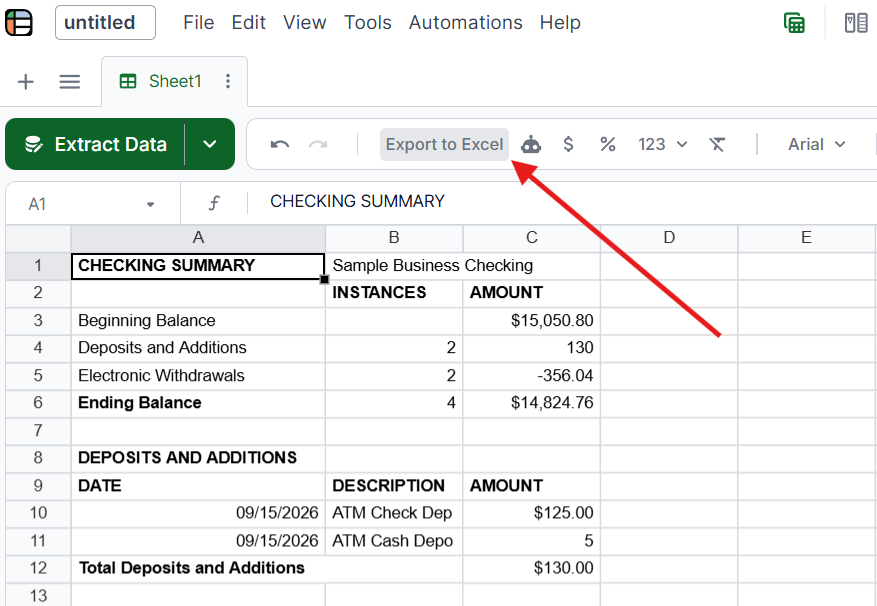
Export the extracted table data to Excel, Google Sheets, CSV, or QuickBooks. Lido integrates with your existing workflow so the data goes where you need it.
Lido delivers 99%+ field-level accuracy across all PDF types and is SOC 2 Type II compliant, so sensitive documents are handled securely. You can start with 50 free pages to test it on your own PDFs.
The right method depends on how often you extract PDF tables, how complex your tables are, and whether you need the process to be automated.
Use copy-paste if you need to extract a single simple table once and do not mind spending a few minutes cleaning up the result.
Use a PDF-to-Excel converter if you have a clean digital PDF with a basic table layout and need a quick, free solution.
Use Python libraries if you are a developer, your PDFs are digital (not scanned), and you want to build extraction into a custom pipeline.
Use Adobe Acrobat Pro if you already have a subscription and need occasional table extraction alongside other PDF editing features.
Use an online tool if you need a one-off extraction from a non-sensitive PDF and do not want to install software.
Use Lido if you extract tables from PDFs regularly, deal with scanned or complex documents, need high accuracy, or want the process automated. It is the only method that handles every table type reliably without manual cleanup.
Now that you understand the different ways to extract tables from PDFs, you can choose the method that best fits your volume, document complexity, and accuracy requirements.
The best way to extract tables from PDFs is to use an AI-powered tool like Lido. It reads the table structure automatically, handles scanned documents and complex layouts, and outputs clean data into a spreadsheet. Other methods like copy-paste and free converters work for simple tables but require manual cleanup for anything complex.
Upload the PDF to an extraction tool like Lido, which reads the table and exports the data directly to Excel. Alternatively, you can use Adobe Acrobat's "Export PDF" feature or a free online PDF-to-Excel converter, though these often require manual cleanup of the output.
Yes, but only with tools that include OCR (optical character recognition). AI-powered tools like Lido and Adobe Acrobat Pro can read scanned PDFs. Free converters and Python libraries like Tabula and Camelot cannot process scanned documents without a separate OCR step.
Several free online tools let you extract tables from PDFs in your browser, including Tabula Web, Smallpdf, and PDF Table Extractor. Upload the PDF, select the table area, and download the result. These tools work for simple tables but have file size limits and do not handle scanned documents.
Yes. Free options include copy-paste, online converters like Smallpdf, and Python libraries like Tabula and Camelot. These work for simple, well-formatted digital PDFs. For scanned documents, complex layouts, or high-volume processing, a paid AI-powered tool will save significant time on manual cleanup.
Extracting a table of contents is different from extracting data tables. Most PDF readers (Adobe Acrobat, Preview, Chrome) display the PDF's built-in table of contents as a sidebar. To extract it as text, you can copy it from the sidebar or use a tool like PyPDF2 in Python to read the PDF's bookmark metadata.
AI-powered tools like Lido automatically detect and extract all tables across every page of a PDF, including tables that span multiple pages. Python libraries can also extract multiple tables but require you to specify page ranges and may miss tables that span page breaks.