


To extract text from a scanned PDF, you can use Lido's AI PDF Extractor. Lido runs OCR on the scanned page automatically, reads the text, and places it into a spreadsheet with tables and columns intact, ready to export to Excel.
In this tutorial, we will walk you through how to extract text from a scanned PDF using Lido. Simply follow the steps below.
Lido is the best way to extract text from a scanned PDF because it reads the image and keeps the document's structure, so you get organized data instead of a wall of raw text.
Before you start, make sure you have your scanned PDF saved on your computer. Photos of paper documents work too.
If you don't have a Lido account yet, you can create one for free here.
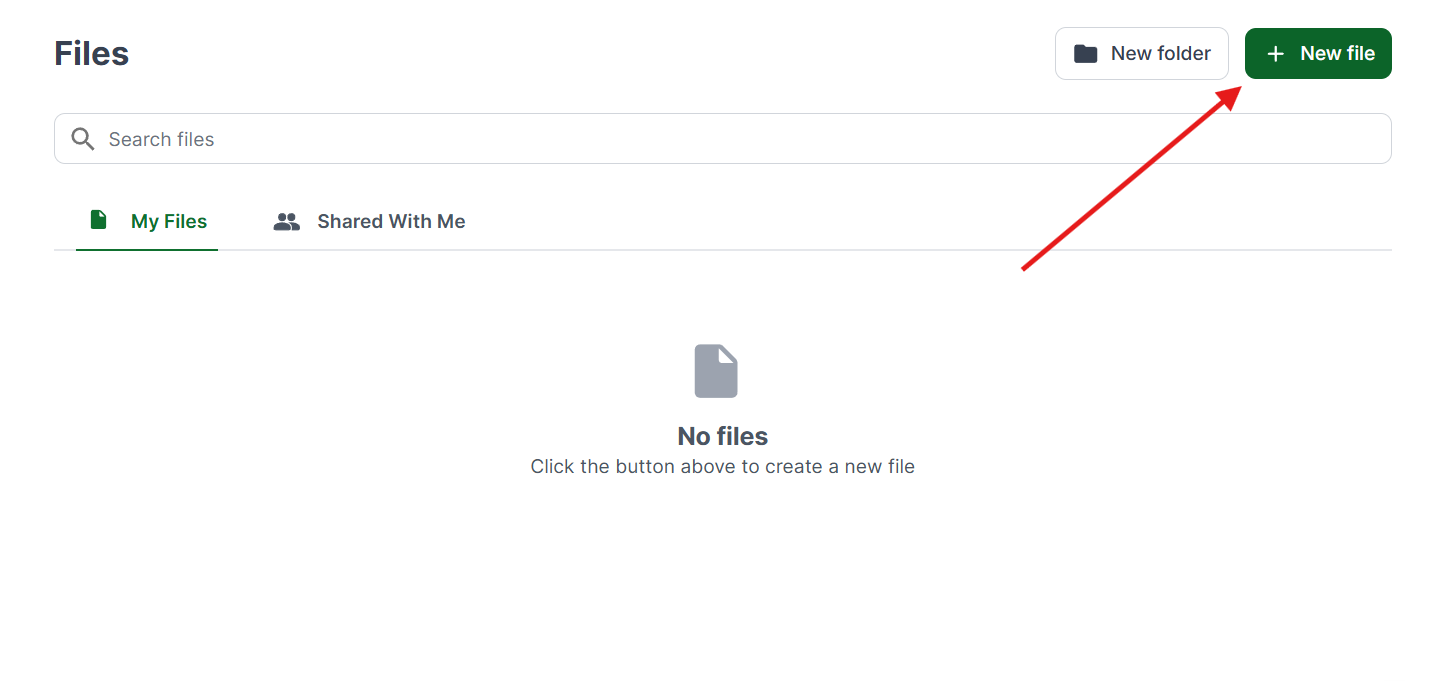
Once you're logged in, create a New File.
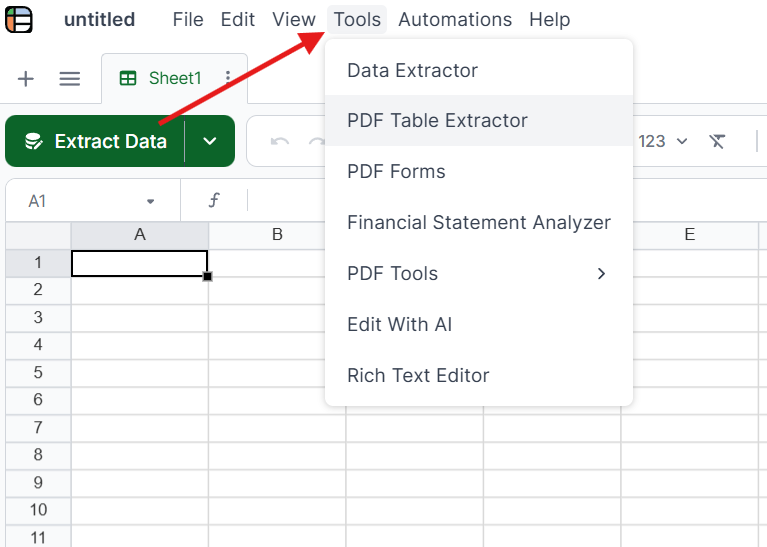
Click on Tools in the top menu and select the PDF Table Extractor. This tool reads the text in your scanned PDF and keeps tables and columns in place.
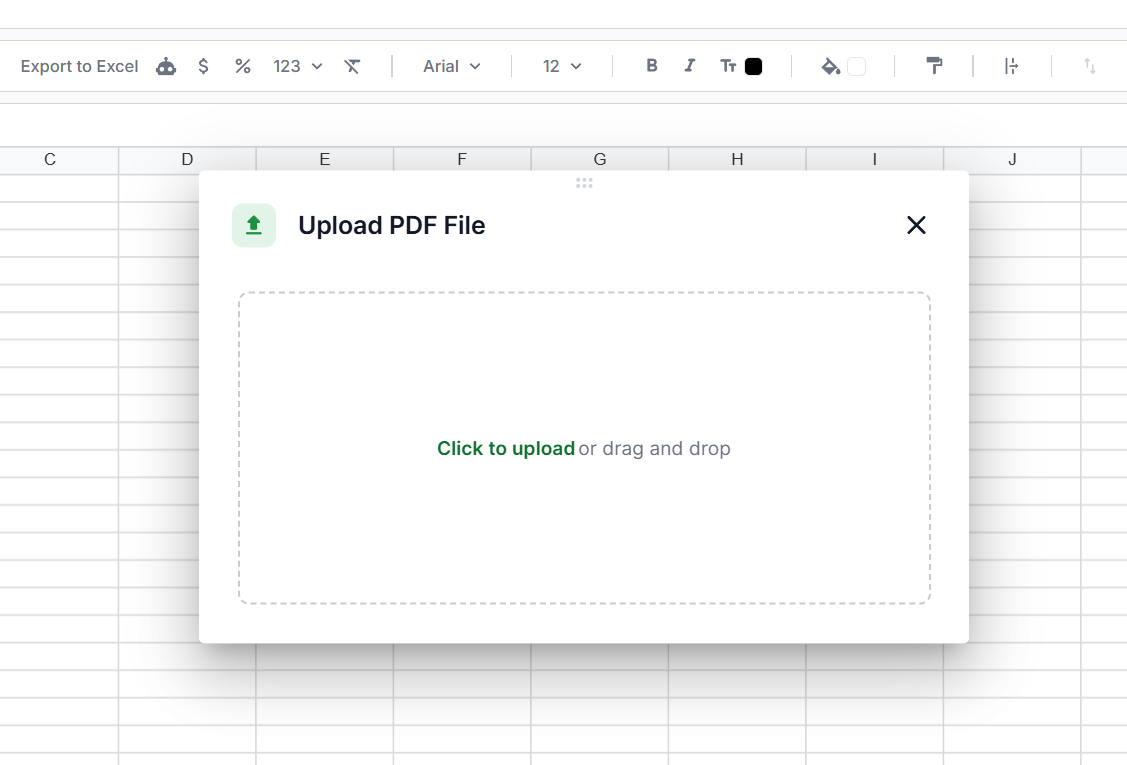
Drag and drop your file into Lido, or click to upload. Lido runs OCR automatically, so there's no need to convert the scan first.
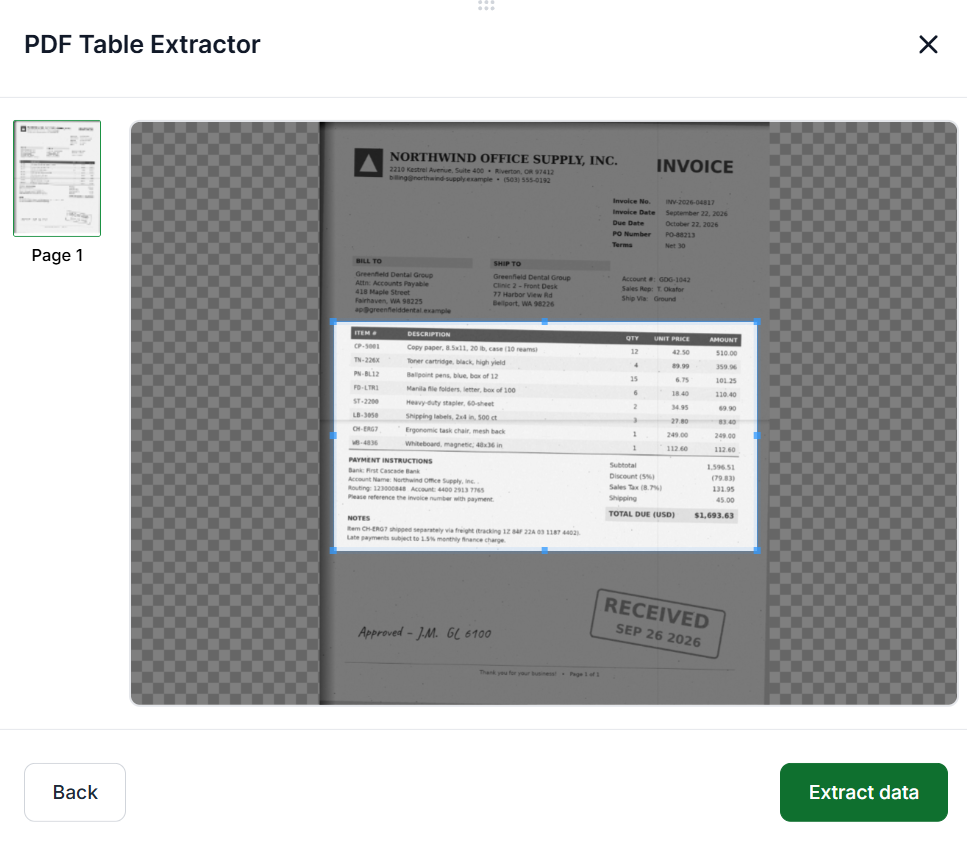
For the purpose of this tutorial, we are using a sample scanned invoice. Drag the selection box over the part of the page you want to extract, such as the line items table with the item numbers, descriptions, quantities, and prices. If the same layout repeats on every page, check Apply selection to all pages.
Once you have your selection, click Extract Data.
Review the extracted text to make sure it includes everything you need. You can go back to adjust your selection. When you're satisfied, click Insert at Active Cell to add it to your spreadsheet.

You can edit and format the cells however you need. Adjust column widths, format dates and numbers, or reorganize the content to suit your workflow.

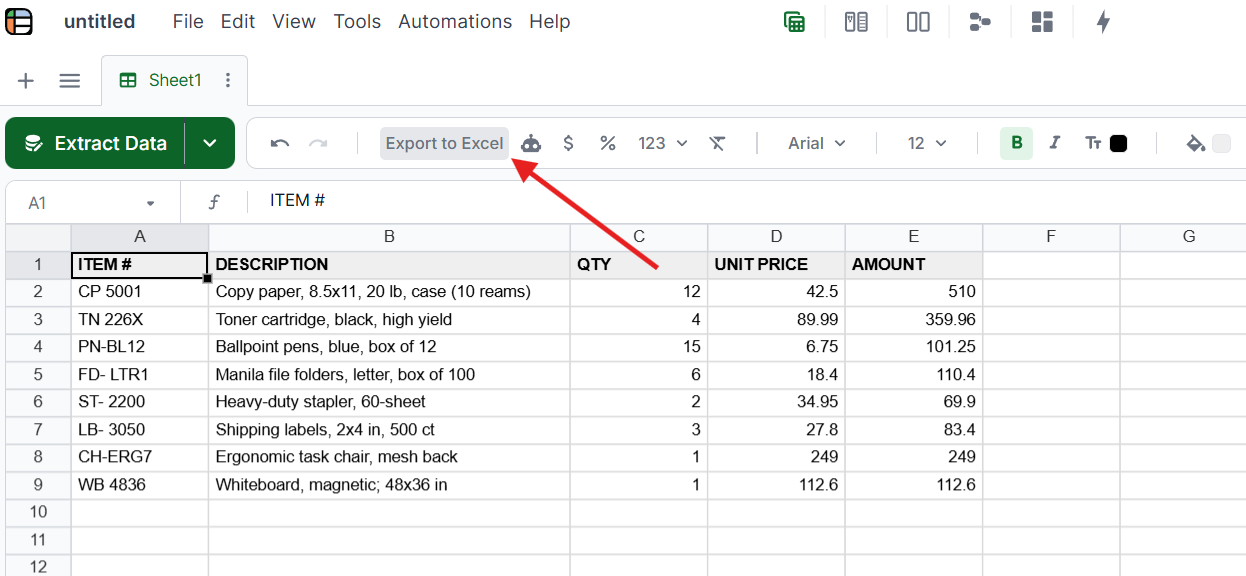
Once you're done, you can click Export to Excel at the top to download the extracted text as a spreadsheet file.
A scanned PDF is an image of a page, so you need OCR (software that turns images of text into real text) to get the words out. These free and paid options can help, but each has limits:
Google Docs (free): Upload the scan to Google Drive, right-click it, and choose Open with Google Docs. It works for simple, single-page scans, but tables and multi-column layouts come out as unstructured text.
Adobe Acrobat Pro: Use the Scan & OCR tool and choose Recognize Text to make the scan selectable and searchable. It works well on clean, high-resolution scans, but it requires a paid subscription and struggles with low-quality scans and complex tables.
Free OCR tools: Tesseract, OnlineOCR.net, and OCR.space read characters accurately on clean scans. The output is plain text, so a scanned invoice comes out as one block with no separation between labels, values, and line items.
Python with Tesseract: Developers can use pytesseract and pdf2image to run OCR on every page of a scanned PDF. This automates the process, but it takes coding skills and still produces unstructured text. Fully automated PDF data extraction goes a step further by returning labeled fields instead of raw text.
Lido works in every scenario: faded text, low-resolution scans, multi-page documents, photographed pages, and complex tables. It's also SOC 2 Type II and HIPAA compliant, so sensitive documents like medical and financial records stay secure. Security matters most when extracting data from financial documents such as bank statements and tax forms.
Scan quality has a direct impact on how accurate the extracted text will be. These tips help with any tool:
Scan at 300 DPI or higher: Resolution has the biggest effect on OCR accuracy, especially for small text.
Use black and white or grayscale: Color scans can add noise that makes characters harder to read.
Keep pages straight: Tilted pages reduce accuracy, so use your scanner's auto-straighten feature.
Remove plastic sleeves: Sheet protectors create glare and lower contrast.
Now that you know how to extract text from a scanned PDF, you can turn paper documents into editable, organized data without retyping them.
Upload the scanned PDF to Lido's PDF Table Extractor and select the part of the page you want. Lido runs OCR automatically and puts the text into a spreadsheet with tables and columns intact. Standard copy and paste doesn't work on scanned PDFs because they contain images, not text.
Yes. Google Docs, Tesseract, and OnlineOCR.net can extract text from simple scans for free, but they produce raw text without structure. Lido offers 50 free pages so you can get organized output from your own scans.
Lido is the best tool for extracting text from scanned PDFs because it combines OCR with an understanding of the document's layout. Tables, fields, and line items come out organized instead of as a wall of text.
A scanned PDF contains a picture of the page, not actual text characters. Your PDF reader has no text to select, so you need OCR to turn the image into text.
On clean, high-resolution scans with printed text, modern OCR reaches 95% to 99% character accuracy. Lido achieves 99%+ field-level accuracy by combining OCR with an understanding of the document's context.
Yes. Lido reads most legible handwriting, and printed text on the same page works too. For a full walkthrough, see our guide on how to extract data from handwritten documents.
%20(1).svg)
.png)
