


To copy text from a PDF, open the file, select the text with your cursor, and press Ctrl+C (or Cmd+C on Mac). If you cannot select the text, the PDF is either scanned, protected, or image-based. In that case, use an AI-powered tool like Lido or an OCR tool to read the text from the image and extract it automatically.
Copying text from a PDF works perfectly on some files and fails completely on others. You click, drag, and nothing gets selected. Or the text copies but pastes as garbled characters.
This guide explains how to copy text from a PDF in every situation, including when the text cannot be copied using normal methods.
Open the PDF in any PDF reader (Adobe Acrobat, Chrome, Preview on Mac, or Edge). Click and drag to select the text you want, then press Ctrl+C to copy and Ctrl+V to paste it into your target application.
To copy all text in a PDF at once, press Ctrl+A to select everything on the page, then copy. In Adobe Acrobat, you can use Edit > Select All to grab the full document across all pages.
This method works on digital PDFs where the text is stored as actual characters in the file. If the text highlights when you click and drag, the PDF is digital and standard copy-paste will work. Fillable PDFs can be trickier, since answers typed into form fields may not copy along with the page text.
If you cannot select or copy text from a PDF, there are three possible reasons. Each one requires a different solution.
When a paper document is scanned into a PDF, the file contains a photograph of the page, not actual text. There are no characters in the file for your PDF reader to select. This is the most common reason people cannot copy text from a PDF.
You can tell a PDF is scanned by trying to click on a word. If nothing highlights and your cursor does not change to a text selection tool, the PDF is an image. You need OCR (optical character recognition) to read the text from the image before you can copy it. Recruiters run into this often when they need candidate data from scanned resumes.
Some PDFs have permission settings that disable text selection and copying. The text is in the file, but the PDF reader blocks you from selecting it. This is common with legal documents, published reports, and files shared by organizations that want to prevent copying.
You can usually tell a restricted PDF because your cursor changes to a text selection tool when you hover over the text, but clicking and dragging does not highlight anything. Some PDF readers will display a lock icon or a message about restricted permissions.
Some PDFs store text using custom font encoding that does not map to standard characters. You can select and copy the text, but when you paste it, the result is garbled symbols or empty characters instead of readable text.
This happens with PDFs generated by certain design software, older publishing tools, or documents that use embedded subset fonts. The visual rendering looks correct, but the underlying character data is not standard text.
When standard copy-paste does not work, these methods will get the text out of the PDF regardless of why it is blocked.
Upload the PDF to Google Drive, then right-click the file and choose "Open with Google Docs." Google Docs converts the PDF to an editable document using built-in OCR. Once the conversion is complete, you can select and copy any text in the document.
This method is free and works for simple scanned PDFs and some protected files. It struggles with complex layouts, multi-column pages, and tables. The converted text often loses its original formatting.
Take a screenshot of the PDF page and run it through an OCR tool. On Windows, the Snipping Tool with the "Text Actions" feature can read text from screenshots. On Mac, you can use the built-in Preview OCR or the Live Text feature.
For dedicated OCR, free tools like Tesseract or online services like OnlineOCR.net can read text from screenshots or images. This works for any PDF regardless of protection or encoding, since you are reading the visual output rather than the file data.
Adobe Acrobat Pro can handle all three problem types. For scanned PDFs, it runs OCR to make the text selectable. For protected files, "Export PDF" converts the document to Word or plain text, bypassing copy restrictions. For encoding issues, the export process re-encodes the text into standard characters.
Acrobat Pro costs $22.99 per month. It is a reasonable option if you deal with problem PDFs occasionally and already use Acrobat for other tasks.
AI tools like Lido read the PDF using a combination of OCR and machine learning. They work on scanned PDFs, protected files, and documents with encoding issues. The AI understands the document structure and outputs clean, organized text rather than a raw character dump.
This is the most reliable method for copying text from PDFs that cannot be copied through normal means. It handles every scenario without requiring you to diagnose why the text is blocked.
Lido's PDF Table Extractor is the best way to copy text from a PDF because it works on digital and scanned PDFs and keeps tables and columns in the right order. Here is how to use it.
Before you start, make sure you have your PDF saved on your computer.
If you don't have a Lido account yet, you can create one for free here.
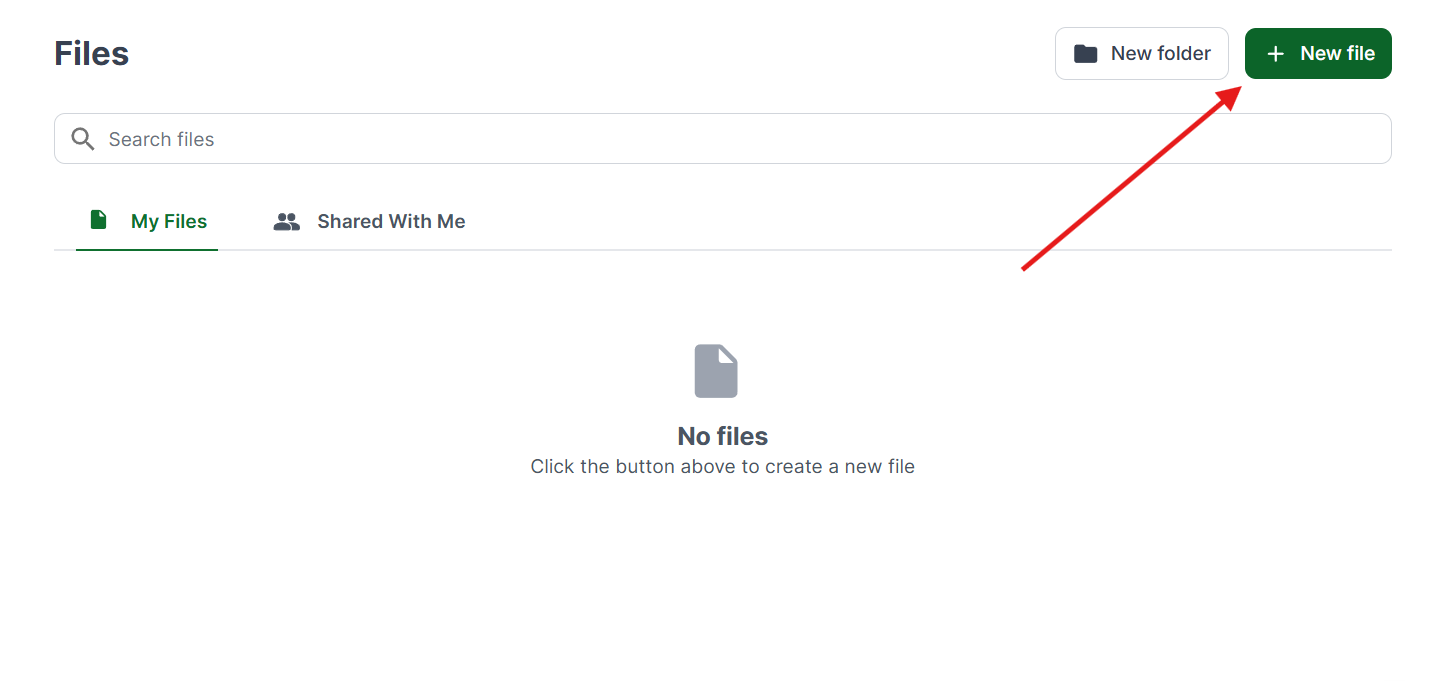
Once you're logged in, create a New File.
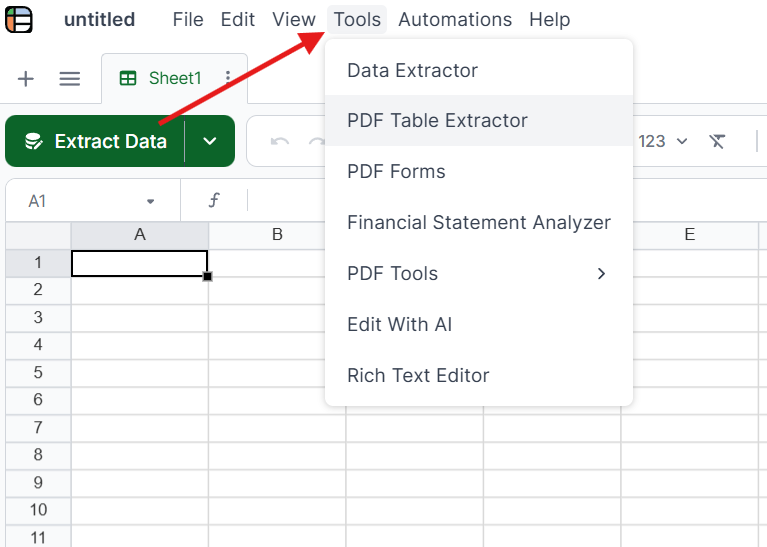
Click on Tools in the top menu and select the PDF Table Extractor. This tool reads the text and tables in your PDF and keeps their structure intact.
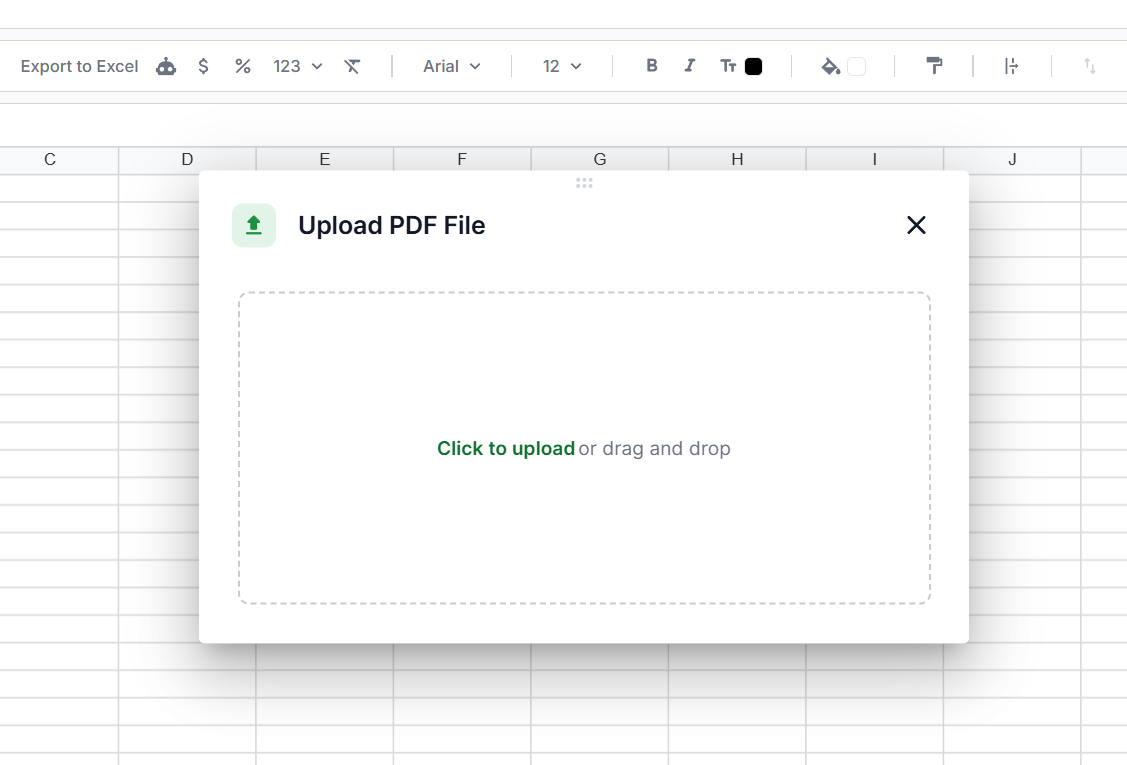
Drag and drop your file into Lido, or click to upload. Digital PDFs, scanned PDFs, and photos of paper documents all work.
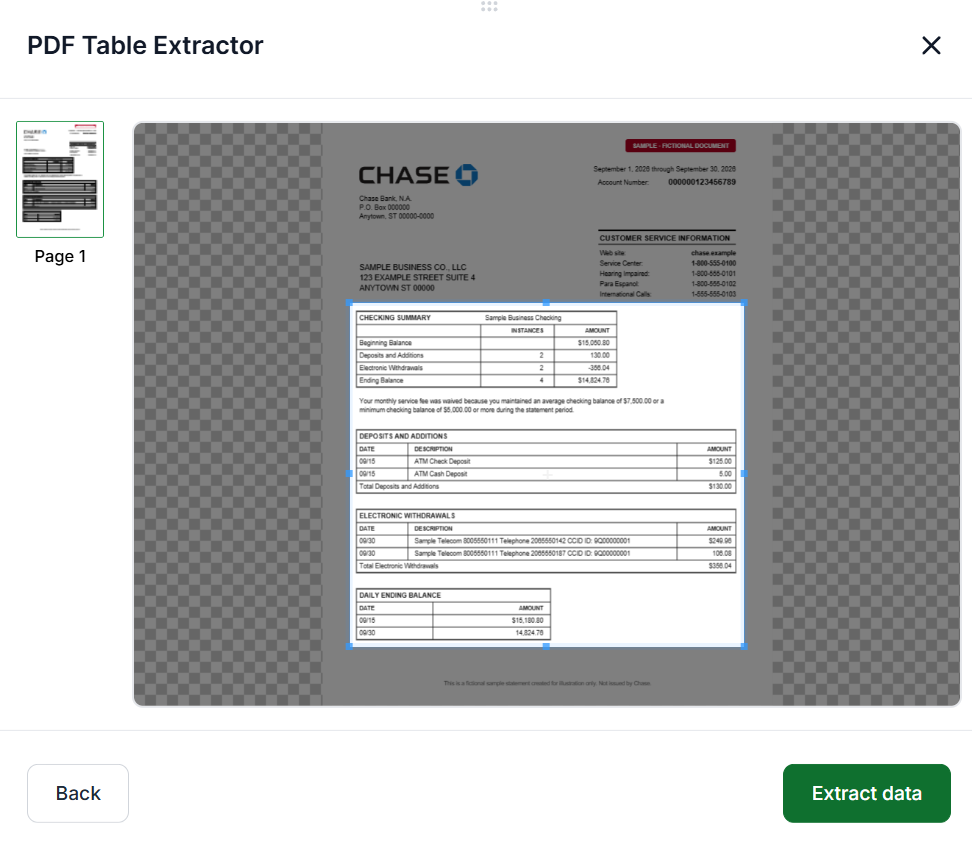
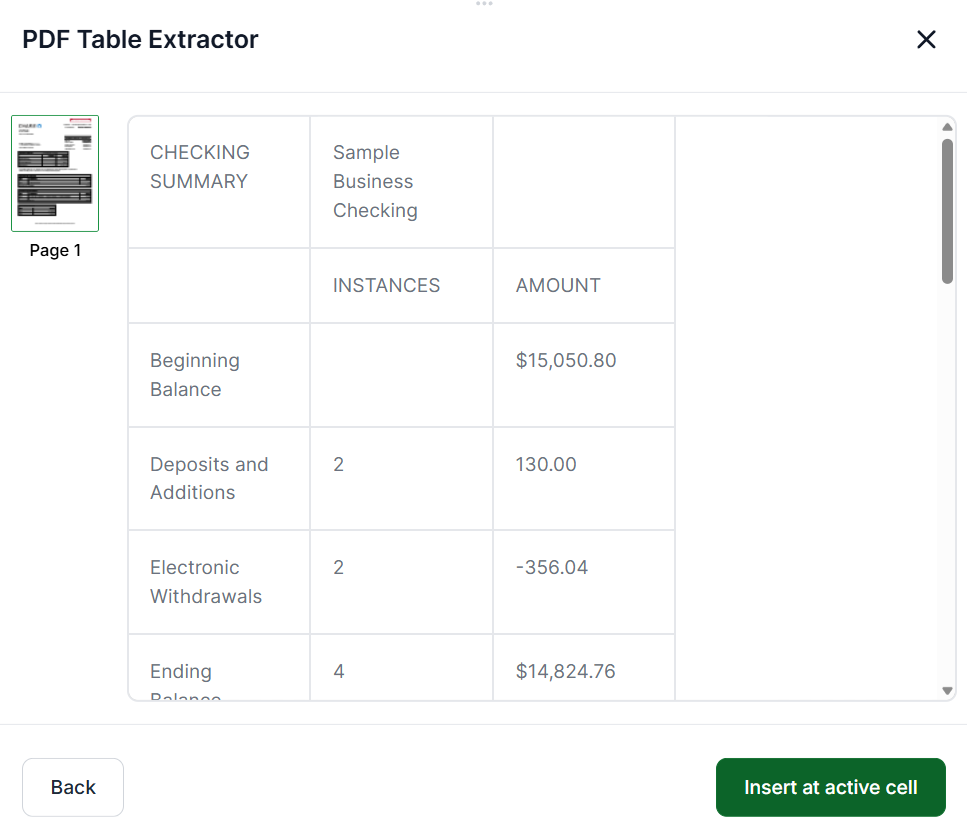
For the purpose of this tutorial, we are using a sample bank statement. Drag the selection box over the part of the page you want to copy, then click Extract Data.
Review the extracted text to make sure it includes everything you need. You can go back to adjust your selection. When you're satisfied, click Insert at Active Cell to add it to your spreadsheet.
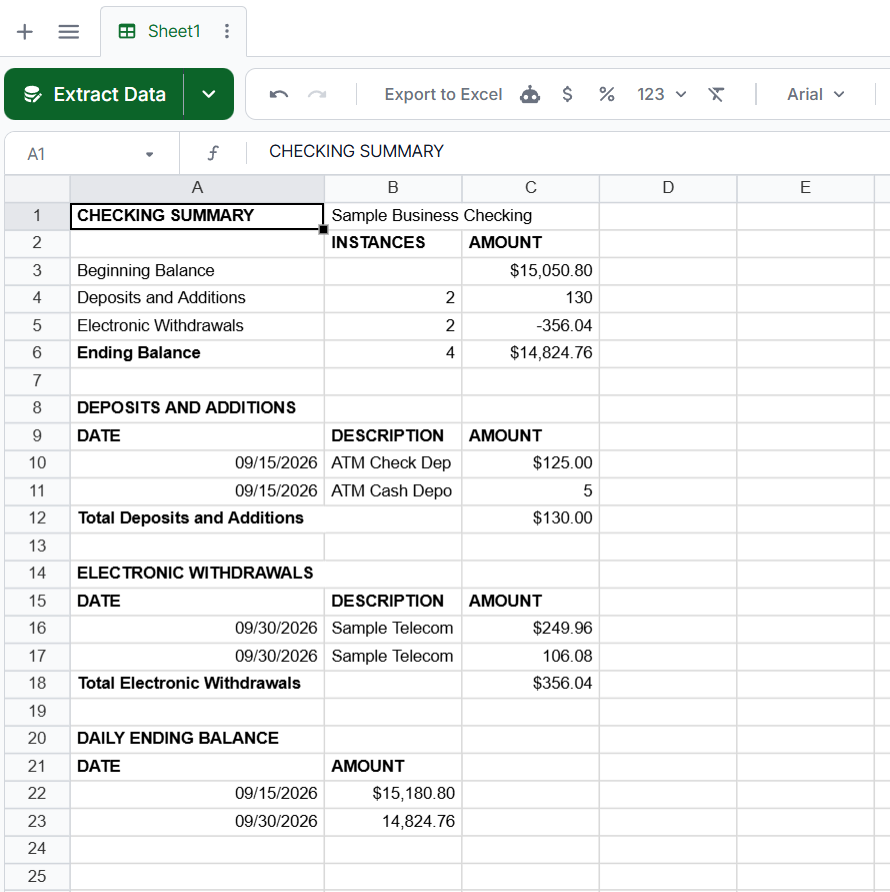
You can edit and format the cells however you need. Adjust column widths, fix formatting, or reorganize the content to suit your workflow.
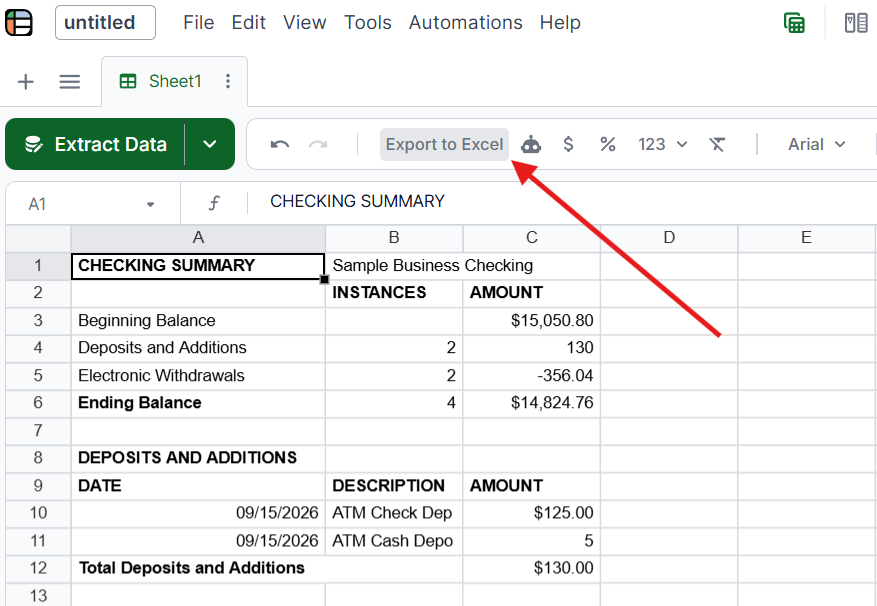
Select the cells you need and copy them to paste into another document, or click Export to Excel at the top to download everything as a spreadsheet file.
Lido is SOC 2 Type II and HIPAA compliant, so your documents stay secure. Start with 50 free pages to test it on your own PDFs.
Check if the PDF is digital first. Try selecting text before reaching for any tools. If it highlights and copies cleanly, you do not need anything else.
Use Ctrl+A for full-page selection. If you need all the text from a page, selecting everything at once is faster and avoids missed sections from manual selection.
Paste as plain text. When pasting copied PDF text, use Ctrl+Shift+V (paste without formatting) to avoid carrying over unwanted font sizes, colors, or spacing from the PDF.
Try a different PDF reader. Some readers handle text selection better than others. If Chrome does not let you select text, try Adobe Acrobat Reader (free) or Foxit Reader. Different readers interpret the same PDF differently.
Now that you know how to copy text from a PDF in every situation, you can handle digital files, scanned documents, and protected PDFs without getting stuck.
Open the PDF, select the text with your cursor, and press Ctrl+C to copy it. Paste it with Ctrl+V. This works on digital PDFs where the text is stored as characters. For scanned or protected PDFs, use an OCR tool or an AI extraction tool like Lido.
There are three common reasons. The PDF may be a scanned image (no actual text in the file), password-protected with copy restrictions, or using custom font encoding that produces garbled output when pasted. Each requires a different solution, but AI tools like Lido handle all three.
Use Google Docs (upload to Google Drive, open with Docs for free OCR), a screenshot with an OCR tool, Adobe Acrobat Pro, or an AI extraction tool like Lido. AI tools are the most reliable because they handle scanned, protected, and encoding-broken PDFs without needing to diagnose the issue first.
Press Ctrl+A to select all text on the current page, then Ctrl+C to copy. In Adobe Acrobat, use Edit > Select All to select text across all pages. For scanned PDFs where text cannot be selected, use an OCR or AI tool to extract the full document text.
Not with standard copy-paste. Scanned PDFs contain images of pages, not actual text. You need an OCR tool to read the text from the image. Google Docs, Adobe Acrobat Pro, Tesseract, and AI tools like Lido all include OCR for scanned documents.
Standard copy-paste from PDFs almost always loses some formatting. For the cleanest results, use a tool that understands the document structure and preserves it during extraction. AI tools like Lido output structured data with formatting intact. For simple text, pasting as plain text (Ctrl+Shift+V) avoids importing broken formatting.
%20(1).svg)
.png)
