


In this tutorial, we will walk you through how to convert your PNC bank statement to Excel using Lido. Simply follow the steps below.
Before you start, make sure you already have your PNC bank statement saved as a PDF, image, or scanned copy.
If you don't have a Lido account yet, you can create one for free here.
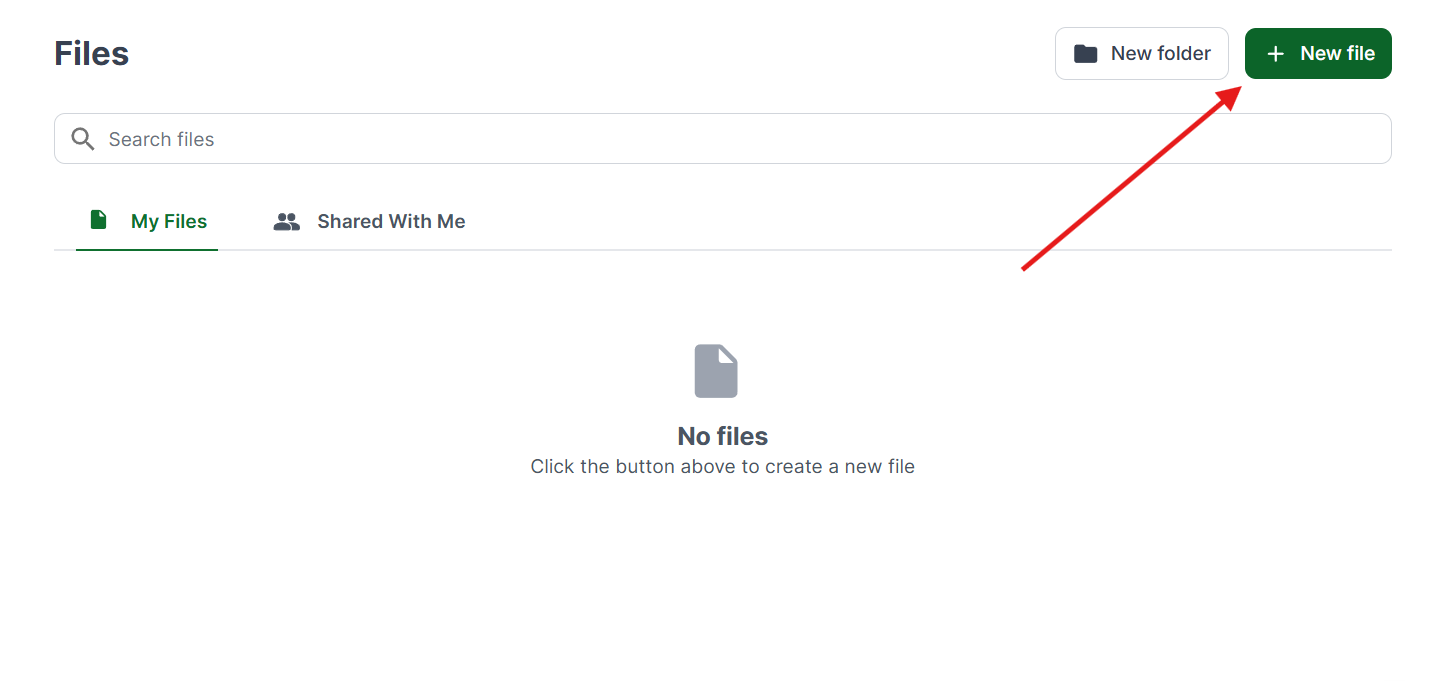
Once you're logged in, create a New File.
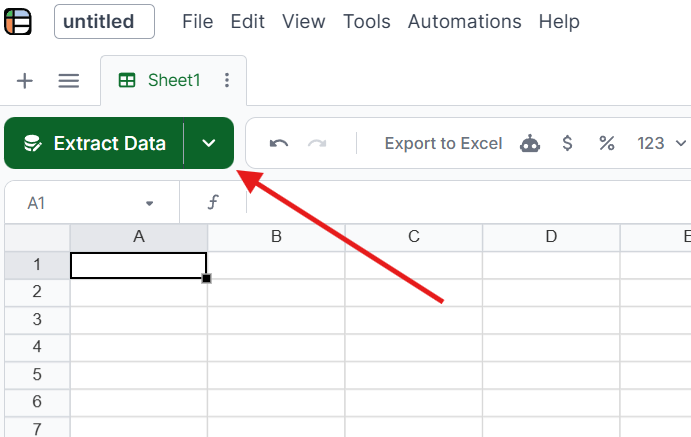
Select the Extract Data button at the top of the sheet.
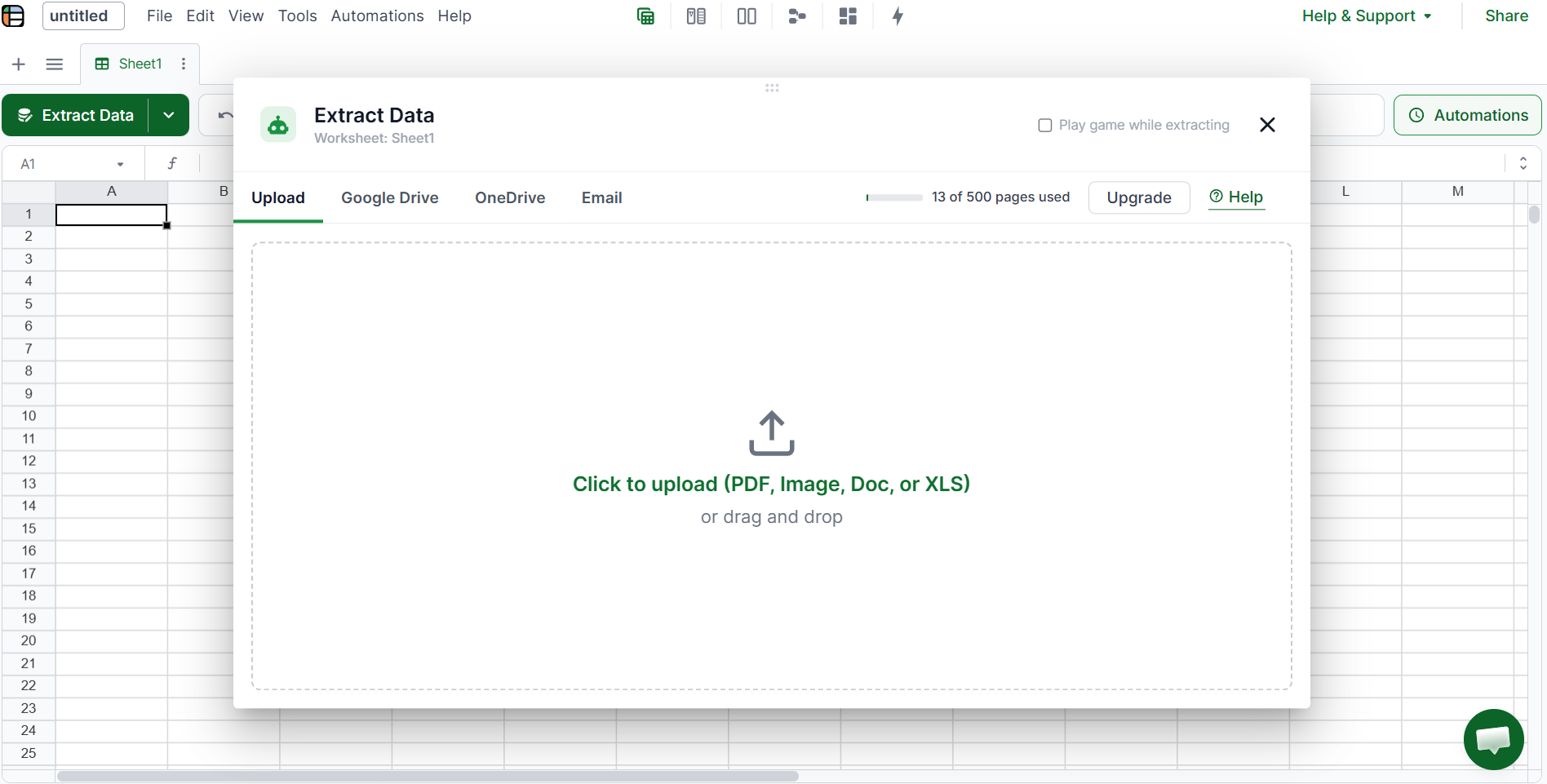
Upload your file by dragging and dropping it into Lido, or click to browse. Lido will automatically analyze the file for you.
For the purpose of this tutorial, we will only be using a sample bank statement that follows the same format as a PNC bank statement.
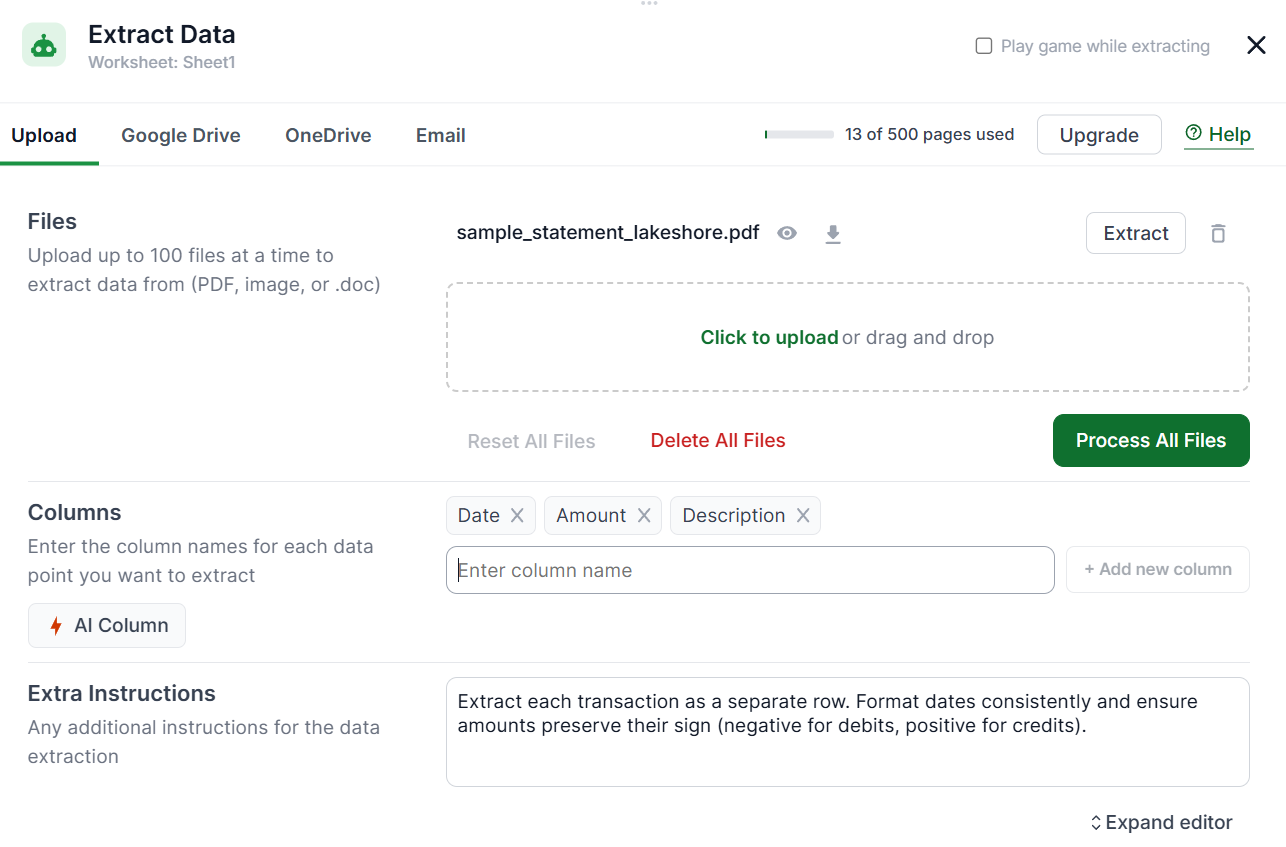
Enter the columns you want to pull from your statement. For most PNC statements, that would be Date, Amount, and Description from the Activity Detail section. You can also add any extra instructions if you'd like (this is optional), such as extracting only deposits or including the beginning and ending balances.
Once done, click Process All Files.
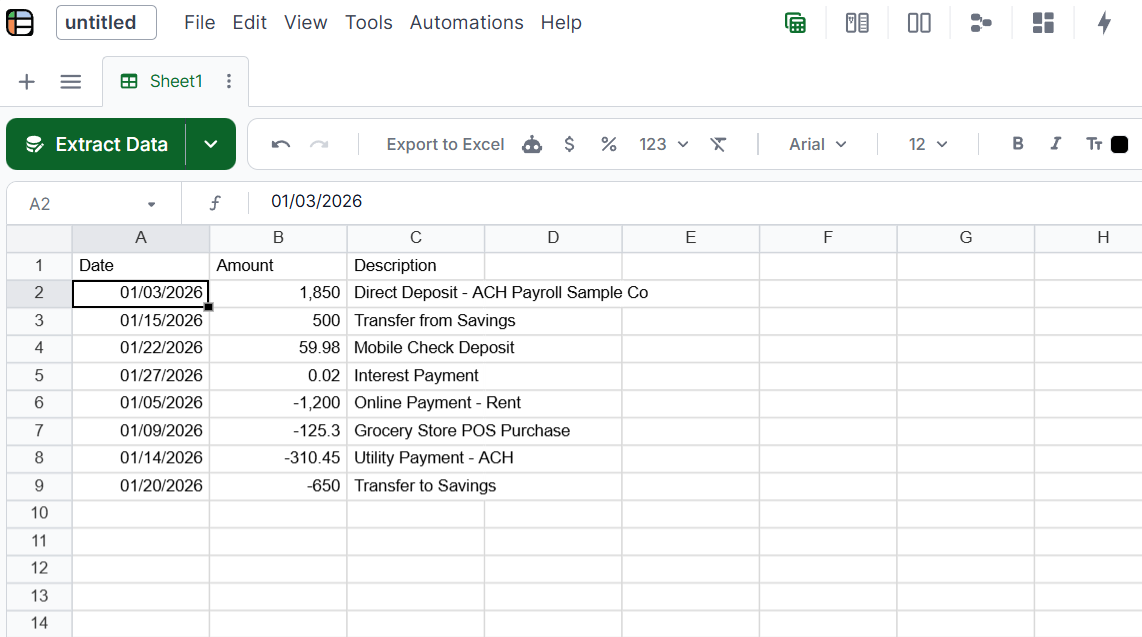
Review the extracted data to make sure everything looks correct. From here, you can edit and format the data however you want. Adjust column widths, fix formatting, or reorganize the data to suit your workflow.
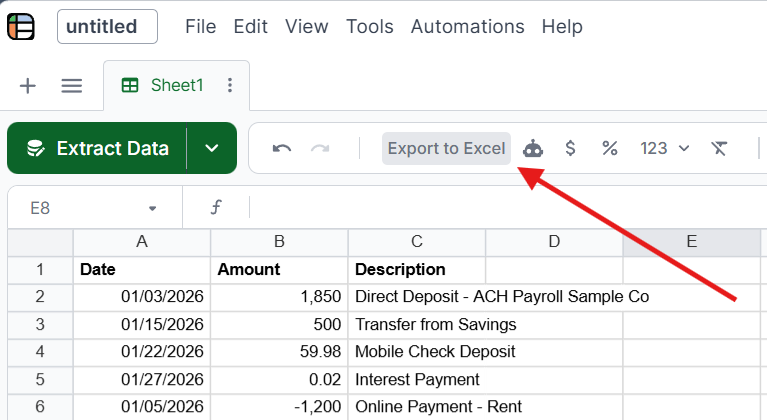
Once you're done, click Export to Excel to download your PNC bank statement data as a spreadsheet file.
Lido handles PNC Bank PDF statements from online banking and Virtual Wallet statements.
Format notes: PNC Virtual Wallet statements combine Spend, Reserve, and Growth accounts on one statement with separate transaction tables for each. Standard checking statements follow a more conventional single-table layout.
Lido's AI handles these format variations automatically. Unlike template-based converters that break when layouts change, Lido reads the document contextually, so it adapts to PNC Bank's specific formatting without manual configuration.
Copy-paste from online banking: PNC Bank's website lets you view transactions online, but copying and pasting into Excel produces messy formatting that requires significant cleanup. This works for a handful of transactions but breaks down at volume.
CSV download from PNC Bank: Some PNC Bank accounts let you download transactions as CSV directly from online banking. This works for recent transactions but doesn't cover older statements, scanned paper statements, or statements received from clients.
Manual data entry: Typing transactions into Excel. At roughly 45-60 minutes per 30-page statement with a 2-4% error rate, this is the option Lido replaces.
For the full landscape of bank statement tools, see best bank statement OCR software and how to automate bank statement reconciliation.
Upload your PNC Bank PDF statement to Lido at lido.app. Lido's AI extracts transaction dates, descriptions, amounts, and balances automatically with 99.9% accuracy, then outputs clean Excel, CSV, or Google Sheets data. No templates or manual setup required. 50 free pages to test.
Yes. Lido includes built-in OCR that handles scanned and photographed PNC Bank statements with 99.9% accuracy. Upload the scan or photo, and Lido extracts the same structured data as from a digital PDF.
Some PNC Bank accounts allow CSV transaction downloads from online banking for recent periods. However, this doesn't cover older statements, scanned paper statements, or statements received from clients. For those, an AI converter like Lido extracts the data from the PDF directly.
Lido achieves 99.9% accuracy on PNC Bank statements, including both digital PDFs and scanned paper statements. It handles PNC Bank's specific formatting quirks automatically without per-bank template configuration.
%20(1).svg)
.png)
