


To extract email attachments to Google Sheets automatically, forward your emails to Lido's dedicated email inbox. Lido extracts the data from each PDF or image attachment into a spreadsheet that you can send to Google Sheets, and Gmail or Outlook forwarding rules keep it running without manual work.
In this tutorial, we will walk you through how to extract email attachments to Google Sheets automatically using Lido. Simply follow the steps below.
Lido is the best way to extract email attachments to Google Sheets because every Lido workspace comes with its own email inbox. Lido reads each attachment with AI, runs OCR on scanned files automatically, and adds the data to your spreadsheet without API keys, templates, or a developer.
If you don't have a Lido account yet, you can create one for free here. You get 50 free pages, and no credit card is required.
Once you're logged in, create a New File.

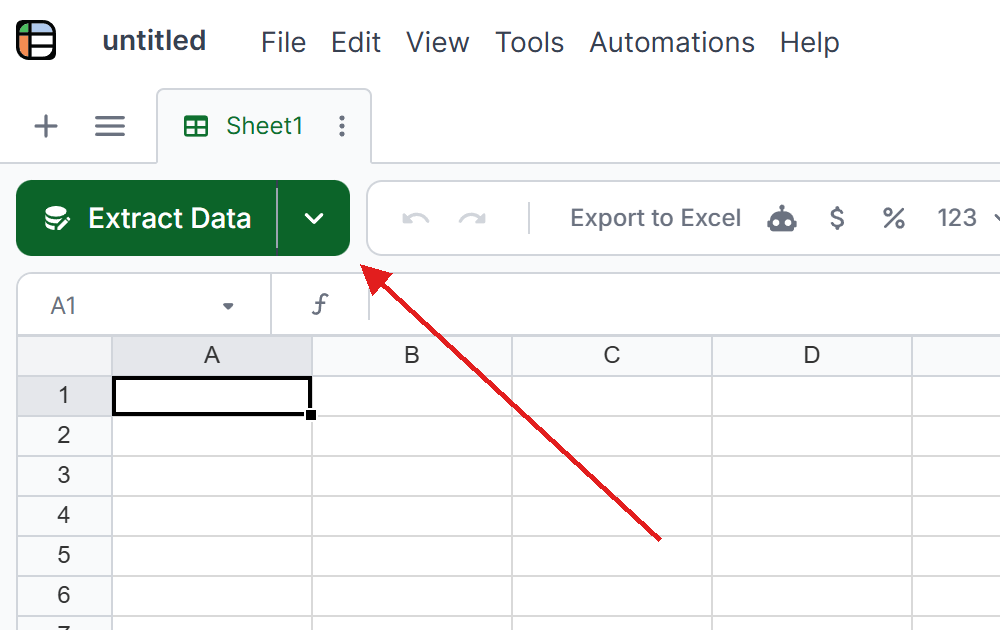
Click Extract Data at the top of the sheet and upload one sample attachment, such as an invoice PDF from your inbox. The column settings appear once a file is uploaded.
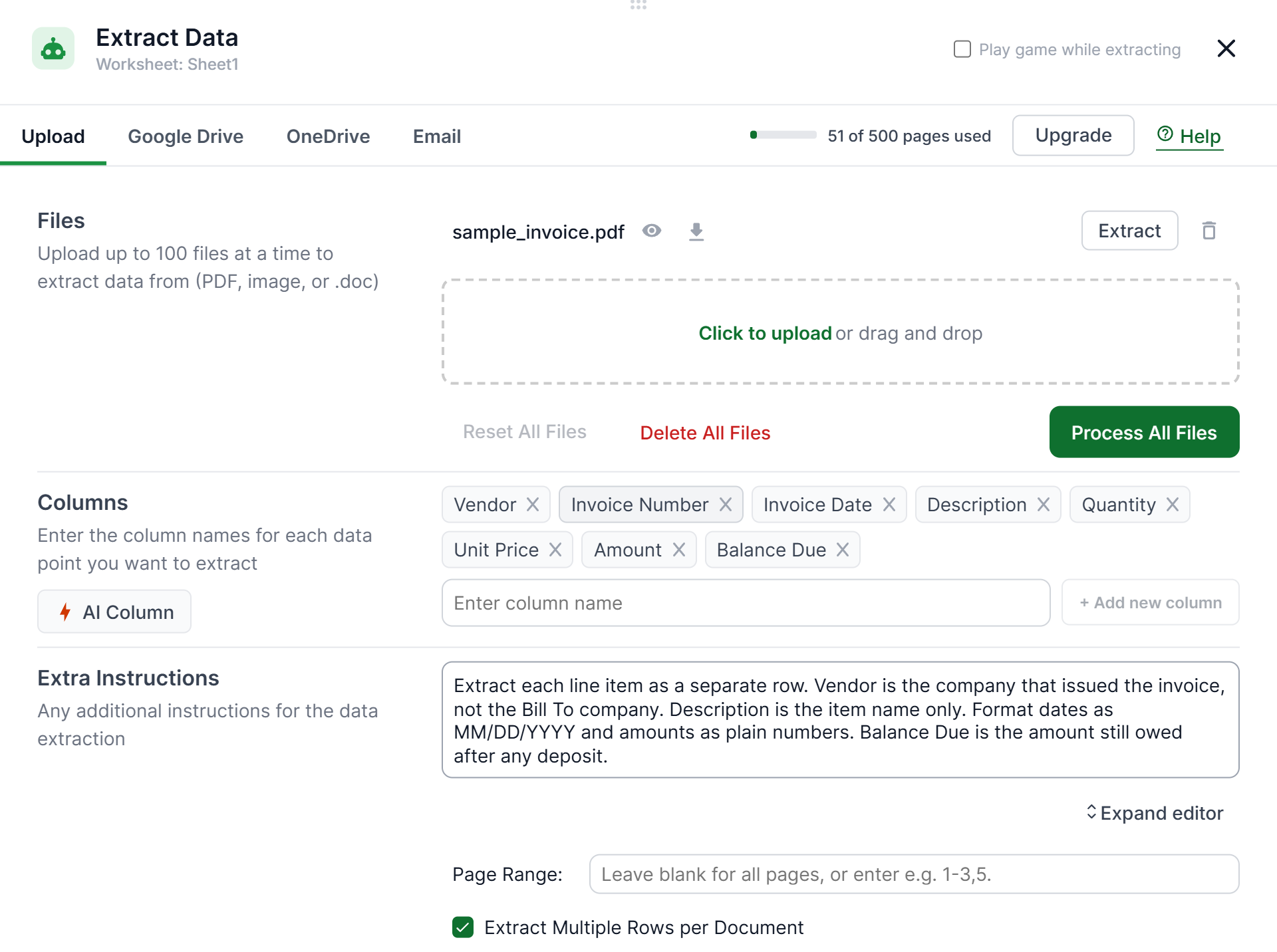
Enter a column name for each piece of data you need, such as Vendor Name, Invoice Number, Date, Line Items, and Total. Click Process All Files and check the results against the attachment. If a field looks wrong, adjust its column name or add a note in Extra Instructions.
Open the Email tab in the Extract Data window and click the copy icon next to the dedicated email address Lido gives you.
Any email you forward to this address is extracted with the columns you just set up. If you use Outlook, you can click Connect to Outlook instead.

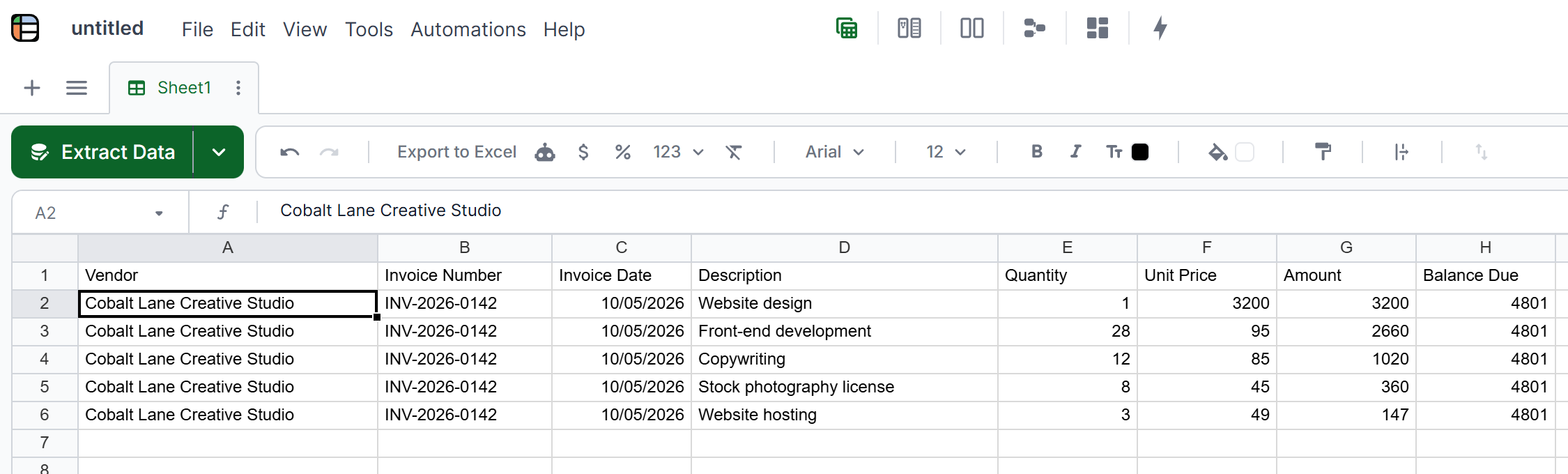
Forward an email with a PDF or image attachment to your Lido address. Lido processes a forwarded email in about 20 seconds, and the extracted data appears as a new row in your sheet.
Create a rule in your email app so matching emails go to Lido on their own:
Gmail: Go to Settings, then Filters and Blocked Addresses, and create a filter by sender, subject, or "has attachment." Choose Forward it to, and enter your Lido address. Gmail asks you to add and confirm a new forwarding address under Forwarding and POP/IMAP before it can forward automatically.
Outlook: Go to Settings, then Mail, then Rules, and add a rule with your conditions. Choose Forward to, and enter your Lido address. Outlook rules run on the server, so they work even when Outlook is closed. Some Microsoft 365 companies block automatic forwarding to outside addresses, so ask your IT team to allow it, or use Connect to Outlook.
Turn on Export Results and choose a Google Drive folder. Lido will upload an Excel or CSV file of your data to that folder each day at a time you choose, and you can open it in Google Sheets. Lido can also work the other way and pull data from Google Drive documents that already sit in a folder.
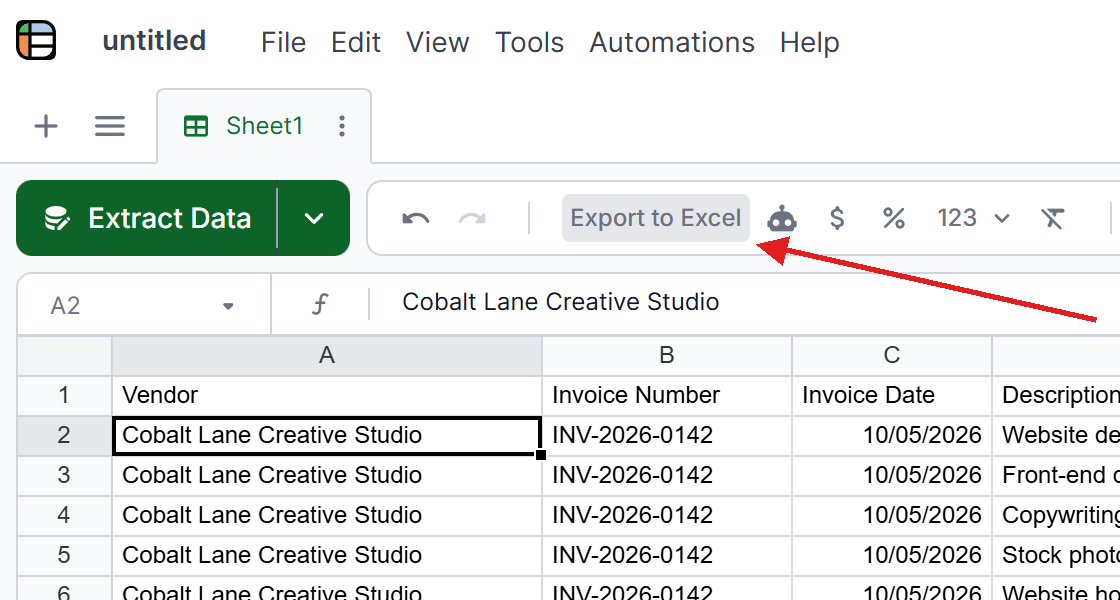
You can also click Export to Excel at any time, then open Google Sheets and go to File, then Import, to upload the file.
Lido works with PDFs (including scanned ones), JPEGs, and PNGs, which covers most business documents. Medical billing teams, for example, can forward explanation of benefits statements from insurers the same way.
There are a few other tools for getting email data into a spreadsheet. Each one fits a different situation:
Zapier Email Parser: Forward emails to a Zapier address, highlight the text you want, and send it to Google Sheets with a Zap. It has a free tier, but it only reads the email body, not attachments, and it breaks when a sender changes their email format. It works best for order confirmations and form submissions.
Power Automate and AI Builder: Power Automate can pull data from attachments with AI Builder's document model and write it to Google Sheets. It's a good fit for Microsoft 365 teams with IT support, but setup takes real work and AI Builder costs extra.
Parseur: Forward emails to a Parseur inbox, build templates that mark where your data sits, and connect to Google Sheets through Zapier or Make. It reads both email bodies and attachments, but every new document layout needs its own template, so it suits senders whose documents always look the same. See emailparser.ai for more detailed comparisons of parsing approaches.
Use this quick guide to pick the right method for your team:
Data in the email body, not attachments: Zapier Email Parser.
Data in PDF or image attachments: Lido's dedicated inbox with Gmail or Outlook forwarding.
High volume with documents that always look the same: Parseur.
Microsoft 365 team sending data to Excel: Power Automate with AI Builder.
Small team that wants to test first: Lido's 50 free pages let you try it on real documents before you pay anything.
Keep these issues in mind when you set up any email attachment workflow:
Scan quality: Blurry phone photos and low-resolution scans can still cause errors. Add a review step for anything that feeds into financial records.
Multi-page documents: Single-page invoices extract cleanly with most tools. Long, complex contracts need more testing before you rely on them.
Volume spikes: Usage-based pricing can add up during busy periods, so know your plan limits ahead of time.
For a full tool comparison, see our best email to spreadsheet tools guide. If you mainly need invoice extraction, our invoice data extraction roundup covers that in more depth.
Now that you know how to extract email attachments to Google Sheets, you can turn every incoming invoice or receipt into spreadsheet data automatically.
Forward your emails to Lido's dedicated email inbox, and Lido extracts the attachment data into a spreadsheet. Set up Gmail or Outlook forwarding rules and turn on Export Results to send the data to a Google Drive folder each day.
No. Zapier Email Parser only extracts data from the email body, not attachments. For attachments, use Lido, Parseur, or Power Automate with AI Builder.
For attachments, Lido's dedicated inbox is the simplest option. For email body text, Zapier Email Parser is free. For documents that always look the same, Parseur offers template-based extraction.
In Gmail, go to Settings, then Filters and Blocked Addresses, and create a filter by sender, subject, or attachment. Choose Forward it to and enter your Lido inbox address. Matching emails are then forwarded automatically.
%20(1).svg)
.png)
