


To extract data from Google Drive to Excel, connect your Drive folder to Lido and list the fields you need. Lido checks the folder for new files every 5 minutes, extracts the data with AI, and exports the results to Excel.
In this tutorial, we will walk you through how to extract data from Google Drive to Excel automatically using Lido. Simply follow the steps below.
Lido is the best way to extract data from Google Drive to Excel because it handles the whole process in one place. Lido connects to your Drive folder, reads every new document with AI and built-in OCR, and sends the data to Excel without downloads, copy and paste, or templates.
Before you start, create a dedicated Google Drive folder for the documents you want to extract, such as "Incoming Invoices."
If you don't have a Lido account yet, you can create one for free here. You get 50 free pages, and no credit card is required.
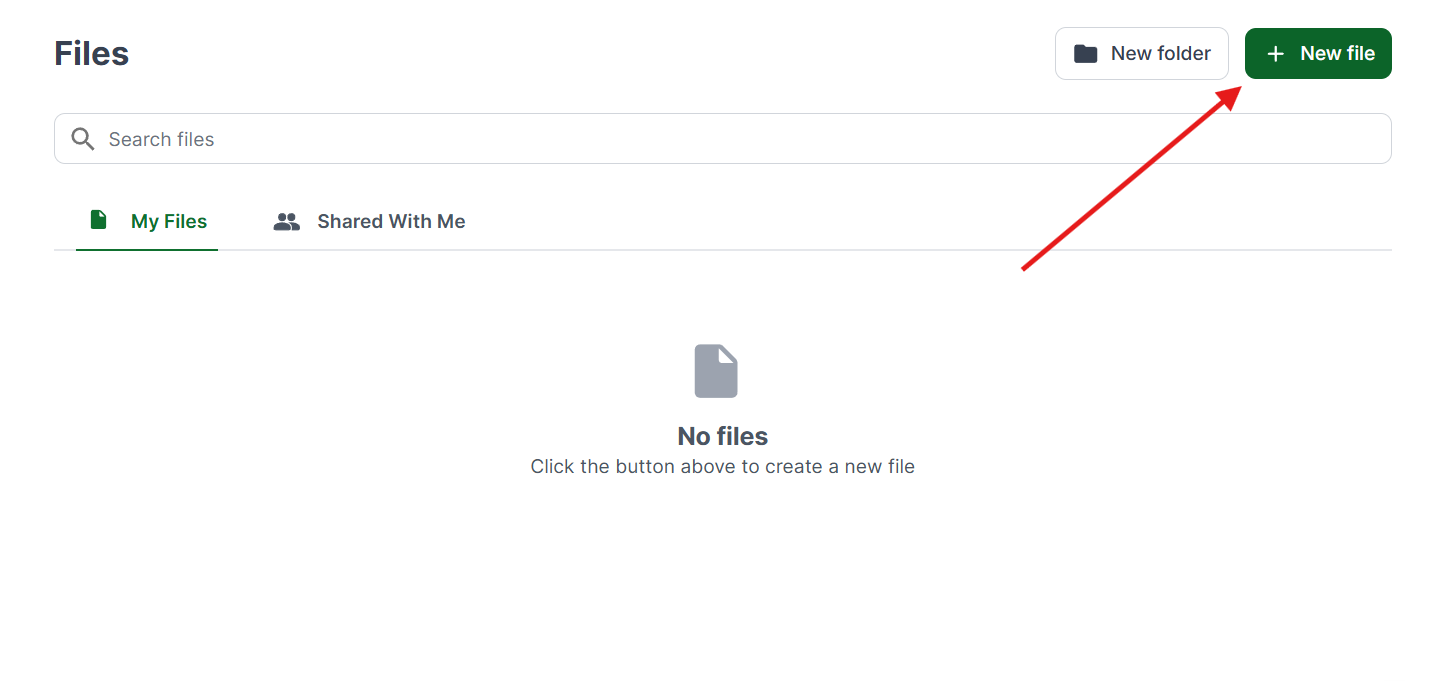
Once you're logged in, create a New File.
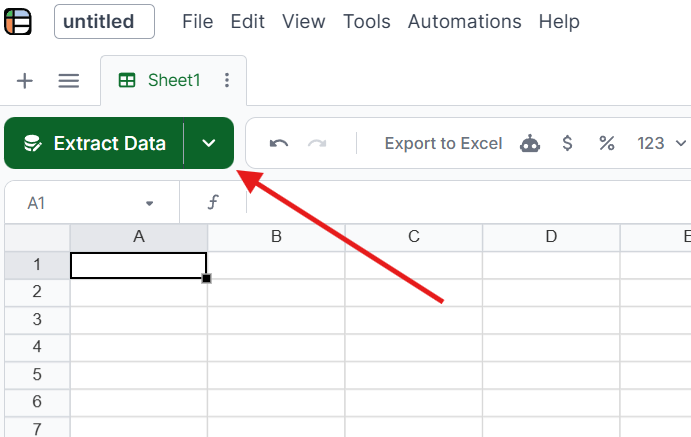
Select the Extract Data button at the top of the sheet.
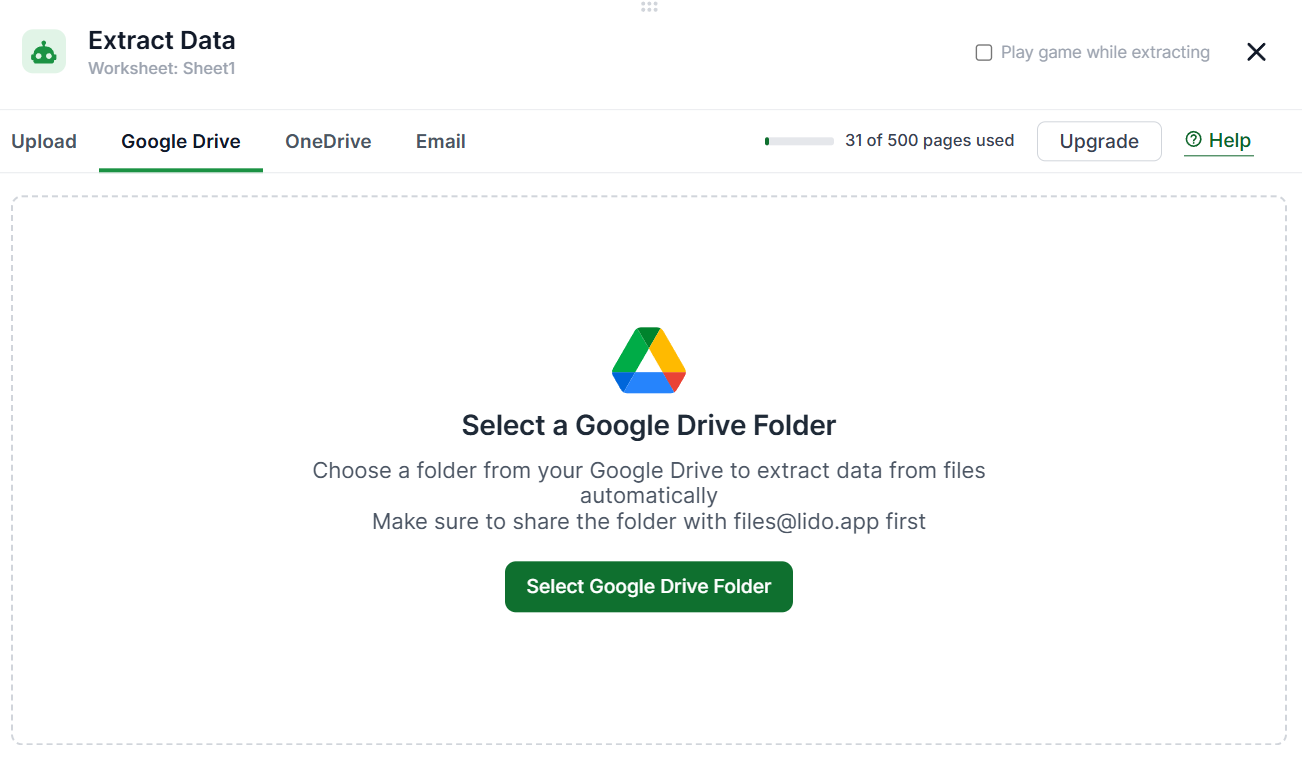
First, share the folder you created in Step 1 with files@lido.app in Google Drive. This gives Lido access to the files inside it.
Then open the Google Drive tab in Lido, click Select Google Drive Folder, and choose your folder.
If your team shares documents, you can connect a Shared Drive folder the same way.
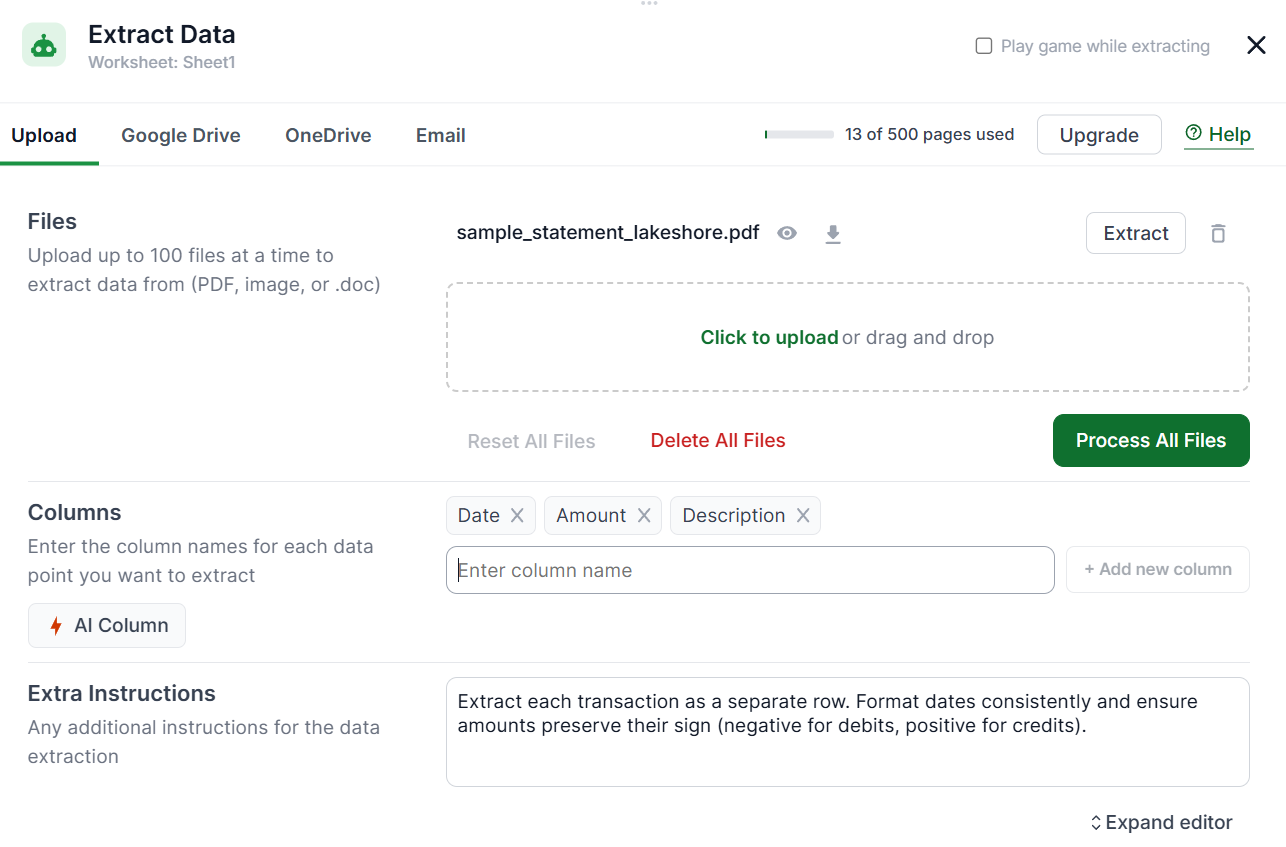
Enter a column name for each piece of data you need. For invoices, that might be Vendor Name, Invoice Number, Invoice Date, Due Date, Line Items, Subtotal, Tax Amount, and Total Amount Due. For receipts, it might be Merchant, Date, Category, Total, and Payment Method.
You can also add notes in Extra Instructions to make a field clearer, such as "Vendor Name is the company that issued the invoice, not the recipient." Lido's AI uses these notes during extraction.
Add a sample document to your Drive folder and process it. Compare the extracted fields with the original document.
Most simple documents extract correctly on the first try. If a field looks wrong, adjust its name or add a note in Extra Instructions, then test again.
Turn on the Process Files toggle. Lido will now check your Google Drive folder every 5 minutes and extract data from every new file it finds.
From this point, you only need to add documents to the folder. The extracted data appears in your Lido sheet on its own. If documents arrive by email, you can send email attachments into Google Sheets with a similar setup.
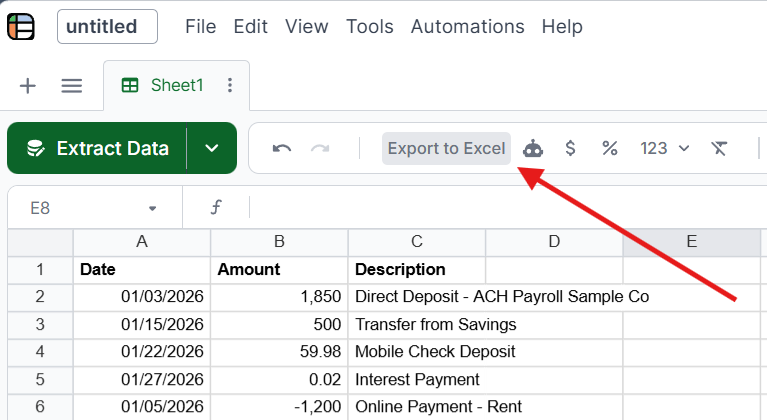
Click Export to Excel at any time to download your data as a spreadsheet file.
To fully automate the process, turn on Export Results. Lido will send you an Excel or CSV file each day at a time you choose, either by email or uploaded straight to a Google Drive or OneDrive folder.
Lido works with almost any document that contains data you need in a spreadsheet. The most common types include:
Invoices: The most common use case, popular with AP teams, freelancers, and businesses with many suppliers. Lido handles different vendor formats without templates because it reads what each field means, not where it sits on the page.
Receipts: Including photos of receipts saved as images in Drive. Lido extracts the merchant, date, items, total, and payment method for expense reports.
Bank statements: Useful for bookkeepers and accountants doing monthly reconciliation. Lido extracts each transaction as its own row with the date, description, debit or credit, and running balance.
Contracts: Useful for legal, procurement, and real estate teams tracking obligations. Lido pulls key fields like parties, effective date, expiration date, contract value, and important clauses without you reading the full contract.
Forms and questionnaires: Filled-in forms are often the cleanest to extract, since each label has a matching value. This removes data entry for paper forms scanned into Drive.
Purchase orders and delivery notes: These are similar to invoices. Extracting both into the same spreadsheet makes PO matching much easier to automate.
Many files in Google Drive are scans, photos of paper documents, or images instead of clean PDFs. To read these files, a tool needs OCR (software that turns images of text into real text).
Lido runs OCR automatically on any file that needs it, so there is no separate step to turn on. If a file already has readable text, Lido uses it. If not, Lido runs OCR first and then extracts the data, and the result in your spreadsheet looks the same either way.
OCR accuracy depends on image quality. A clear, well-lit photo extracts cleanly, while a blurry or tilted one can cause errors. Lido flags low-confidence results so you can review them before bad data reaches your sheet.
Google Drive has basic OCR built in: right-click a PDF and open it with Google Docs to get the text. However, this is manual and gives you a text document, not organized data in a spreadsheet.
If Lido isn't the right fit, there are other ways to extract data from Google Drive documents. Each option has different trade-offs in cost, flexibility, and technical skill.
You can write a script that watches a Drive folder, sends new files to an OCR service, and writes the results to Sheets. It's free and flexible if you have a developer with time. The ongoing cost is updating the script when Google's APIs change.
You can connect a Google Drive trigger to an OCR service and a Sheets action. This works for simple cases. However, Zapier's task limits get expensive, and each extra step adds another point where the workflow can fail.
Power Automate has Drive connectors and AI Builder for document extraction. It's best if you already use OneDrive and Excel, and less natural if your documents live in Google Drive. Teams that store files in Dropbox have their own set of Dropbox text recognition tools to consider.
Tabula is a free desktop tool for pulling tables out of PDFs. It has no OCR, no automation, and no Drive connection, so it's only practical for one-off tables.
With Lido, the Drive connection, OCR, AI extraction, and Excel export are all set up once in a single tool, with no coding. For more options, see our best PDF data extraction tools and best PDF to Google Sheets converters. For a focused look at PDF to Excel extraction, convertpdftoexcel.co covers that use case in depth.
Now that you know how to extract data from Google Drive to Excel, you can turn every new document in your Drive folder into spreadsheet data automatically.
Connect your Google Drive folder to Lido and list the fields you need. Lido checks the folder every 5 minutes, extracts data from new documents using AI, and exports the results to Excel. No code, manual downloads, or templates required.
Yes. Lido automatically detects whether a file needs OCR and runs it before extraction. Scanned PDFs, photos of documents, and image files stored in Drive are all processed without extra setup.
Invoices, receipts, bank statements, contracts, purchase orders, forms, tax documents, and any other document with structured data. Lido works across document types without separate setup for each one.
Google Docs has basic built-in OCR, but it only gives you text, not organized data. For automated extraction into a spreadsheet, Lido offers 50 free pages to test the full workflow.
Yes. You can connect a Shared Drive folder the same way as a personal Drive folder. Your team adds files to the folder, and the data appears in the same shared sheet.
Lido processes each file once by default. You can turn on re-extraction in the settings if you want updated files processed again.
Yes. You can set up one folder for invoices, another for receipts, and another for contracts, with each one feeding a different sheet.
Yes. Lido supports multiple languages, so documents from international vendors in French, Spanish, German, and other languages usually extract without special setup.
%20(1).svg)
.png)
