


In this tutorial, we will walk you through how to convert your Chase bank statement to Excel using Lido. Simply follow the steps below.
Before you start, make sure you have your Chase statement saved as a PDF, image, or scanned copy. If you bank online, you can download PDF statements from the statements and documents section of your Chase account.
If you don't have a Lido account yet, you can create one for free here.
Once you're logged in, create a New File.
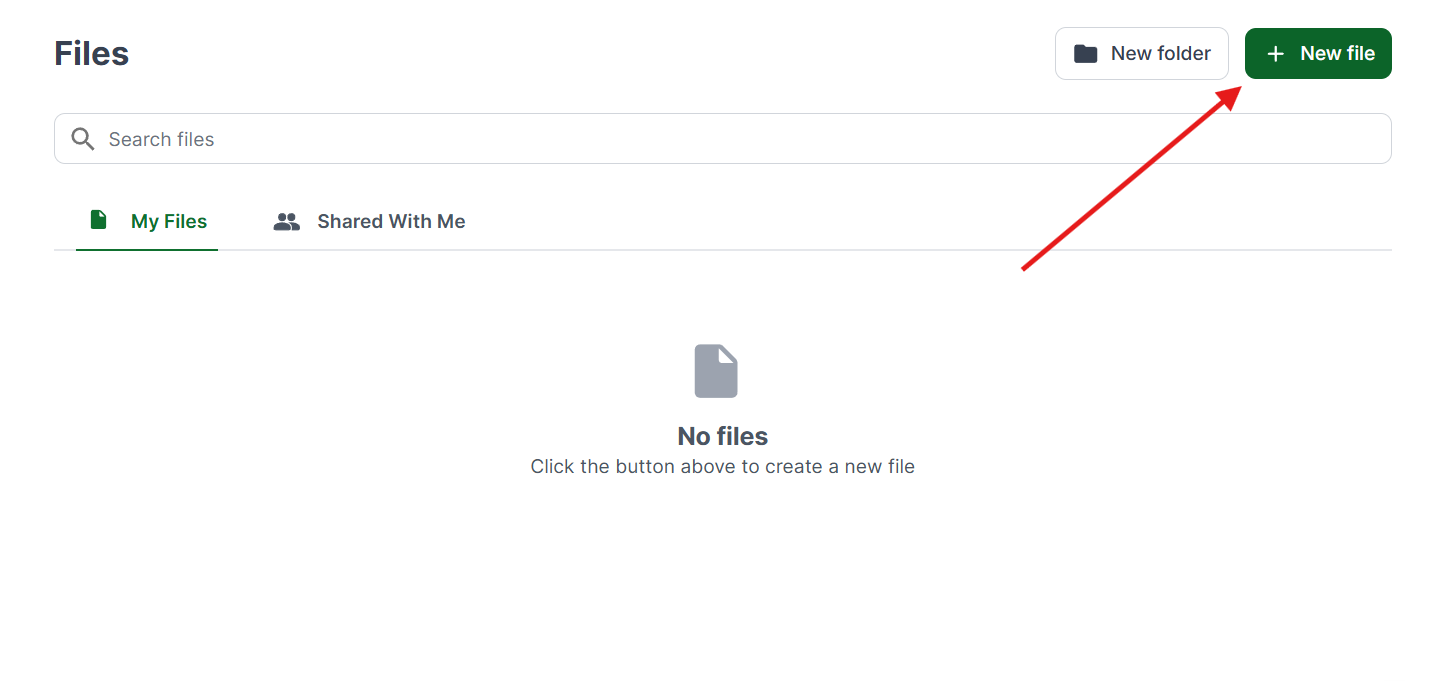
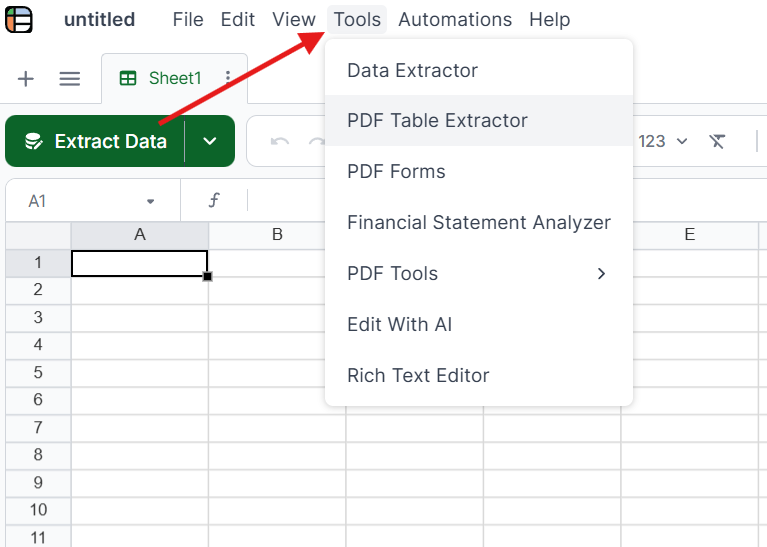
Click on Tools in the top menu and select the PDF Table Extractor. This tool is designed to read tables and structured data from your bank statement.
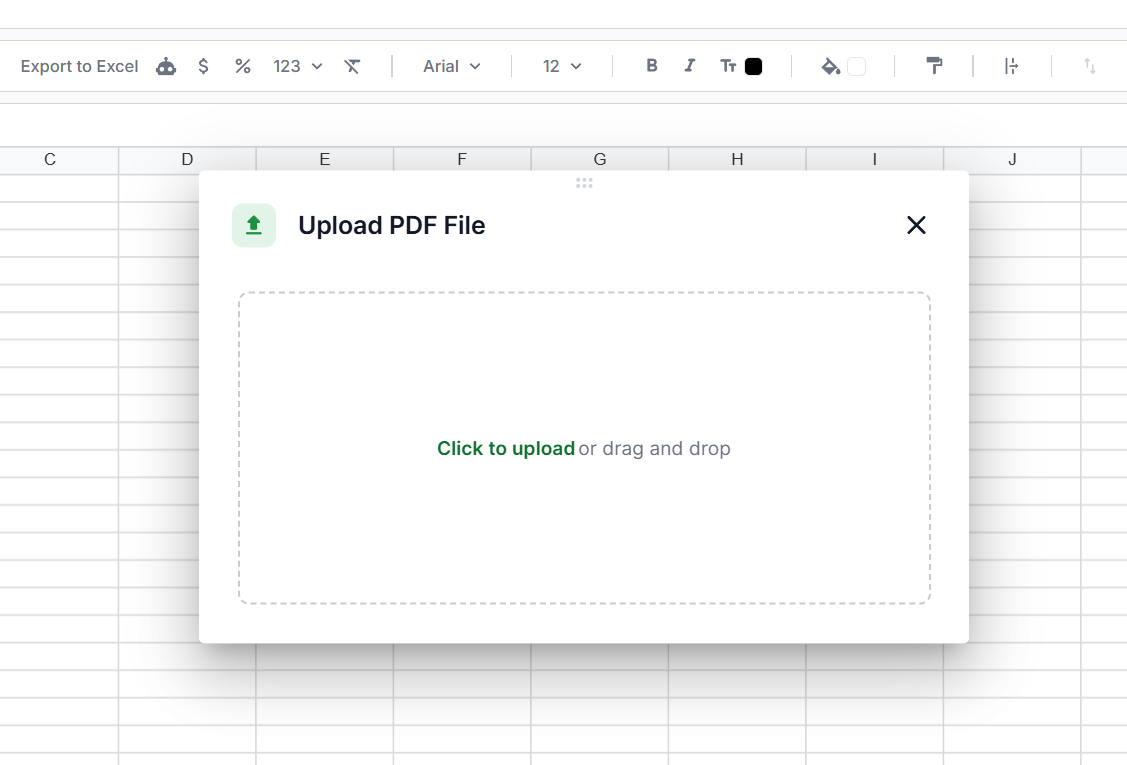
Drag and drop your file into Lido, or click to upload. PDFs, scanned images, and photos of paper statements all work.
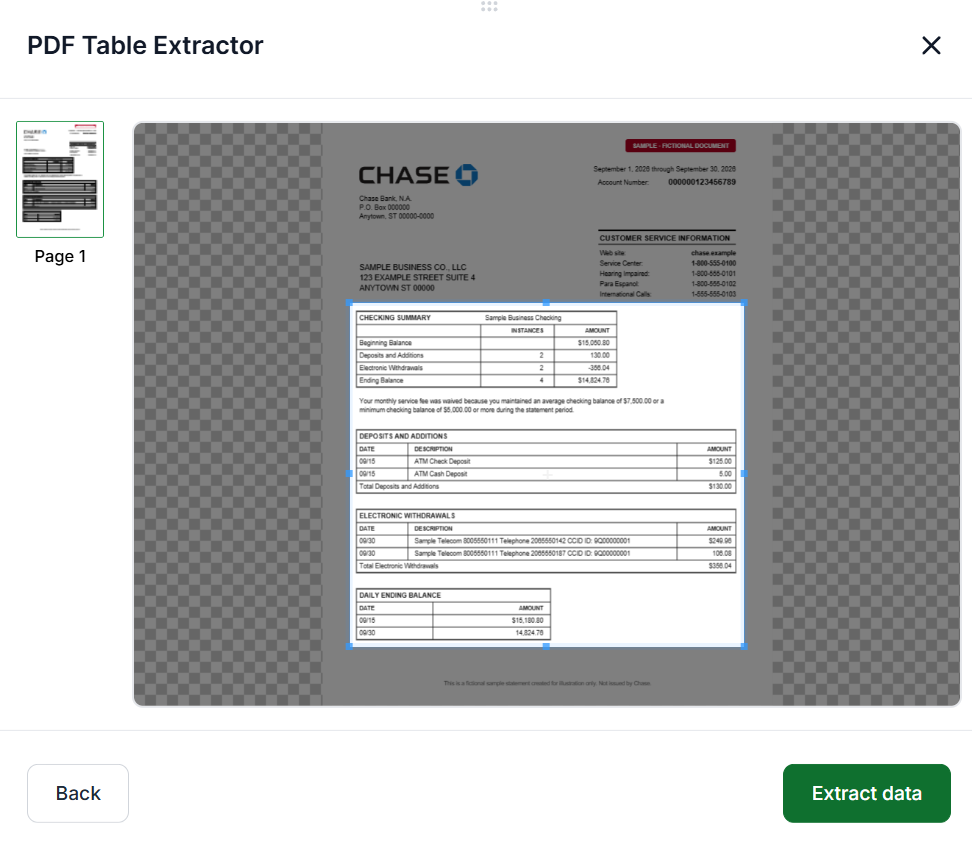
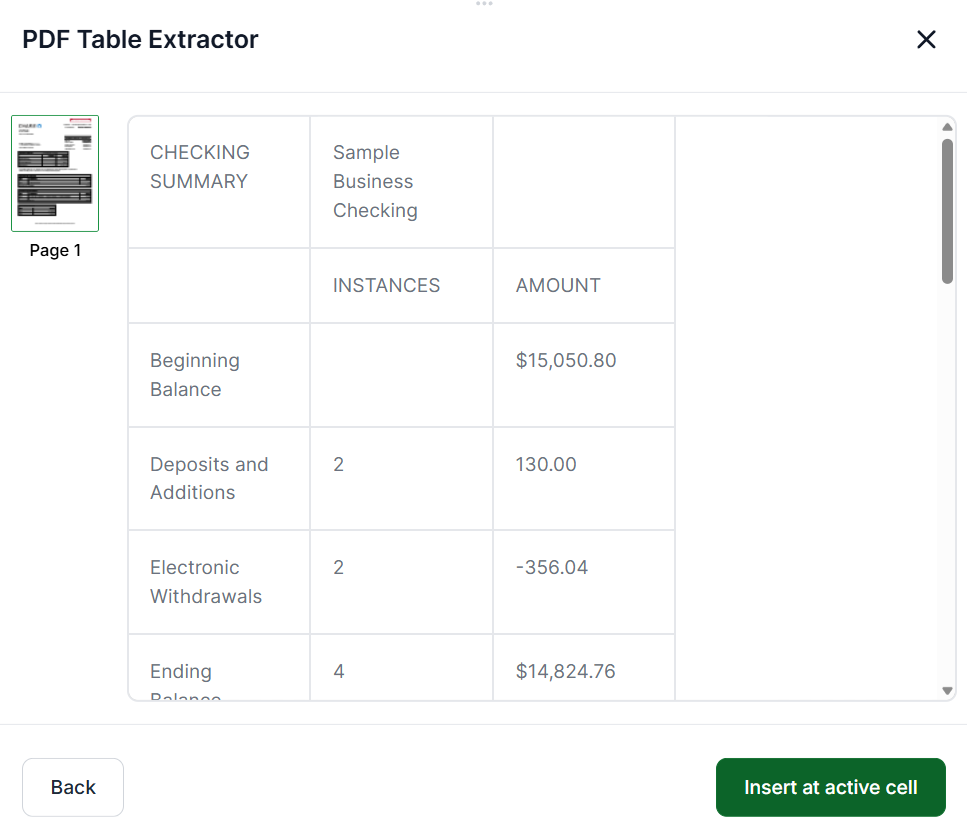
For the purpose of this tutorial, we are using a sample bank statement. Chase statements are split into sections, so you can extract just the ones you need. Drag the selection box over the tables you want to pull. Once you have your selection, click Extract Data.
Review the extracted data to make sure everything looks correct. You can go back to adjust your selection. When you're satisfied, click Insert at Active Cell to add it to your spreadsheet.
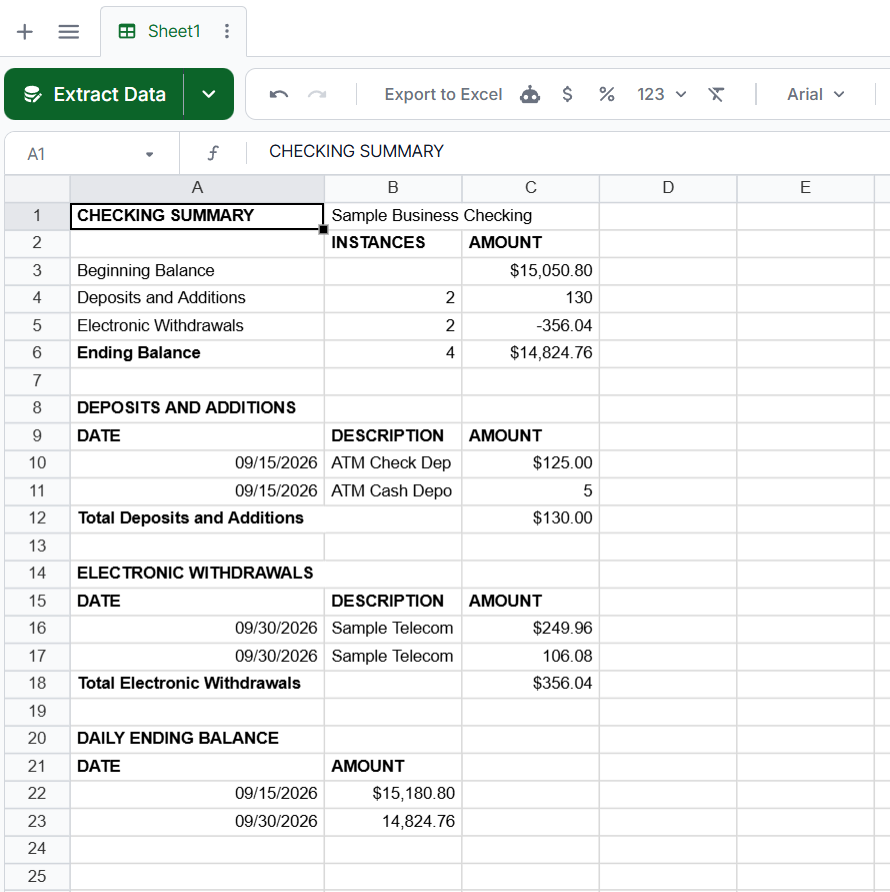
You can edit and format the cells however you need. Adjust column widths, format amounts as currency, or reorganize the data to suit your workflow. Withdrawals often show as positive numbers in the transaction list, so you may want to add a column that makes them negative before you calculate totals.
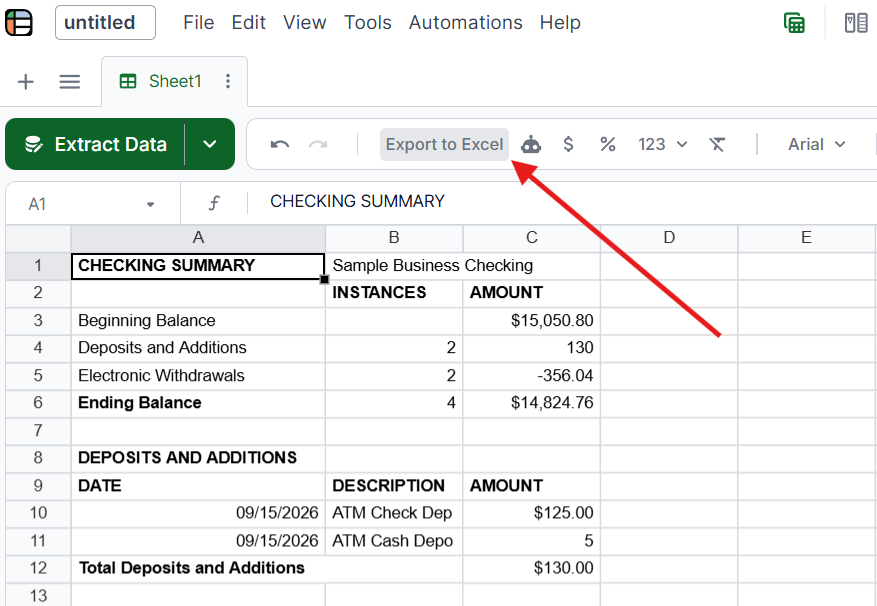
Once you're done, click Export to Excel at the top to download your Chase statement data as a spreadsheet file.
Copy-paste from online banking: Chase's website lets you view transactions online, but copying and pasting into Excel produces messy formatting that requires significant cleanup. This works for a handful of transactions but breaks down at volume.
CSV download from Chase: Some Chase accounts let you download transactions as CSV directly from online banking. This works for recent transactions but doesn't cover older statements, scanned paper statements, or statements received from clients.
Manual data entry: Typing transactions into Excel. At roughly 45-60 minutes per 30-page statement with a 2-4% error rate, this is the option Lido replaces.
Upload your Chase PDF statement to Lido at lido.app. Lido's AI extracts transaction dates, descriptions, amounts, and balances automatically with 99.9% accuracy, then outputs clean Excel, CSV, or Google Sheets data. No templates or manual setup required. 50 free pages to test.
Yes. Lido includes built-in OCR that handles scanned and photographed Chase statements with 99.9% accuracy. Upload the scan or photo, and Lido extracts the same structured data as from a digital PDF.
Some Chase accounts allow CSV transaction downloads from online banking for recent periods. However, this doesn't cover older statements, scanned paper statements, or statements received from clients. For those, an AI converter like Lido extracts the data from the PDF directly.
Lido achieves 99.9% accuracy on Chase statements, including both digital PDFs and scanned paper statements. It handles Chase's specific formatting quirks automatically without per-bank template configuration.
%20(1).svg)
.png)
