


The best way to extract information from a PDF is with an AI extraction tool like Lido. Lido reads text, tables, and form fields from digital and scanned PDFs and organizes them into clean spreadsheet data you can export to Excel.
In this tutorial, we will walk you through how to extract information from a PDF using Lido. Simply follow the steps below.
Before you start, make sure you have your PDF saved on your computer.
If you don't have a Lido account yet, you can create one for free here.
Once you're logged in, create a New File.
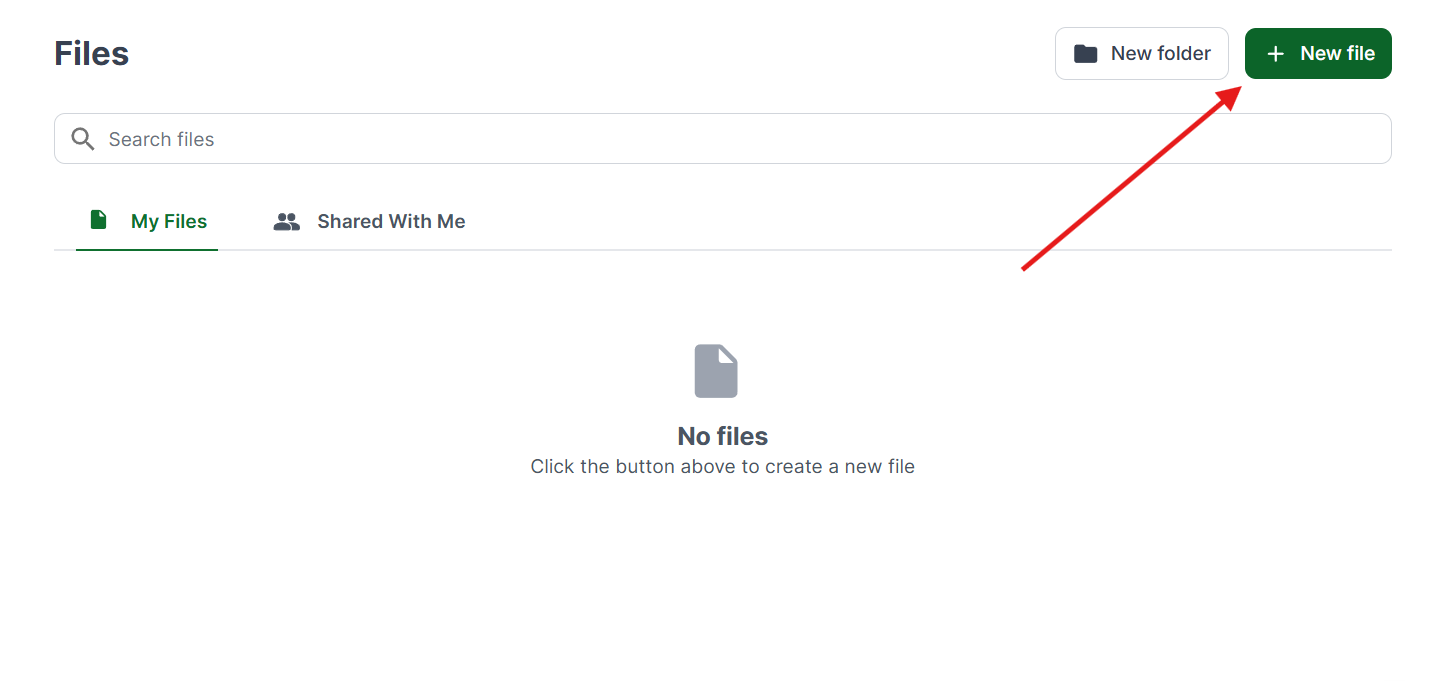
Click on Tools in the top menu and select the PDF Table Extractor. This tool is designed to read tables and structured information from your PDF.
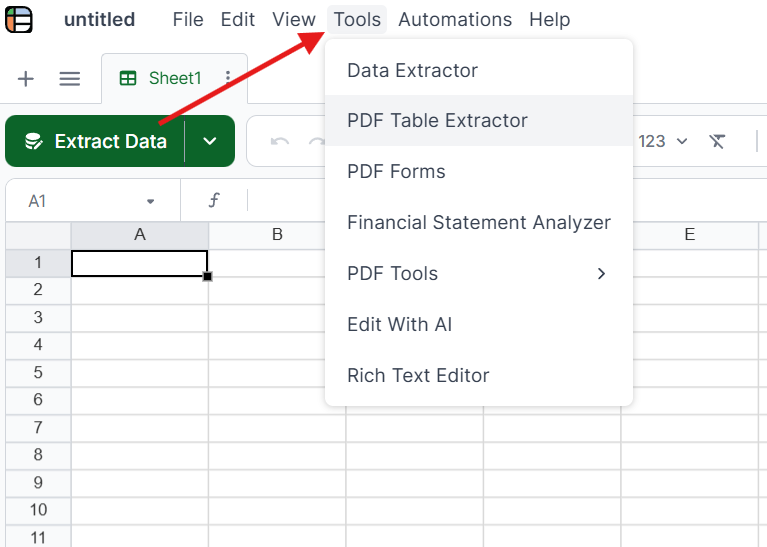
Drag and drop your file into Lido, or click to upload. Digital PDFs, scanned PDFs, and photos of paper documents all work.
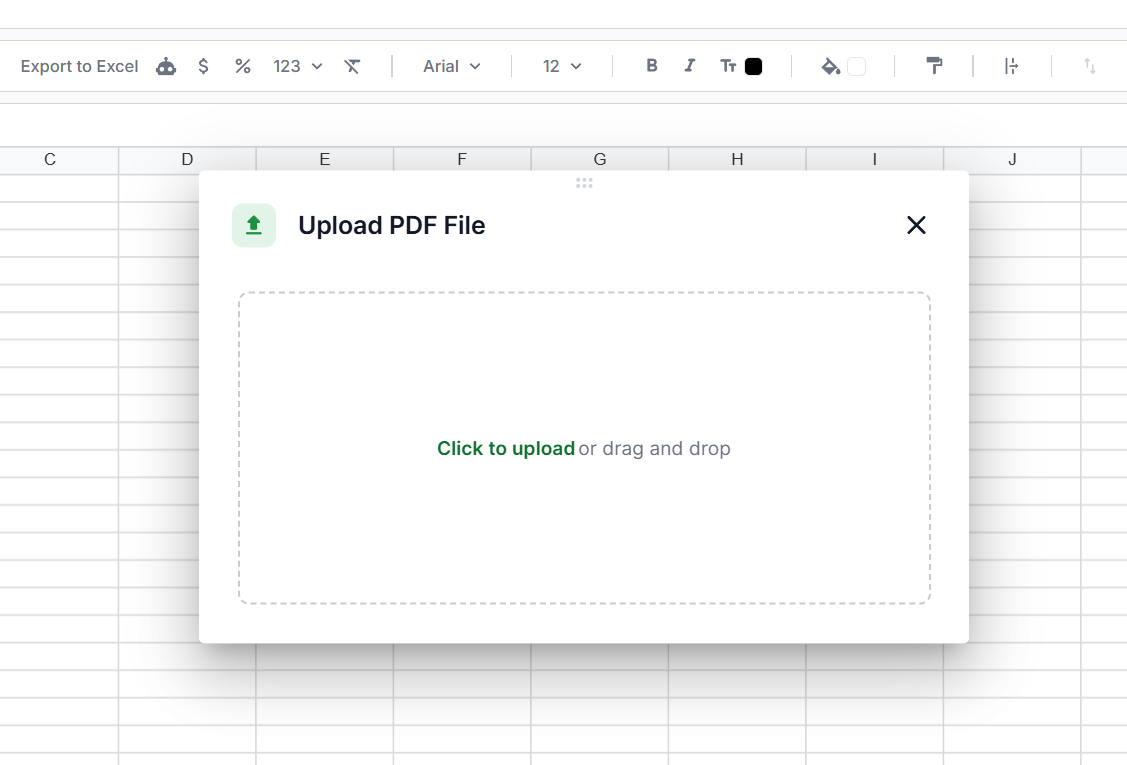
For the purpose of this tutorial, we are using a sample bank statement. Most PDFs are split into sections, so you can extract just the ones you need.
Drag the selection box over the tables or sections you want to pull. Once you have your selection, click Extract Data.
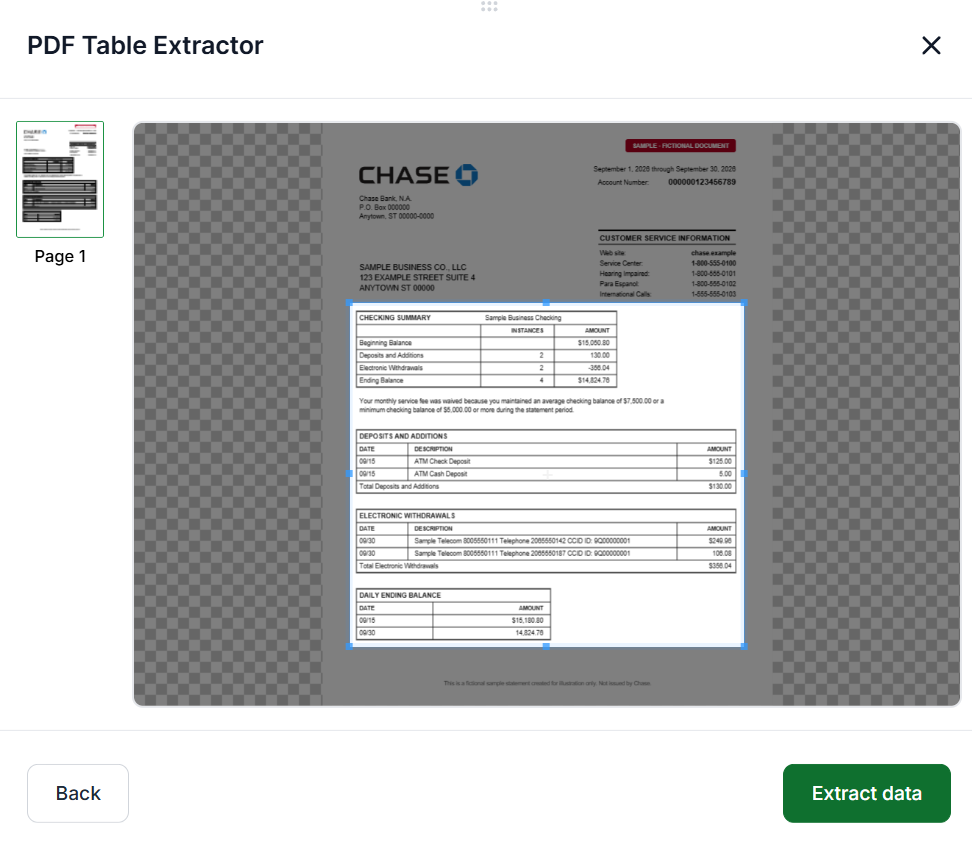
Review the extracted data to make sure it includes everything you need. You can go back to adjust your selection. When you're satisfied, click Insert at Active Cell to add it to your spreadsheet.
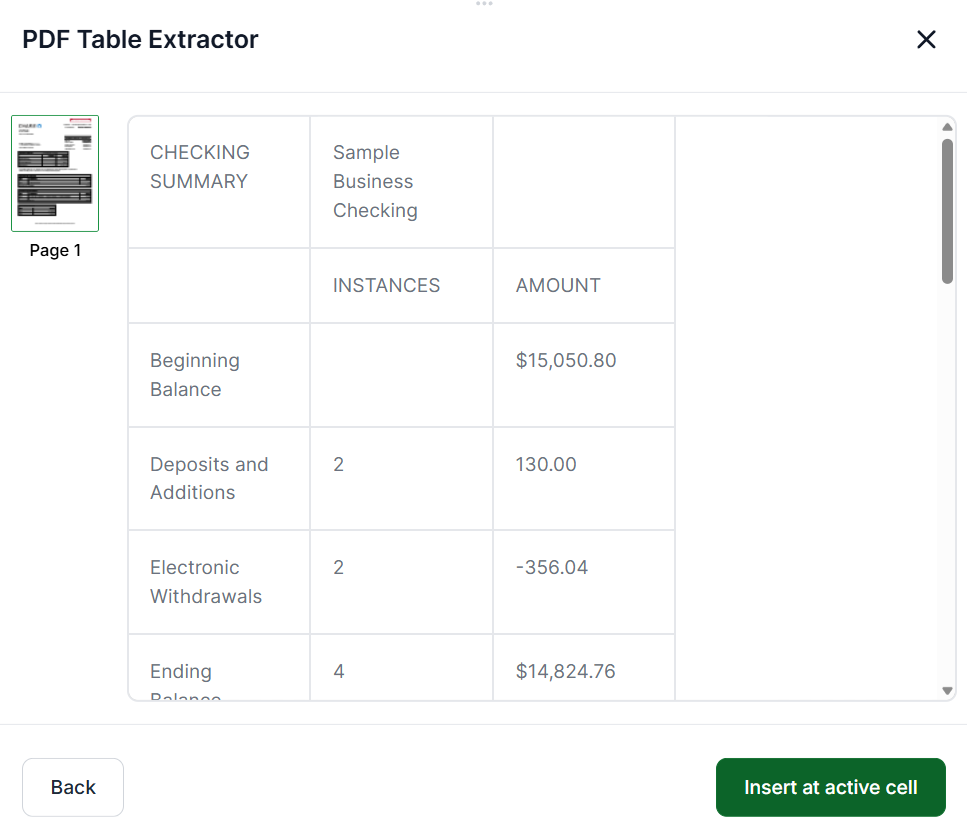
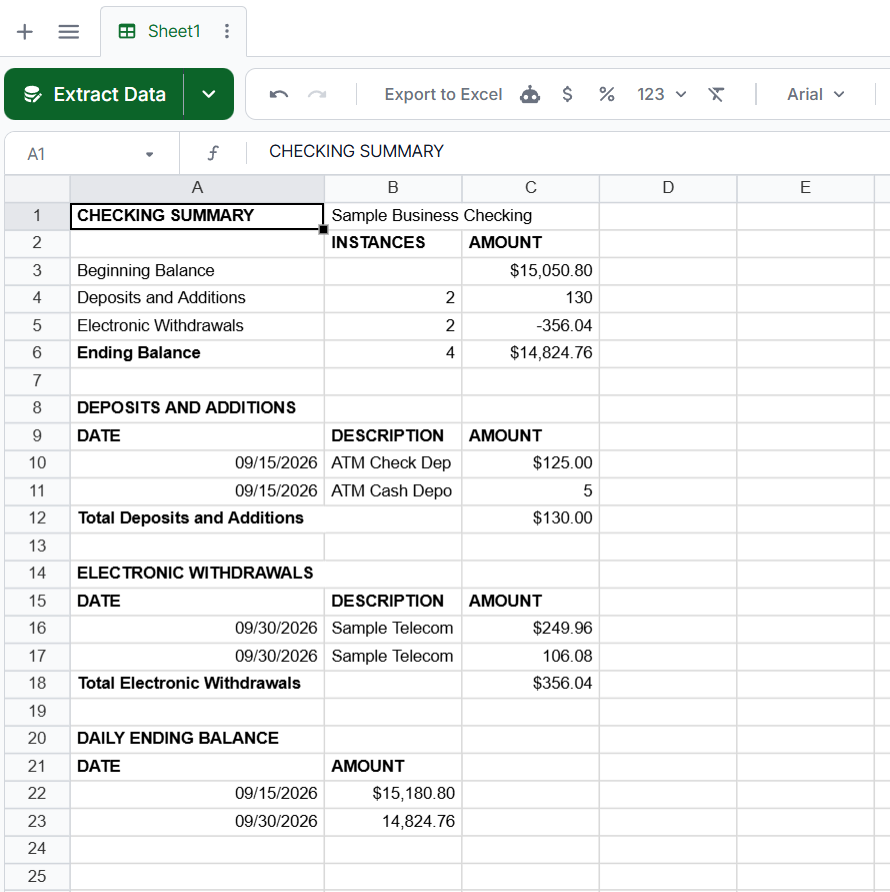
You can edit and format the cells however you need. Adjust column widths, format numbers and dates, or reorganize the data to suit your workflow.
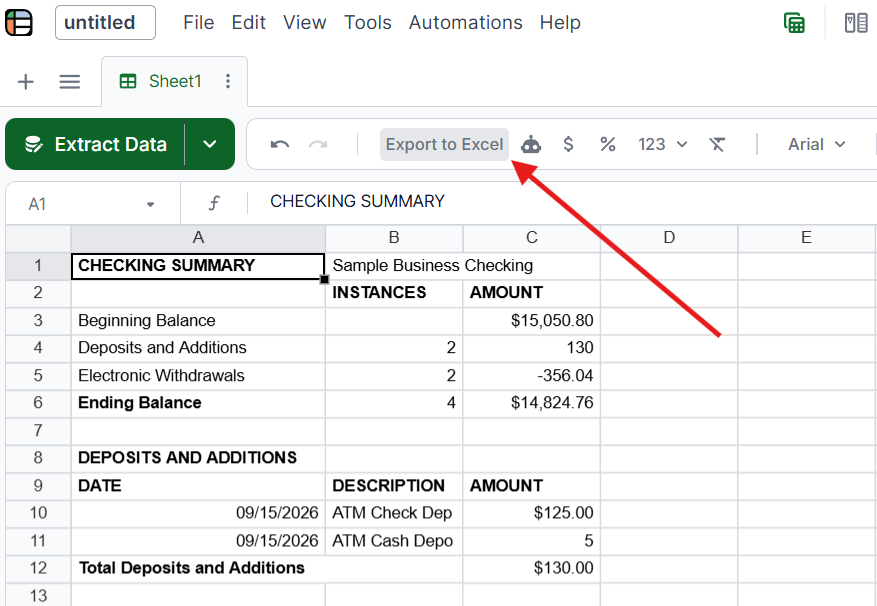
Once you're done, click Export to Excel at the top to download your information as a spreadsheet file.
A single PDF can hold several types of information. Lido handles all of them in the same workflow:
Plain text: Paragraphs, headings, and body content.
Tables: Rows and columns from financial statements, invoices, and reports. Copy and paste usually breaks these into one line of text.
Form fields: Data entered into fillable PDF forms like applications, tax documents, and registration forms.
Scanned content: Text stored as an image, such as scanned or photographed pages. Reading these requires OCR (software that turns images of text into real text), which Lido runs automatically. The same technology now handles much of the data entry from scanned documents that teams once did by hand.
If you only need a little information from a simple PDF, these options may also work:
Copy and paste: Select the text in any PDF reader and paste it where you need it. It's free and fast, but it doesn't work on scanned PDFs and breaks tables apart.
Adobe Acrobat Pro: Go to File, then Export a PDF, and choose Word or Excel. It handles simple documents well, but it requires a paid subscription, and complex layouts often need manual cleanup.
Free online converters: Sites like Smallpdf and iLovePDF convert PDFs in a few clicks. They're fine for personal files, but they have usage limits, and your document is uploaded to a third-party server. Usage limits become a real problem when you need to process thousands of files in one batch.
Python libraries: Developers can use libraries like pdfplumber to pull text and tables from PDFs with code. This gives full control, but it takes programming skills and extra setup for scanned files.
Template-based tools: Tools like Docparser and Parseur extract data from fixed areas of a page. They work for documents that always look the same, but every new layout needs a new template.
Keep these issues in mind when you extract information from PDFs:
Password-protected PDFs: These block all extraction tools. If you have the password, remove the protection first in Adobe Acrobat or another PDF tool.
Multi-column layouts: Many tools mix text from side-by-side columns. AI tools like Lido follow the correct reading order.
Complex tables: Merged cells, spanning headers, and tables that continue across pages break template-based tools. Lido reads the table structure instead of fixed positions.
Low-quality scans: Faded, tilted, or low-resolution pages are harder to read for any tool. Scanning at 300 DPI or higher with good contrast gives the best results.
Now that you know how to extract information from a PDF, you can turn text, tables, and form fields into clean spreadsheet data in minutes.
Open Lido's PDF Table Extractor, upload your PDF, and select the sections you want. Lido extracts the information into a spreadsheet that you can review, edit, and export to Excel.
Yes. You need a tool with OCR, which reads text from scanned images. Lido includes built-in OCR and organizes information from scanned documents into clean rows and columns.
Yes. Copy and paste usually breaks table structure, so you need a dedicated tool. Lido extracts tables with the correct rows and columns and exports them straight to a spreadsheet.
For fillable PDF forms, Adobe Acrobat or Python's PyPDF2 library can read the stored field values. For forms where the data is part of the page, use an AI tool like Lido that matches each label to its value.
Yes. Connect an email inbox to Lido, and every incoming PDF attachment is processed automatically. This removes manual uploads for teams that receive documents regularly.
Accuracy depends on the tool and document quality. Lido achieves 99%+ field-level accuracy on both digital and scanned PDFs, while free tools and basic OCR typically reach 90% to 95% on clean documents.
Use a tool that supports batch uploads. Lido processes multiple PDFs in a single upload and exports all the results to one spreadsheet.
%20(1).svg)
.png)
