


To extract data from a PDF to a database, you can use Lido. Lido pulls the fields you need from any PDF into columns that match your database table, then exports a clean CSV file you can import into PostgreSQL, MySQL, SQL Server, or any other database.
In this tutorial, we will walk you through how to extract data from a PDF to a database using Lido. Simply follow the steps below.
Lido is the best way to extract data from a PDF to a database because it outputs database-ready rows from any PDF layout, including scans, without templates or custom parsing scripts.
Before you start, note the column names and data types in the database table you want to fill. For example, an invoices table might have invoice_number, invoice_date, vendor_name, and total_amount.
You will use these exact names in Lido so the export lines up with your table.
If you don't have a Lido account yet, you can create one for free here.
Once you're logged in, create a New File.
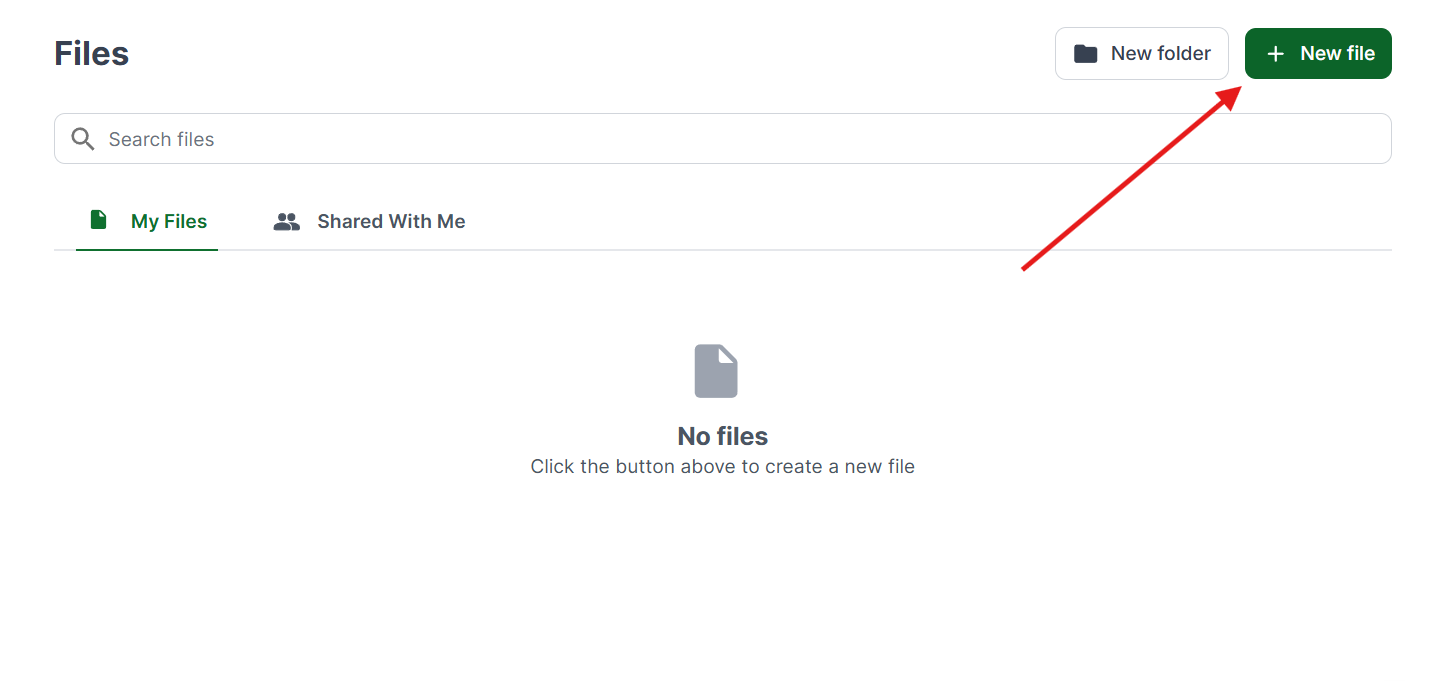
Select the Extract Data button at the top of the sheet.
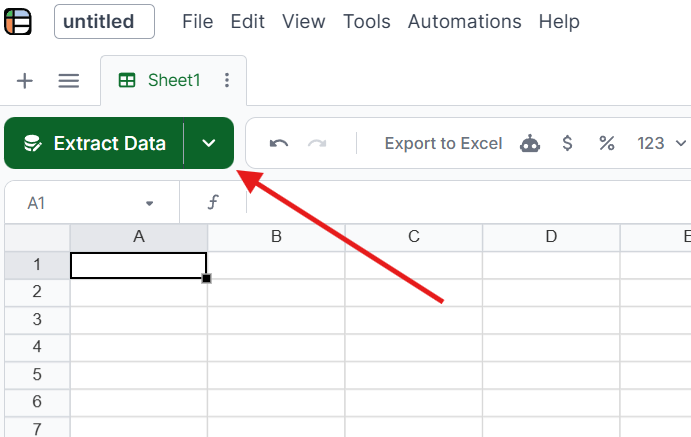
Drag and drop your PDFs into Lido, or click to browse. You can upload up to 100 files at a time, including scanned PDFs and documents with different layouts.
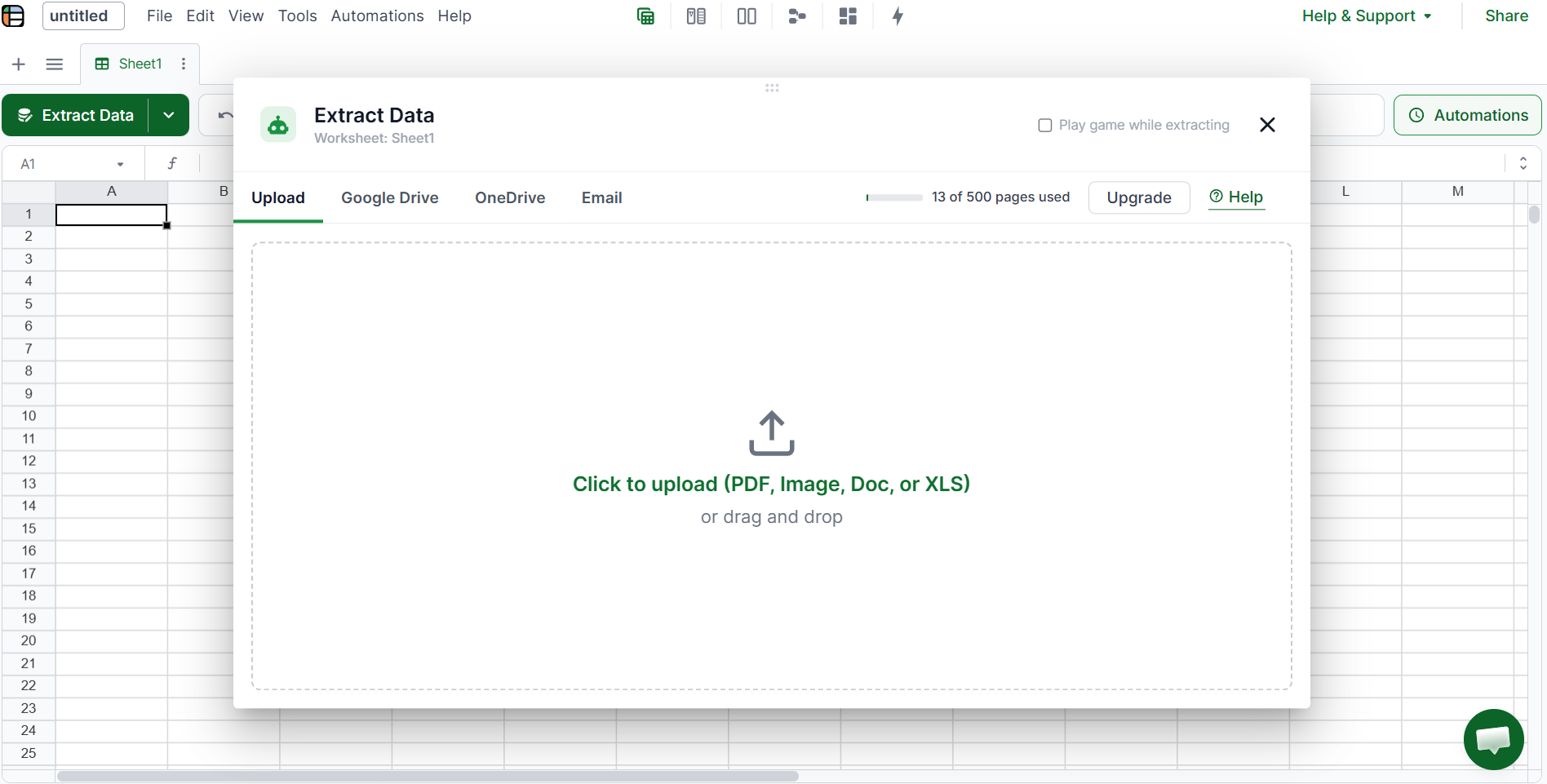
Enter each database column name as a column in Lido, such as invoice_number, invoice_date, vendor_name, and total_amount. Using the same names means no renaming before import.
In Extra Instructions, add formatting rules that match your column types. For example: "Format dates as YYYY-MM-DD, write amounts as plain numbers without currency symbols or commas, and extract each line item as its own row." Once done, click Process All Files.
Review the extracted rows to make sure they're in the format your database expects. You can edit cells, rename columns, or reorganize the data before exporting.
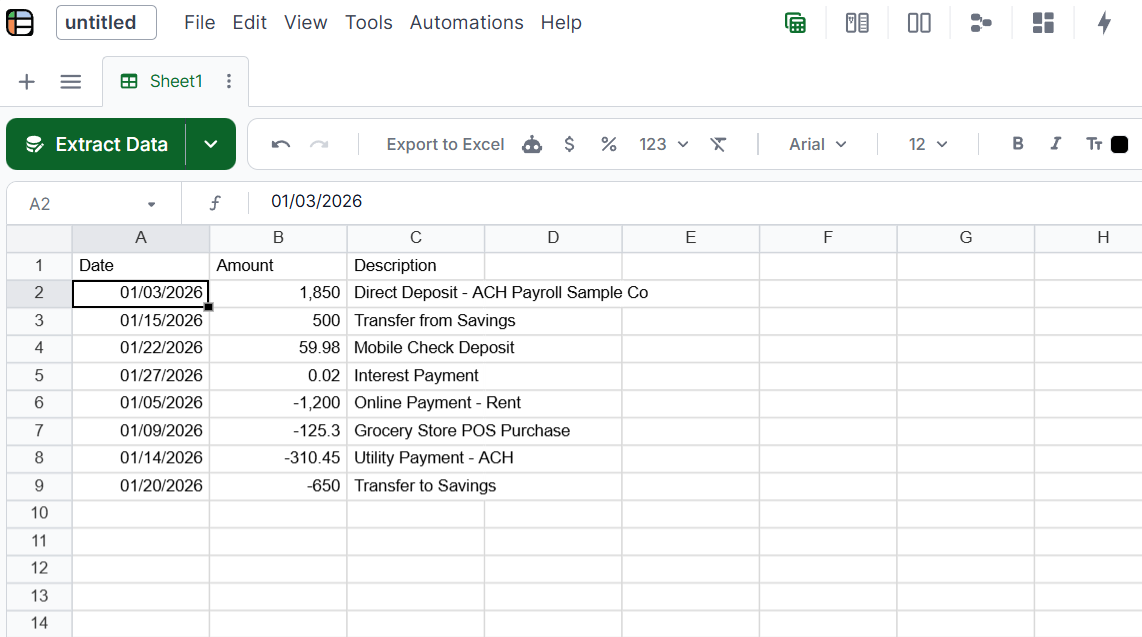
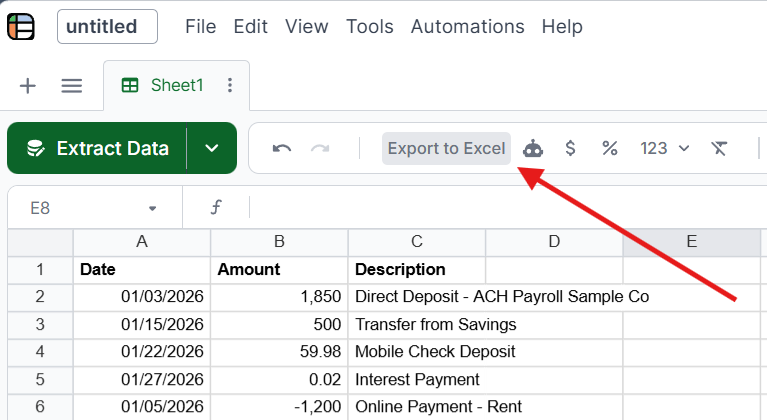
Click Export to Excel to download your data. Open the file in Excel, go to File, then Save As, and choose CSV, which every database can import. If your system imports XML rather than CSV, consider PDF to XML output instead.
Load the CSV into your table with your database's import command or a tool like DBeaver, pgAdmin, or MySQL Workbench:
PostgreSQL: COPY invoices FROM 'invoices.csv' WITH (FORMAT csv, HEADER true);
MySQL: LOAD DATA INFILE 'invoices.csv' INTO TABLE invoices FIELDS TERMINATED BY ',' IGNORE 1 LINES;
SQL Server: Use the Import Flat File wizard in SQL Server Management Studio, or BULK INSERT.
SQLite: Run .import --csv invoices.csv invoices in the sqlite3 shell.
For PDFs that arrive every day, connect a Google Drive folder, OneDrive folder, or email inbox in the Extract Data window and turn on Process Files. Lido checks for new PDFs every 5 minutes and extracts them with the same columns.
Then turn on Export Results to receive a CSV file each day in a Google Drive or OneDrive folder, ready for a scheduled import. Developers can also use the Lido API to send extracted data straight into a database.
A PDF stores text arranged visually on a page, while a database needs data in defined fields. These methods can bridge the gap, but each has limits:
Manual data entry: Typing values from each PDF into your database works for a few documents a week. At higher volumes, the 1% to 4% error rate of manual entry adds up quickly across thousands of records.
Copy and paste into a spreadsheet, then import: Faster than retyping, but copying from a PDF breaks table structure, so every file needs cleanup before import.
PDF to CSV converters: Tools like Smallpdf and Tabula turn simple digital PDFs into CSV files. They struggle with scanned documents, borderless tables, and inconsistent layouts. Comparing PDF extraction software side by side shows which tools can handle those harder files.
Python scripts: Developers can pair pdfplumber or Camelot with a database connector like psycopg2 or pymysql. It's flexible, but it only works on digital PDFs and breaks whenever a document's layout changes.
Lido works in every scenario: digital PDFs, scanned documents, multi-page tables, and inconsistent layouts. It's also SOC 2 Type II and HIPAA compliant, so financial and medical records stay secure on their way to your database.
Now that you know how to extract data from a PDF to a database, you can replace manual entry with a clean, repeatable pipeline.
Upload the PDF to Lido and enter your database column names as the columns to extract. Lido pulls the data into matching rows, which you export as a CSV file and import into your database with a command like COPY or LOAD DATA INFILE.
Yes. Connect a Google Drive folder, OneDrive folder, or email inbox to Lido and turn on Process Files. Lido extracts every new PDF automatically and can deliver a daily CSV file for a scheduled database import. Developers can also use the Lido API.
There's no tool that reads a PDF straight into SQL. The standard workflow is to extract the data into a CSV file, then import it with your database's import command or client. Lido handles the extraction and produces a CSV that's ready to import.
Scanned PDFs need OCR to read the text from the image. Lido runs OCR automatically and organizes the results into database-ready columns, while standalone OCR tools like Tesseract only produce raw text.
Lido is the best tool for extracting PDF data to a database. It matches your table's column names, handles scanned and digital PDFs, and exports clean CSV files without templates or custom scripts.
Free online tools upload files to third-party servers with varying privacy policies. For sensitive documents, use a secure tool like Lido, which is SOC 2 Type II and HIPAA compliant.
%20(1).svg)
.png)
