


To copy data from a PDF to Excel, you can use an AI extraction tool like Lido. Lido pulls the data from any PDF, including scanned copies, and keeps every value in the right row and column, ready to export to Excel.
In this tutorial, we will walk you through two ways to copy data from a PDF to Excel using Lido. Use Method 1 to pull specific fields from one or many PDFs, or Method 2 to copy a table exactly as it appears.
This method is best when you want to choose the exact columns you need or copy data from many PDFs at once.
Before you start, make sure you have your PDF saved on your computer.
If you don't have a Lido account yet, you can create one for free here.
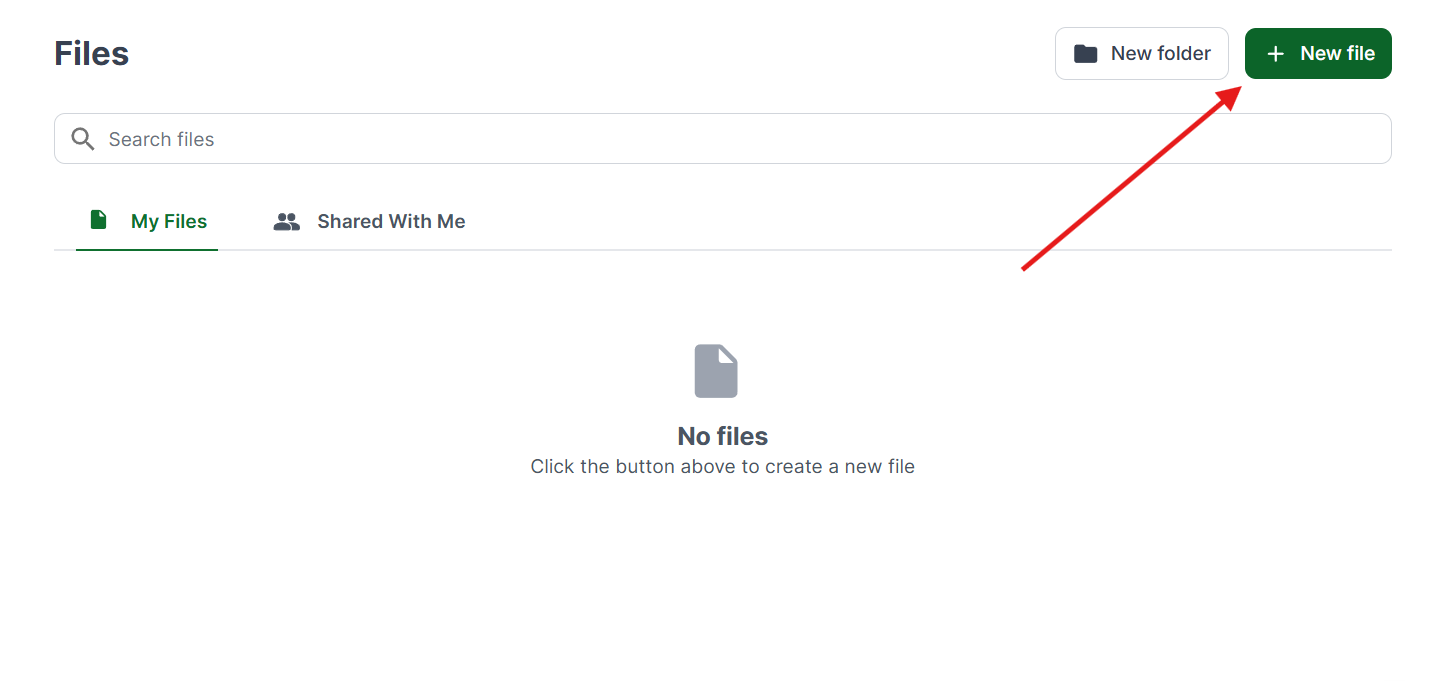
Once you're logged in, create a New File.
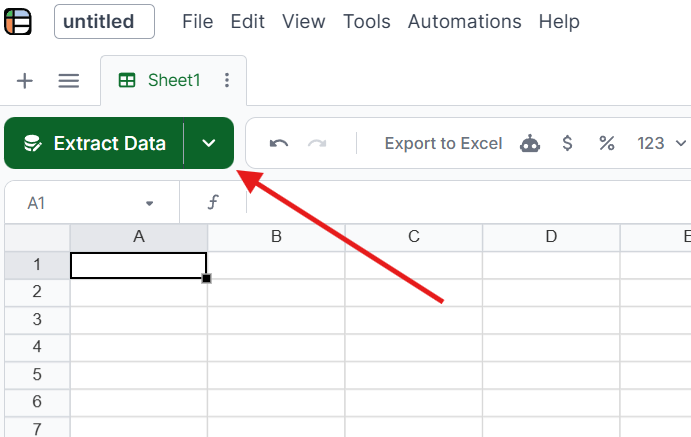
Select the Extract Data button at the top of the sheet.
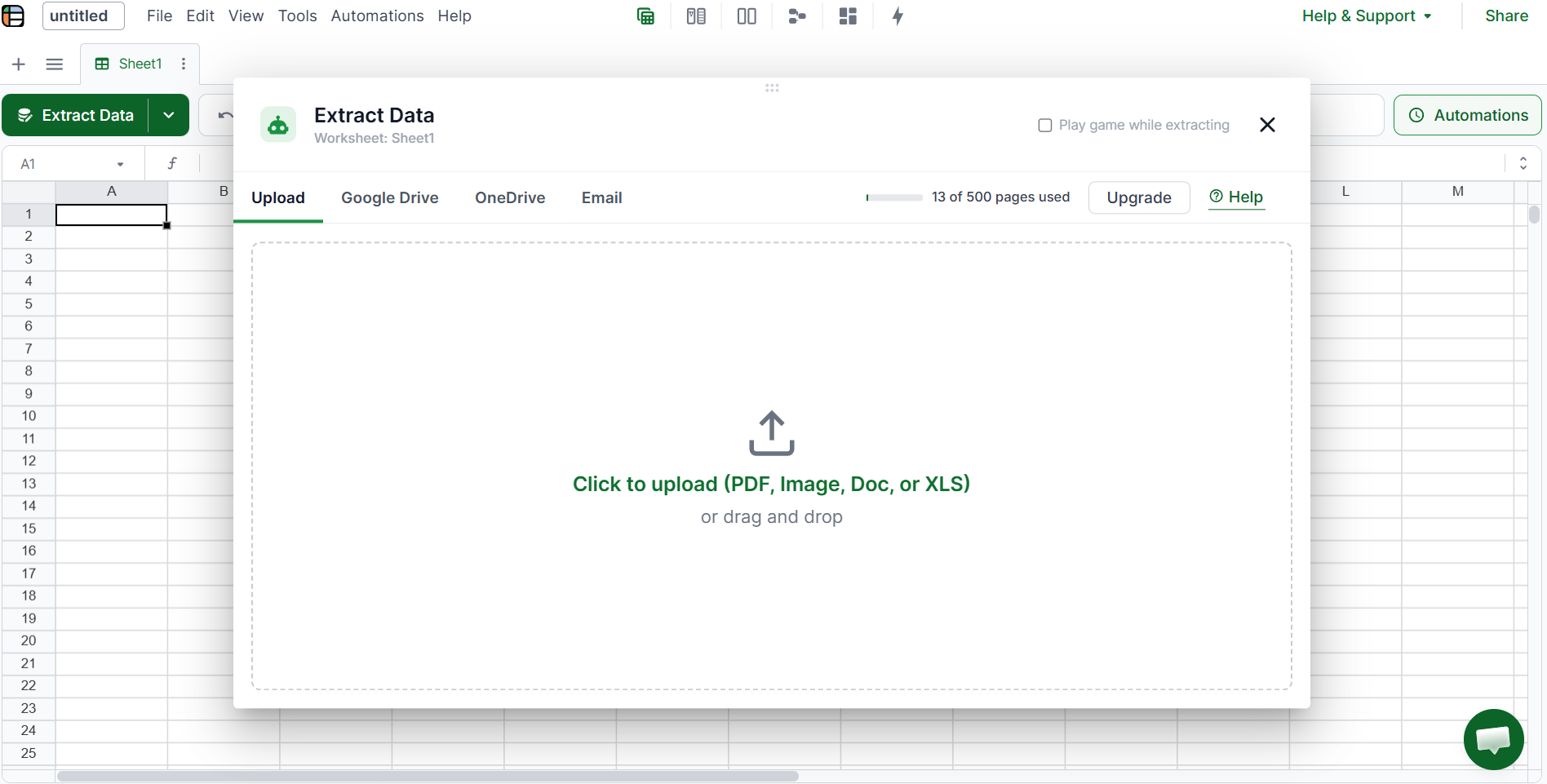
Upload your files by dragging and dropping them into Lido, or click to browse. You can upload up to 100 PDFs at a time.
For the purpose of this tutorial, we will be using a sample bank statement. The same steps work for invoices, receipts, reports, and any other PDF. If you need bank data in QuickBooks instead, look at converters that output QBO files.
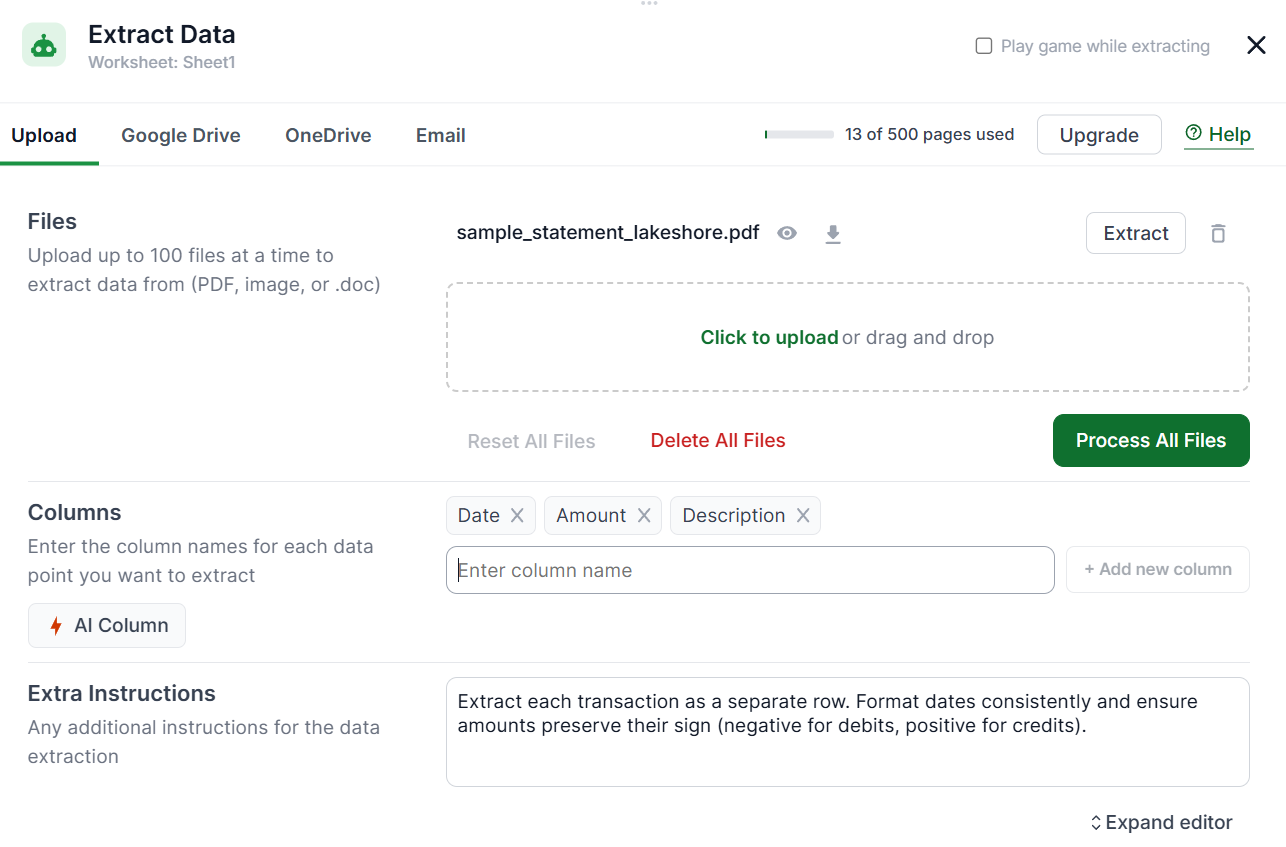
Enter the columns you want to copy from your PDF. For a bank statement, that would be Date, Amount, and Description. For an invoice, it might be Invoice Number, Vendor Name, and Total.
You can also add extra instructions if you'd like (this is optional), such as extracting each line item as its own row. Once done, click Process All Files.
Review the extracted data to make sure it's in the format you need. You can edit cells, adjust column widths, or reorganize the data to suit your workflow.
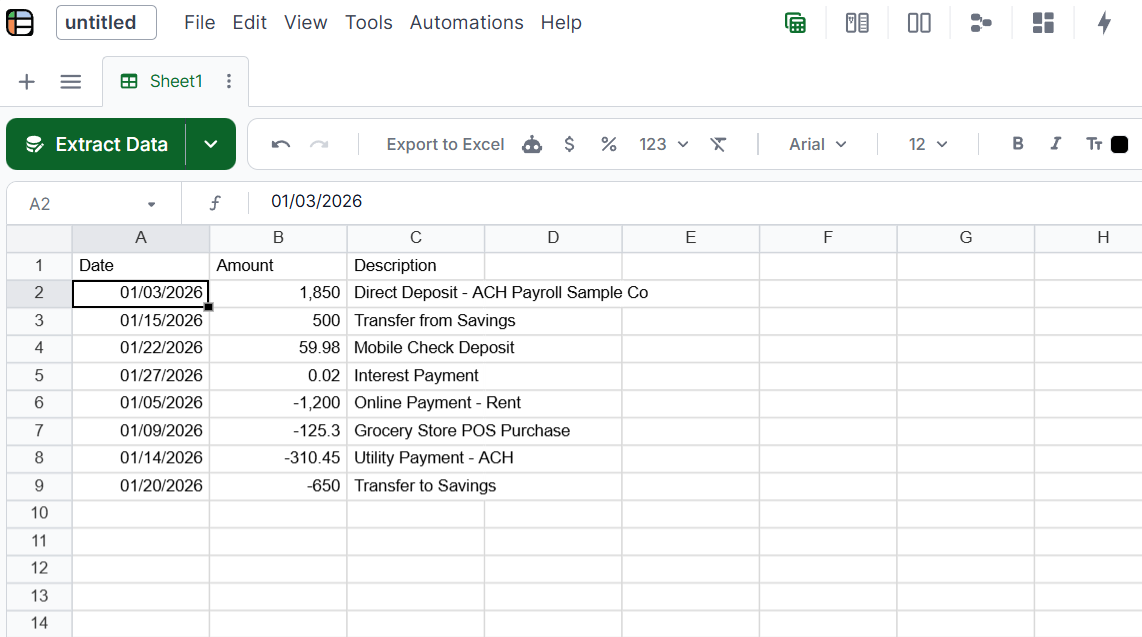
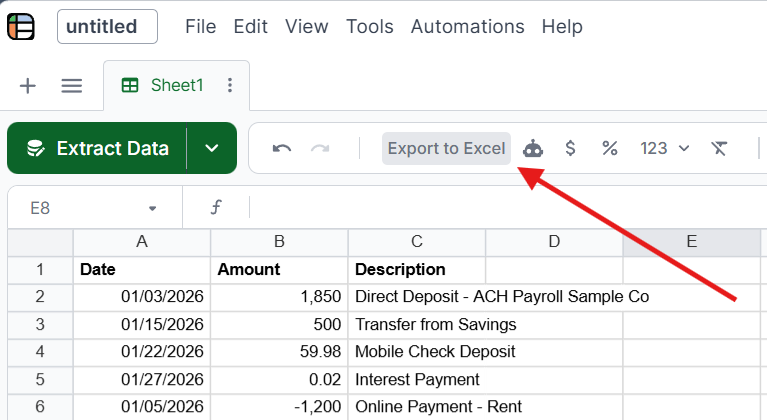
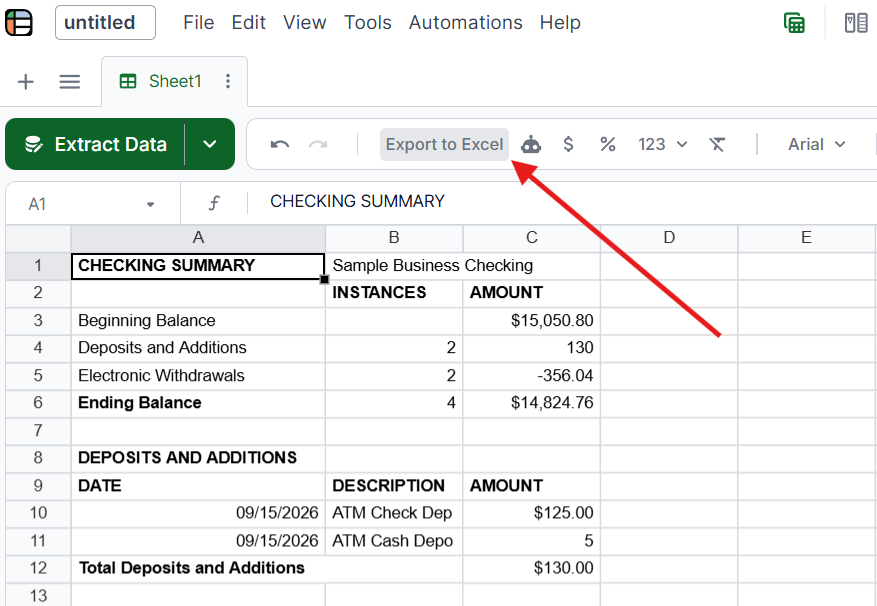
Once you're done, click Export to Excel to download your data as a spreadsheet file.
This method is best when you want to copy a table from a PDF exactly as it appears. The table extractor also helps when PDF tables break in Excel after a normal paste.
Log into Lido and create a New File.
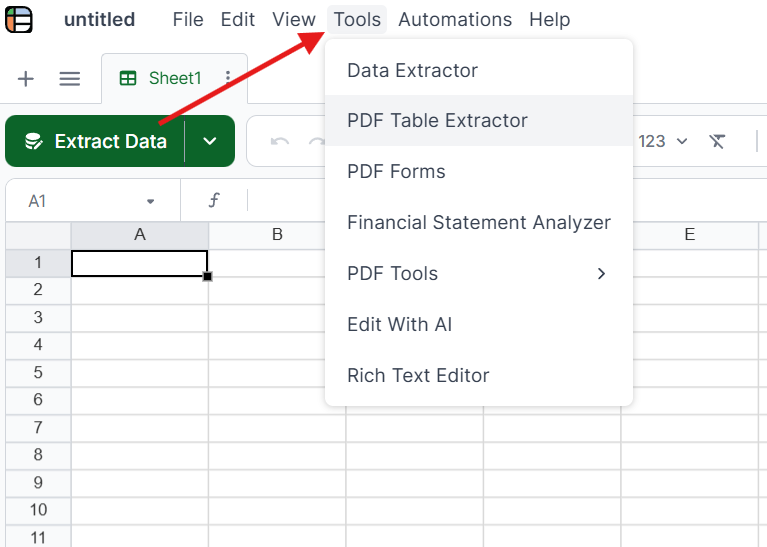
Click on Tools in the top menu and select the PDF Table Extractor. This tool reads the tables in your PDF and keeps their structure intact.
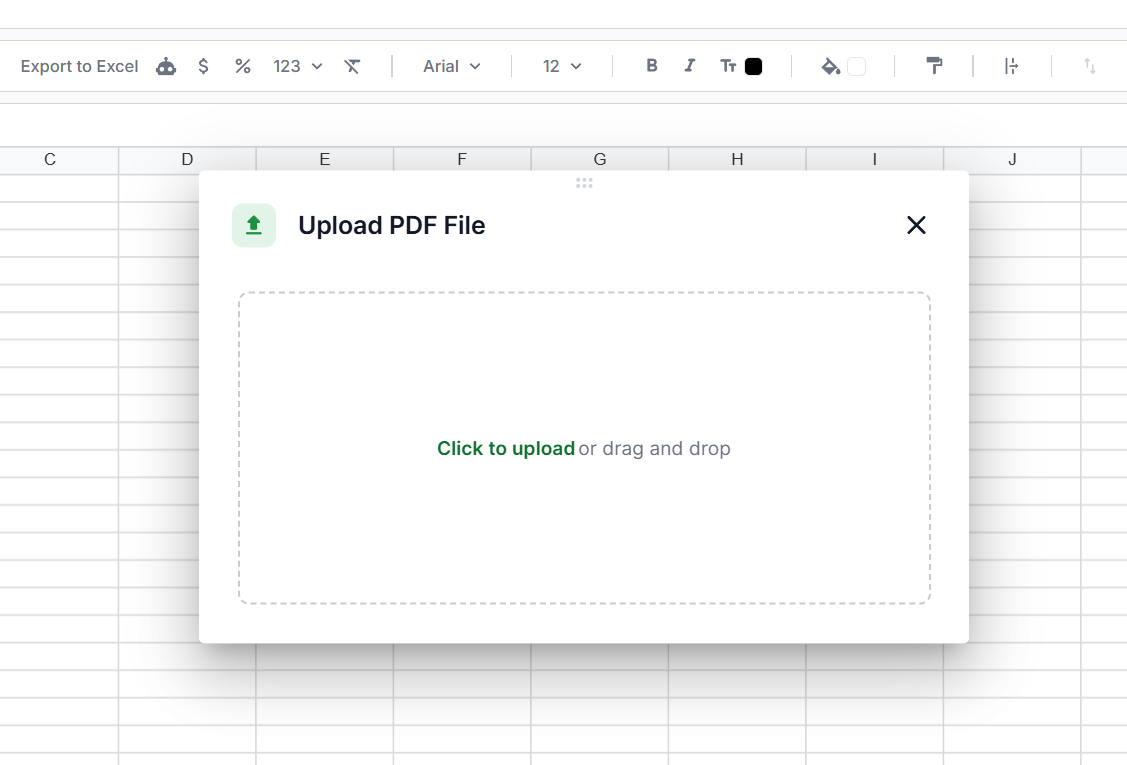
Drag and drop your file into Lido, or click to upload. Digital PDFs, scanned PDFs, and photos of paper documents all work.
Drag the selection box over the tables or sections you want to copy, then click Extract Data.
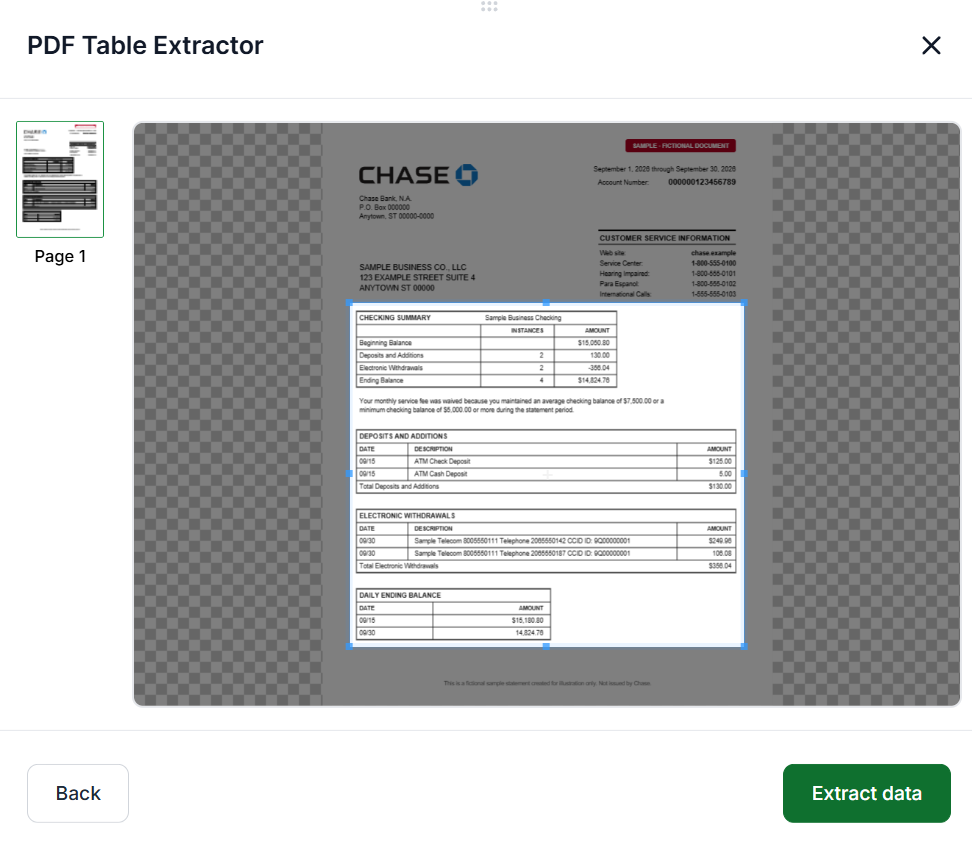
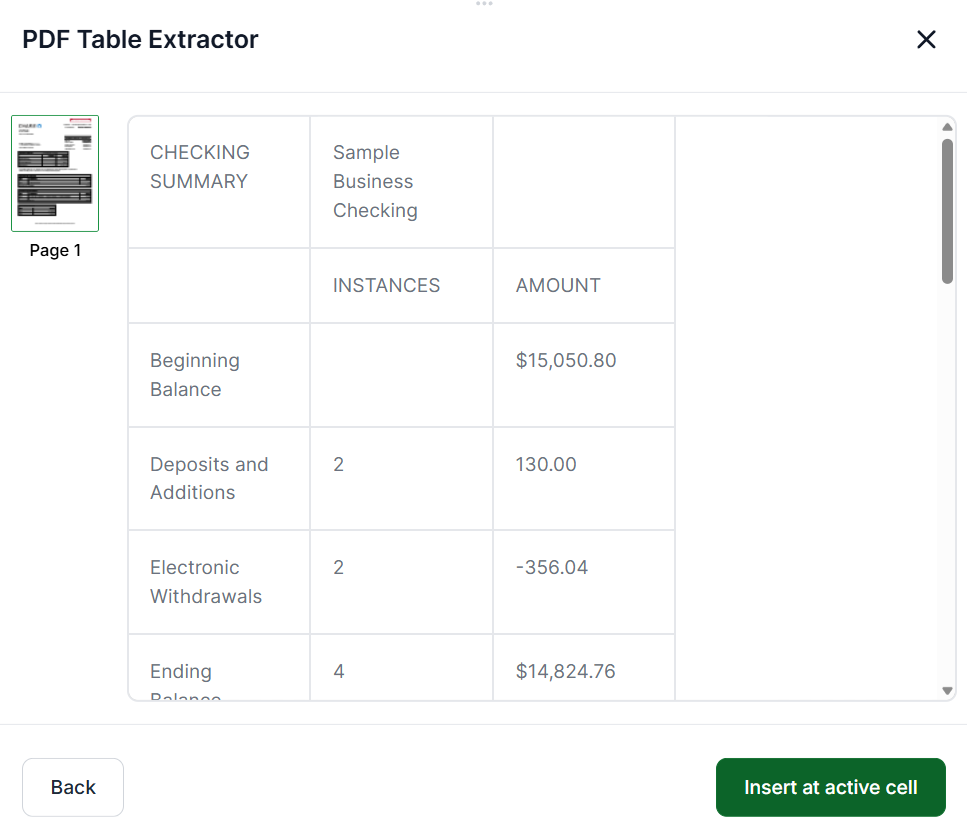
Review the extracted data to make sure it includes everything you need. You can go back to adjust your selection. When you're satisfied, click Insert at Active Cell to add it to your spreadsheet.
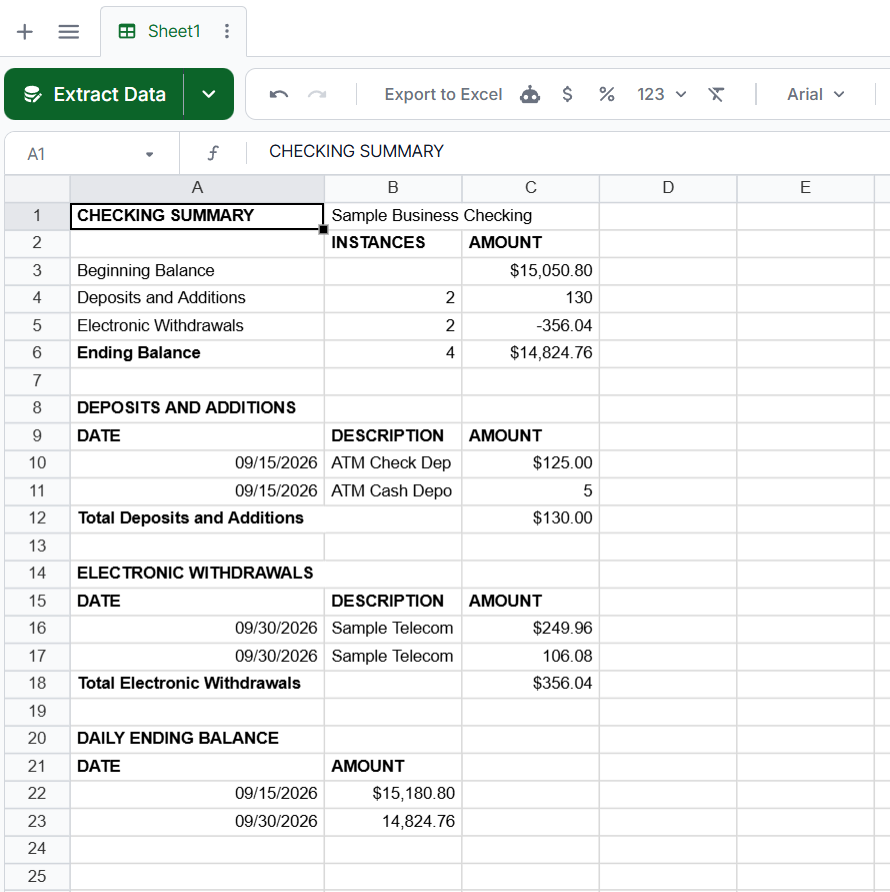
You can edit and format the cells however you need. Adjust column widths, format numbers and dates, or reorganize the data to suit your workflow.
Once you're done, click Export to Excel at the top to download your data as a spreadsheet file.
These methods can work for simple PDFs, but each one has limits:
Copy and paste: Select the data in your PDF, copy it, and paste it into Excel. It only works on small, simple tables in digital PDFs. Columns often merge into one cell, and scanned PDFs have no text to select.
Free PDF to Excel converters: Tools like Smallpdf and iLovePDF convert a PDF to an Excel file in a few clicks. Borderless tables, multi-page tables, and scans usually come out with blank rows and misaligned columns.
Adobe Acrobat Pro: The Export PDF feature converts PDFs to Excel and includes OCR for scans. It handles basic tables, but it requires a paid subscription and struggles with merged cells and complex layouts.
Python scripts: Developers can use libraries like Tabula-py, Camelot, or pdfplumber to extract tables from PDFs. This requires coding skills and doesn't work on scanned PDFs.
Lido works in every scenario: digital PDFs, scanned documents, borderless tables, multi-page tables, merged cells, and complex headers. It's also SOC 2 Type II and HIPAA compliant, so your documents stay secure. For more options, see our guide to the best PDF to Excel converters.
Now that you know how to copy data from a PDF to Excel, you can skip the manual cleanup and get clean, organized data every time.
Upload your PDF to Lido and either enter the columns you need or select a table with the PDF Table Extractor. Lido extracts the data with every row and column intact, and you can click Export to Excel to download it.
PDFs don't store data as rows and columns. When you paste, Excel guesses the layout from tabs and line breaks, which rarely match the original table. This causes merged columns, shifted values, and split rows.
Yes, but you need a tool with OCR to read the text from the image first. Lido includes built-in OCR and keeps the table structure, so scanned PDFs come out just as organized as digital ones.
Yes. Copy and paste is free, and converters like Smallpdf and iLovePDF have free tiers. These work for simple digital PDFs but usually need manual cleanup. Lido offers 50 free pages so you can try it on your own PDFs.
Standard copy and paste almost always loses formatting because PDFs don't store table structure. Lido reads the layout and keeps column headers, rows, and cell values in place when you export to Excel.
Yes. Lido can watch an email inbox or a Google Drive or OneDrive folder and extract data from every new PDF automatically. It can also send you a daily Excel or CSV file with the results.
%20(1).svg)
.png)
